
Add actions and steps

Actions do the work after a trigger starts a run. Connect nodes to define the execution path; their visual position alone does not set order.
Who this is for
Section titled “Who this is for”Agency team members who edit automation drafts. Requires View Automations and Edit Automations.
Before you begin
Section titled “Before you begin”- Open the draft from Settings, then Automations ( /settings/automations (opens in new tab) ).
- Create a draft with at least one trigger. See Create an automation.
- Confirm any required inbox, integration, user, department, task definition, form, or other target already exists.
- Decide what should happen first, what can branch, and whether a step needs to wait.
Find an action
Section titled “Find an action”Expand a category under ACTIONS, or use Search nodes….
| Category | Action examples shown in the builder |
|---|---|
| AI & Content | Generate Text, Generate Image, Process Image, Generate Video, Transcribe Audio, Use MCP Tool, and content research actions |
| Clients | Create, update, delete, or find clients; create, update, or find client notes |
| Programs | Add, activate, pause, resume, suspend, complete, cancel, or find a client program |
| Communication | Send Email, Send SMS, Send Notification, Send Training Reminder, Show Certification Warning |
| Custom Objects | Create, update, delete, or find custom object records |
| Forms | Update Create Entity Form, Approve Submission, Reject Submission, Set Submission Status |
| Integrations | HTTP Request plus actions from the integrations available to your agency |
| Tasks | Create, update, merge, delete, find, or change a task stage; create a public stage link |
| Tickets | Create, update, assign, move, merge, link, unlink, delete, or find tickets; add messages and internal notes; add or remove tags |
| Escalations | Create or update an escalation, or add a comment |
| Users | Create, update, delete, or find users; apply an agency signature or assign training |
| UI Actions | Open Peek / Modal, Redirect User, Show UI Alert, Award Badge |
| Control Flow | Condition, Wait, For Each Loop, Break, Continue, run another automation, and Return |
| Utilities | Formatter and Run Code |
Some actions appear only when their required context or integration is available.
Add or remove tags
Section titled “Add or remove tags”Use Add Tag or Remove Tag to change tags on a ticket, client, client note, task/process, stage, or form submission. Enter one or more tag values in the action configuration. Values are treated as exact strings, including capitalization and whitespace.
By default, the action targets the first matching entity in the workflow context. To target a specific entity type, choose Entity Type. You can also provide an Entity ID directly or insert one with a shortcode. An explicit ID overrides the ID inferred from the workflow context. Select the type when more than one eligible entity is present.
Adding a tag that is already present, or removing a tag that is not present, is a successful no-op. The action leaves the entity unchanged and does not replace the hydrated workflow context with an incomplete result.
Configure an action
Section titled “Configure an action”- Drag an action from the palette onto the canvas.
- Complete the configuration panel.
- Resolve every item under Configuration Errors.
- Select Save.
Fields vary by action. Send Notification, for example, requires a subject, message, recipients, and at least one delivery channel. It also supports user, department, or dynamic recipients and a priority.
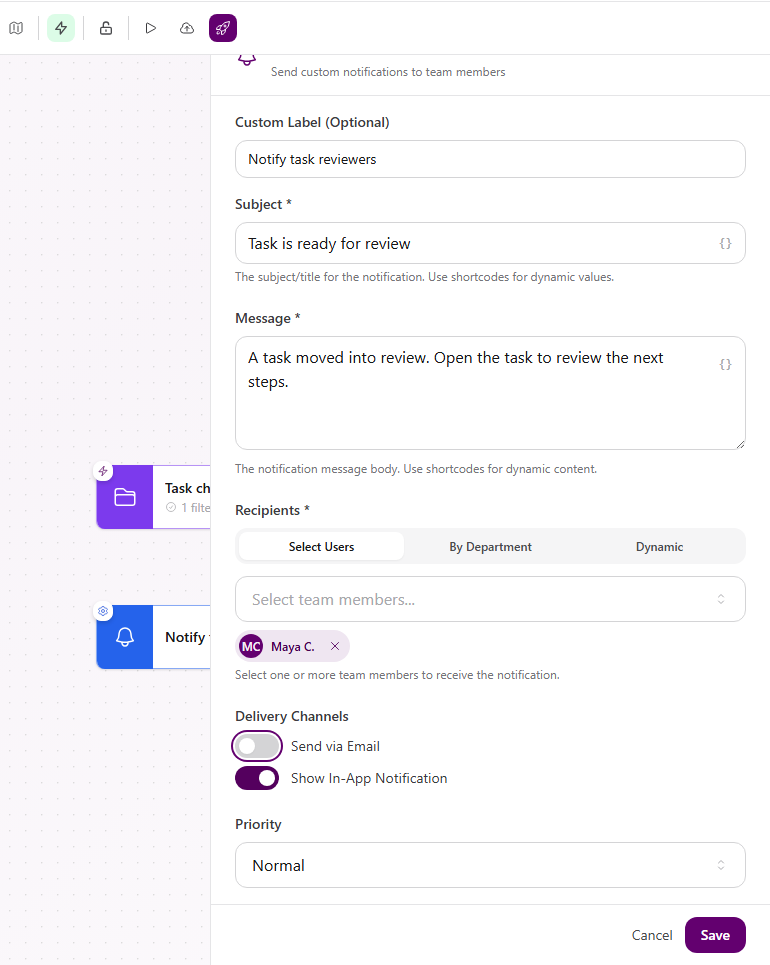
Shortcode controls marked with can insert values from the trigger or earlier steps. Only use data that is available on the path leading into the action.
Connect and order steps
Section titled “Connect and order steps”- Drag from a source handle on the trigger to a target handle on the first action.
- Continue connecting each action in the order it should run.
- Use Condition to create branches.
- Use Wait when the next step should pause.
- Use For Each Loop when an earlier step returns a collection that must be handled one item at a time.
- Move nodes to make the graph readable, but use the arrows rather than canvas position to verify execution order.
- Select Save Draft.
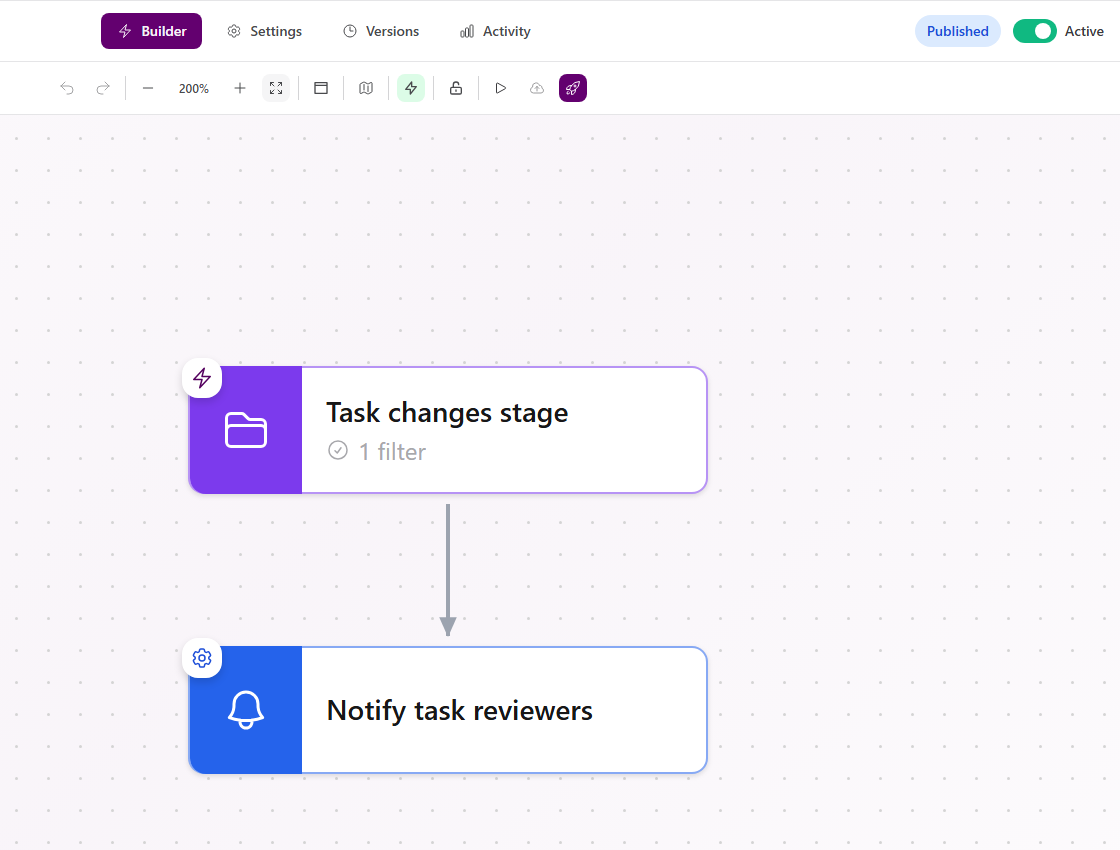
Expected result
Section titled “Expected result”- Each configured node appears on the canvas with a descriptive label.
- Arrows form a complete path from the trigger through the intended actions.
- The issue counter shows no unresolved configuration or graph errors.
- Reloading the builder keeps the saved nodes and connections.
Troubleshooting
Section titled “Troubleshooting”| Symptom | Likely cause | What to do |
|---|---|---|
| Action is unavailable | Required context or integration is missing | Confirm the automation context and connected integration, then search again |
| Save stays disabled | The action has configuration errors | Complete every required field listed in the panel |
| Node exists but never runs | It is not on a connected path from the trigger | Connect the incoming and outgoing handles |
| Steps run in an unexpected order | Canvas position differs from the arrow path | Follow the connections and reconnect the nodes in the intended order |
| Shortcode is empty during a run | Its value is not available from the trigger or earlier path | Choose a value exposed in Data or add a find step before the action |
| Draft changes disappeared | They were not saved before leaving | Configure the node again and select Save Draft before navigating away |
Related articles
 Concept Automations overview Understand where automations live, how triggers and connected steps work, and how draft, published, active, and inactive states differ.
  How-to Create an automation Create an automation draft, choose from the triggers available in the builder, and add field or related-record conditions.
  How-to Publish and manage automations Publish and activate an automation, edit a live version safely, restore an older version as a draft, duplicate, organize, or delete.
  How-to Common automation recipes Build a task-stage notification and a weekday scheduled reminder with the triggers and actions available in AgencyTitan.
  Troubleshoot Troubleshoot automations Diagnose validation issues, missing runs, inactive automations, and failed steps using the builder and Activity execution details.