
Create a view

Create the view from the area that matches its scope, then use the layout builder to choose its data sources and blocks.
Who this is for
Section titled “Who this is for”Agency team members who design dashboards or work lists. Requires View Layouts, Create Layouts, and Edit Layouts. Without Create Layouts, New View does not appear.
Before you begin
Section titled “Before you begin”- Decide whether the view belongs across the agency, in client context, or to one process definition.
- Decide which records the view should show, such as clients, tasks, tickets, time entries, or users.
- Sketch the result: summary metrics, charts, a calendar, a Kanban board, a table, or a combination.
Choose the scope
Section titled “Choose the scope”Open the creation area for the scope you need:
- For a Global view, open Settings, then Views ( /settings/views (opens in new tab) ).
- For a Client view, open Client Views ( /settings/clients/views (opens in new tab) ).
- For a Process view, open the process in process settings and select Views.
Process views are tied to the process you opened. Client views are reusable in client context rather than tied to one client record.
Create the view record
Section titled “Create the view record”-
Select New View.
-
Enter View Name.
-
Optionally choose an icon.
-
Select Create View.
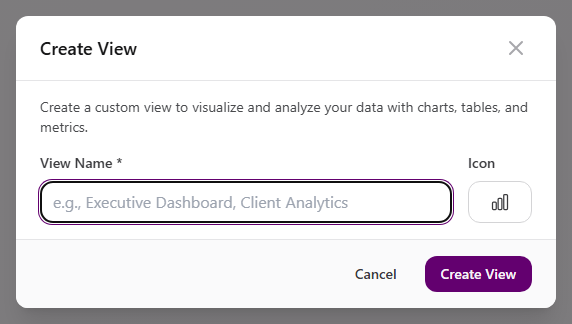
View full size
AgencyTitan opens the new view in the builder.
Add the first data block
Section titled “Add the first data block”-
Select Or Click to Add Section on an empty canvas.
-
Open Data in the left palette.
-
Drag a block into the section:
- Data Table
- Calendar
- Kanban Board
- A chart type
- A metric type
-
Select the block on the canvas to open its properties panel.
-
Choose Data Source. The live selector includes records such as clients, tasks, tickets, time entries, users, assignments, and process-related records.
-
Complete the block-specific settings.
-
Select Save Draft.
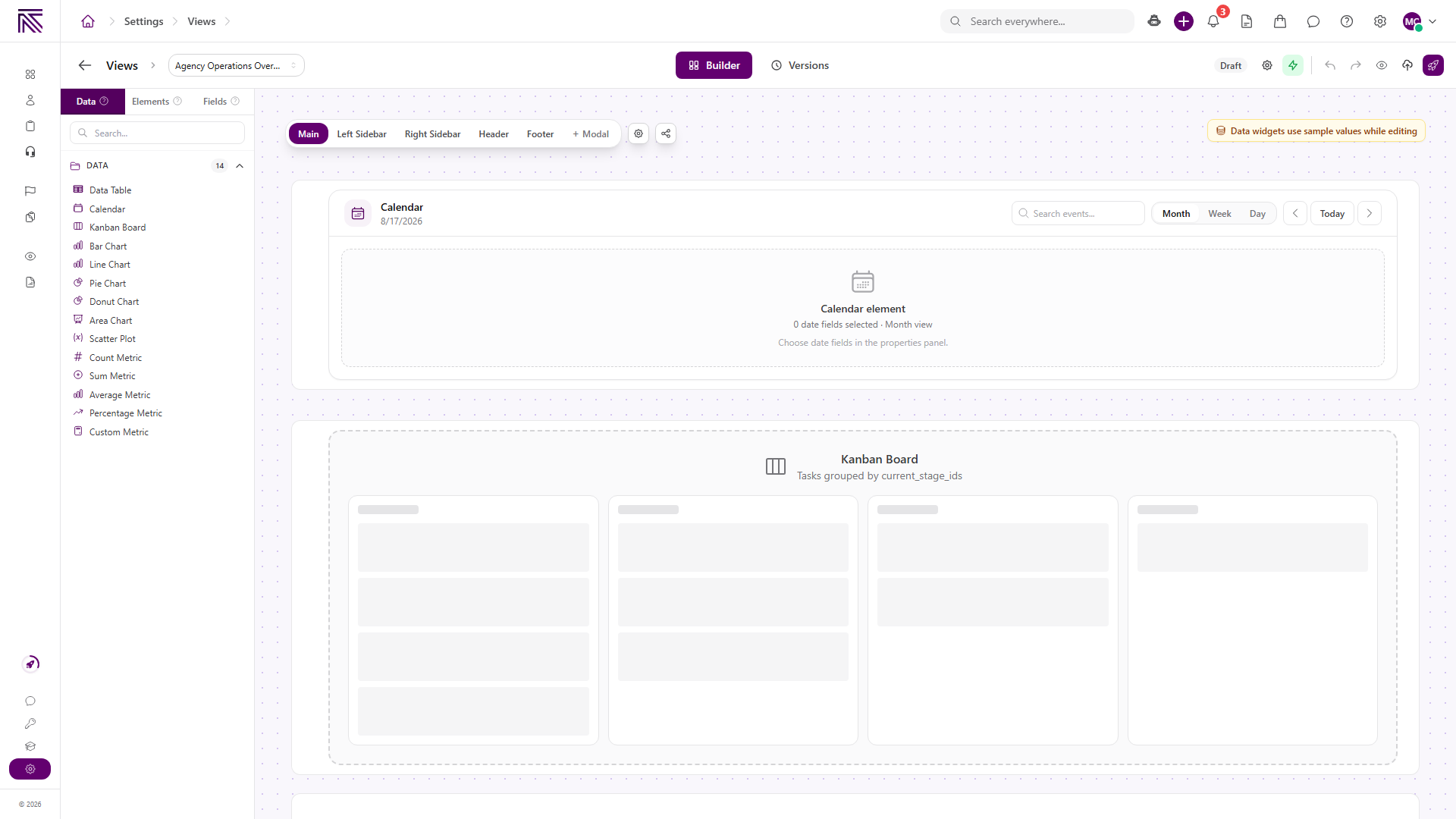
View full size
See Filter and sort view data, Configure Kanban and calendar views, and Configure charts and metrics for the next steps.
Expected result
Section titled “Expected result”- The view appears in the settings list with its scope.
- The builder contains at least one section and one configured block.
- The builder header shows Draft after you select Save Draft.
Troubleshooting
Section titled “Troubleshooting”| Symptom | Likely cause | What to do |
|---|---|---|
| New View is missing | You lack Create Layouts | Ask a workspace owner to grant Create Layouts |
| Create View does not continue | View Name is empty | Enter a name, then retry |
| Wrong scope appears in settings | The view was created from the wrong area | Create it from Global, Client, or the selected process’s Views area |
| Data is unrelated to the view’s purpose | The block uses the wrong Data Source | Select the block and change its data source |
| Changes return after you leave | The draft was not saved | Select Save Draft before leaving the builder |
Related articles
 Concept Views and dashboards overview Understand how AgencyTitan views combine tables, Kanban boards, calendars, charts, and metrics into scoped dashboards and work surfaces.
  How-to Filter and sort view data Configure per-widget filters, condition groups, sorting, limits, and view-level date filtering in a dashboard.
  How-to Configure Kanban and calendar views Configure Kanban grouping, cards, behavior, filters, and calendar data sources, date fields, and default display.
  How-to Configure charts and metrics Add chart series, grouping, sorting, filters, and metric calculations to build a useful AgencyTitan dashboard.
  How-to Manage views Rename, duplicate, organize, change visibility, and delete AgencyTitan views from settings.