
Create an automation
Create an automation from the list, then drag a trigger from the node palette onto the builder canvas. A trigger defines when AgencyTitan starts a run.
Who this is for
Section titled “Who this is for”Agency team members who design automations. Requires View Automations, Create Automations, and Edit Automations. Without Create Automations, New Automation does not appear.
Before you begin
Section titled “Before you begin”- Decide what event or schedule should start the automation.
- Identify the record fields, users, departments, or connected integrations the automation needs.
- Read Automations overview if draft, published, active, and inactive states are new to you.
Create the draft
Section titled “Create the draft”- Open Settings, then Automations ( /settings/automations (opens in new tab) ).
- Select New Automation.
- Enter Automation Name.
- Optionally enter a description so teammates can understand its purpose from the list.
- Select Create Automation.
AgencyTitan opens the Builder with a draft and an empty canvas.
Choose a trigger
Section titled “Choose a trigger”Expand a category under TRIGGERS, then drag the trigger onto the canvas.
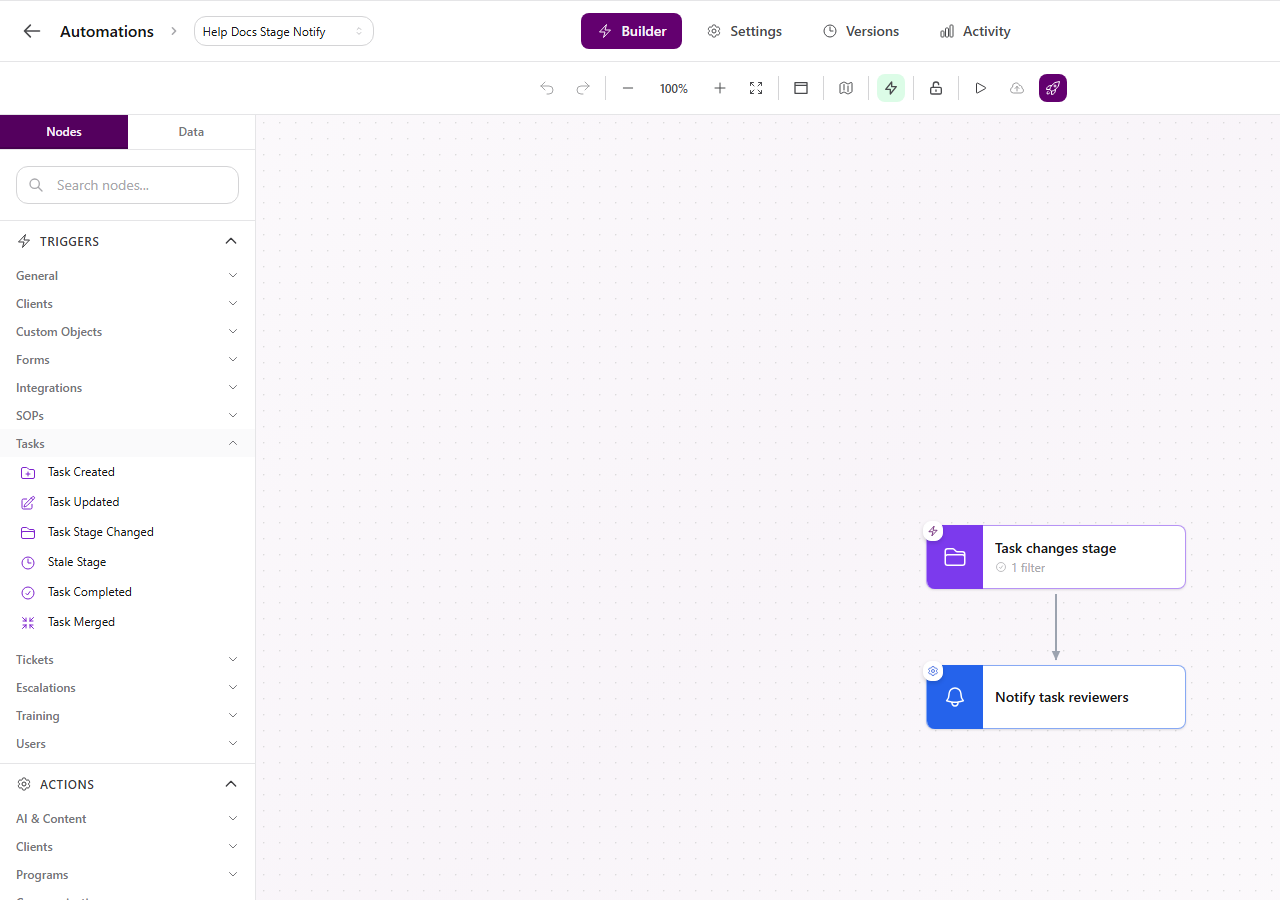
The current builder groups triggers as follows:
| Category | Trigger examples shown in the builder |
|---|---|
| General | Inbound Webhook, On a Schedule, Button/Link Clicked |
| Clients | Client Created, Client Updated, Client Merged, client notes, client programs, and billing events |
| Custom Objects | Custom Object Record Created, Updated, or Deleted |
| Forms | Form Submission Ready, Rejected, or Arrived |
| Integrations | Events from available Mailgun, Google Workspace, Facebook Pages, Instagram, HighLevel, Twilio, Zoom, and Stripe connections |
| SOPs | SOP Updated, Published, Archived, or Feedback Received |
| Tasks | Task Created, Updated, Stage Changed, Stale Stage, Completed, or Merged |
| Tickets | Ticket creation, updates, status, priority, assignment, messages, inbox moves, SLA events, review events, linked-task events, and tag transitions |
| Escalations | Escalation Created, Updated, Status Changed, Reassigned, or Comment Added |
| Training | Course and assessment completion, pass, fail, or submission events |
| Users | User Invited or User Setup Completed |
Integration choices can differ by agency and connection state. Search Nodes when you know the trigger name but not its category.
Use tag transition conditions
Section titled “Use tag transition conditions”The Tag Added and Tag Removed entries let an automation respond to an exact tag membership change. They are available for the Ticket, Client, and Client Note update events. Select the entity, choose the tag transition, and enter the tag value to match.
Tag values are matched as exact, case-sensitive strings. For example, VIP does not match vip. The event must include the previous tag state, so tag transition conditions are not currently available for task/process updates, form submissions, escalations, or custom object record updates. Linked-task triggers do not add tag transition conditions for the linked task.
Configure the trigger
Section titled “Configure the trigger”- Select the trigger node.
- Optionally replace its label with a name that explains the event.
- Complete any trigger-specific settings. For example, On a Schedule requires a schedule type and timezone.
- Select Save in the configuration panel.
The issue counter in the builder toolbar lists missing or invalid required settings. Resolve those issues before publishing.
Add conditions
Section titled “Add conditions”Use trigger conditions when the automation should start for only some matching events.
- Open the trigger node and select Add condition.
- Choose Standard Condition for a field on the trigger record, or Related-Record Condition to traverse to a related record.
- Select a field and comparison.
- Choose Fixed value or Compare to field, then complete the value.
- Select Done.
- Add more conditions or a group when needed.
- Choose whether the group should match All or Any conditions.
- Select Save on the trigger panel, then Save Draft in the toolbar.
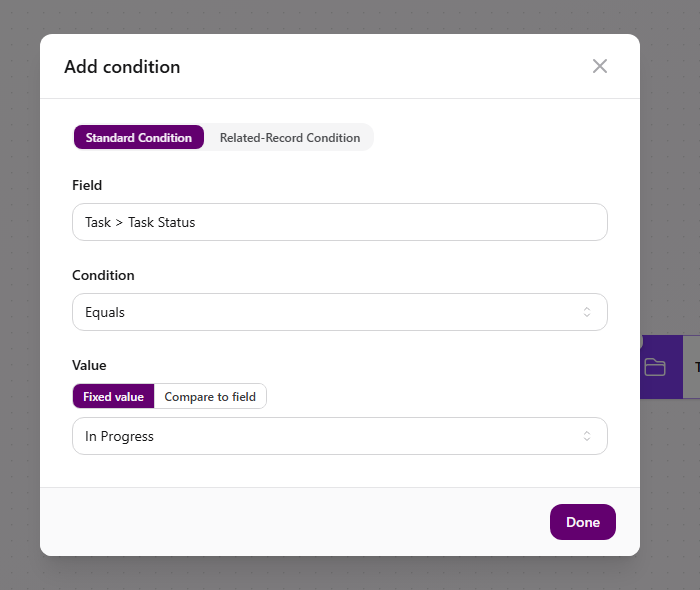
Reopen the trigger after saving and confirm each condition still appears before you publish.
Expected result
Section titled “Expected result”- The new automation appears in the list as a draft.
- The builder shows at least one configured trigger node.
- The toolbar issue count falls as required settings are completed.
- Saved conditions appear when you reopen the trigger.
Troubleshooting
Section titled “Troubleshooting”| Symptom | Likely cause | What to do |
|---|---|---|
| New Automation is missing | You lack Create Automations | Ask a workspace owner to grant Create Automations |
| Trigger is not in the palette | It is unavailable in this automation context or connection state | Search Nodes, check its category, and confirm the required integration is available |
| Save stays disabled | A required trigger setting is incomplete | Review the configuration errors in the panel |
| Condition does not appear after reopening the trigger | The condition did not persist in the draft | Add it again, select Done, save the node, select Save Draft, and submit a ticket if it disappears again |
| Publish control is blocked | The issue counter has one or more validation errors | Open the issue counter and resolve every listed item |
Related articles
 Concept Automations overview Understand where automations live, how triggers and connected steps work, and how draft, published, active, and inactive states differ.
  How-to Add actions and steps Add and configure actions, connect nodes in execution order, and use control-flow and utility steps in the automation builder.
  How-to Publish and manage automations Publish and activate an automation, edit a live version safely, restore an older version as a draft, duplicate, organize, or delete.
  How-to Common automation recipes Build a task-stage notification and a weekday scheduled reminder with the triggers and actions available in AgencyTitan.
  Troubleshoot Troubleshoot automations Diagnose validation issues, missing runs, inactive automations, and failed steps using the builder and Activity execution details.