
Common automation recipes

These recipes use nodes currently available in the global automation builder. Build and test them with safe records and recipients before adapting them to live agency data. Start from Settings, then Automations ( /settings/automations (opens in new tab) ).
Who this is for
Section titled “Who this is for”Agency team members who build automations. Requires View Automations, Create Automations, and Edit Automations.
Before you begin
Section titled “Before you begin”- Choose the task stage change or reminder schedule you want to automate.
- Prepare a safe test task and notification recipients.
- Write the notification subject and message.
Recipe 1: Notify the team when a task changes stage
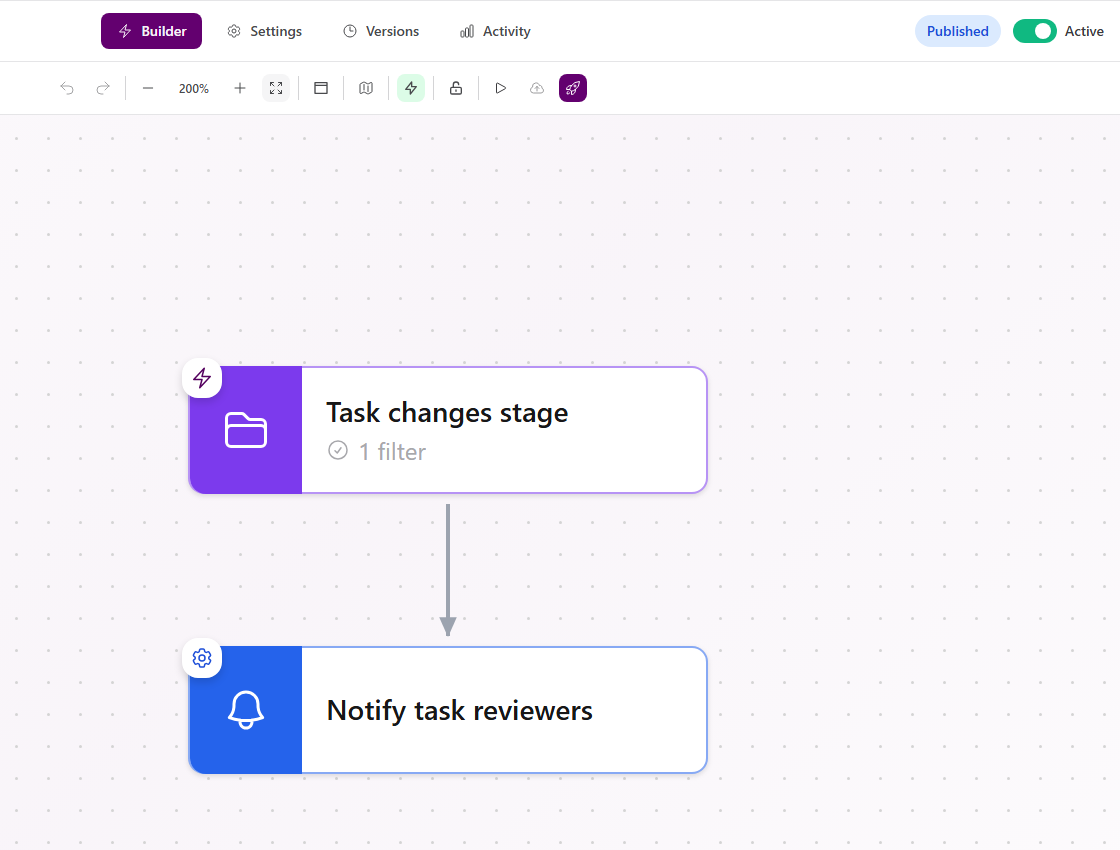
Section titled “Recipe 1: Notify the team when a task changes stage”- Create an automation with a descriptive name, such as Notify on Task Stage Change.
- Under TRIGGERS, expand Tasks and drag Task Stage Changed onto the canvas.
- Give the trigger a descriptive label such as Task changes stage.
- If every stage change should notify the team, leave the trigger without conditions.
- If only some changes should qualify, add a condition and confirm it still appears after saving and reopening the trigger.
- Under ACTIONS, expand Communication and drag Send Notification onto the canvas.
- Enter a subject and message.
- Choose Select Users, By Department, or Dynamic, then select the recipients.
- Choose email, in-app, or both delivery channels and set a priority.
- Save the action and connect the trigger to it.
- Select Save Draft, reload to verify the graph, publish, then turn on Active.
Recipe 2: Send a weekday reminder
Section titled “Recipe 2: Send a weekday reminder”- Create an automation with a descriptive name, such as Weekday Team Reminder.
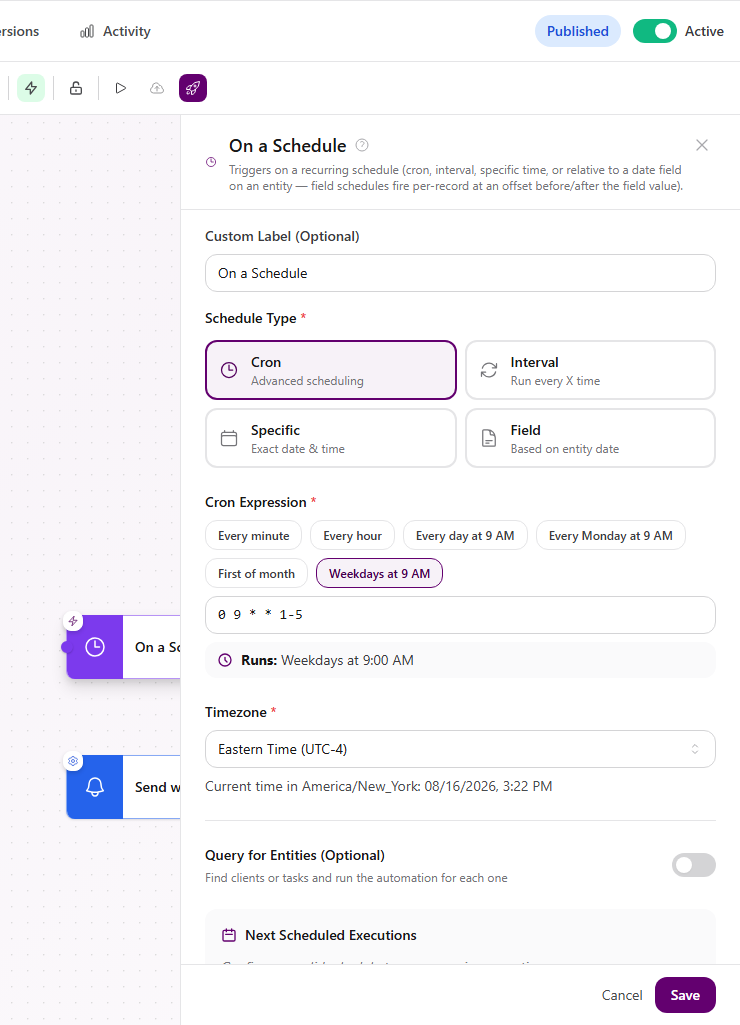
- Under TRIGGERS, expand General and drag On a Schedule onto the canvas.
- Choose Cron.
- Select Weekdays at 9 AM, or enter another valid cron expression.
- Confirm the timezone and review Next Scheduled Executions.
- Leave Query for Entities off for one agency-wide reminder. Turn it on only when the automation should find clients or tasks and run for each result.
- Add Send Notification from Communication.
- Enter the reminder subject and message, select recipients and delivery channels, then save.
- Connect the schedule trigger to the notification.
- Save the draft, publish, and turn on Active.
Validate either recipe
Section titled “Validate either recipe”- Reload the builder and confirm nodes and connections remain.
- Check the issue counter before publishing.
- Use the Test Automation panel only with safe recipients and records.
- Open Activity after a test or real trigger and confirm the new execution status.
- Turn the automation inactive when testing is complete if it should not continue running.
Expected result
Section titled “Expected result”- The task recipe records a run when its qualifying stage-change trigger fires.
- The schedule recipe shows upcoming weekday executions and runs at the configured time while active.
- Notification recipients receive the configured delivery channels when the action succeeds.
Troubleshooting
Section titled “Troubleshooting”| Symptom | Likely cause | What to do |
|---|---|---|
| The automation cannot be published | A node is incomplete, disconnected, or unsaved | Open each issue shown in the builder, complete the required values, connect the nodes, and select Save Draft |
| A task stage change does not start a run | The automation is inactive or the trigger conditions do not match the task | Confirm the automation is published and Active, then review the Task Stage Changed conditions |
| A scheduled reminder runs at the wrong time | The schedule uses a different time zone or cron expression | Open On a Schedule, confirm the time zone and expression, and review Next Scheduled Executions |
| A notification is not delivered | The action does not include the intended recipient or delivery channel | Open Send Notification and review the recipients, Email, and In-app settings |
Related articles
 How-to Create an automation Create an automation draft, choose from the triggers available in the builder, and add field or related-record conditions.
  How-to Add actions and steps Add and configure actions, connect nodes in execution order, and use control-flow and utility steps in the automation builder.
  How-to Publish and manage automations Publish and activate an automation, edit a live version safely, restore an older version as a draft, duplicate, organize, or delete.
  How-to View automation run history Use the Activity tab to filter automation runs, open an execution timeline, inspect step errors, copy identifiers, and re-run safely.
  Troubleshoot Troubleshoot automations Diagnose validation issues, missing runs, inactive automations, and failed steps using the builder and Activity execution details.