
Welcome to AgencyTitan

Use this page to get into the agency app and start useful work. For definitions and how records relate, see Core Concepts.
Who this is for
Section titled “Who this is for”New agency team members. Owners and users with the Administrator role can also use it as a first-week checklist. Your role and permissions control which pages and buttons you see.
Sign in and choose your agency
Section titled “Sign in and choose your agency”- Open the agency app ( /login (opens in new tab) ) and sign in.
- Confirm the agency name in your avatar menu. If you belong to more than one agency, select the correct one under My Agencies.
- Use Add another agency only when you need to join or create another workspace.
The client portal is a separate signed-in surface for external contacts. Do not send portal users to the agency app. See Client portal.
Main areas
Section titled “Main areas”These are the day-to-day surfaces in the agency app. Your agency’s navigation can hide, rename, or reorder items. Use the Help column when a guide already exists for that area.
| Area | Open it to | Path | Help |
|---|---|---|---|
| My Day | Plan and work today’s assigned items | /dashboard/my (opens in new tab) | Overview |
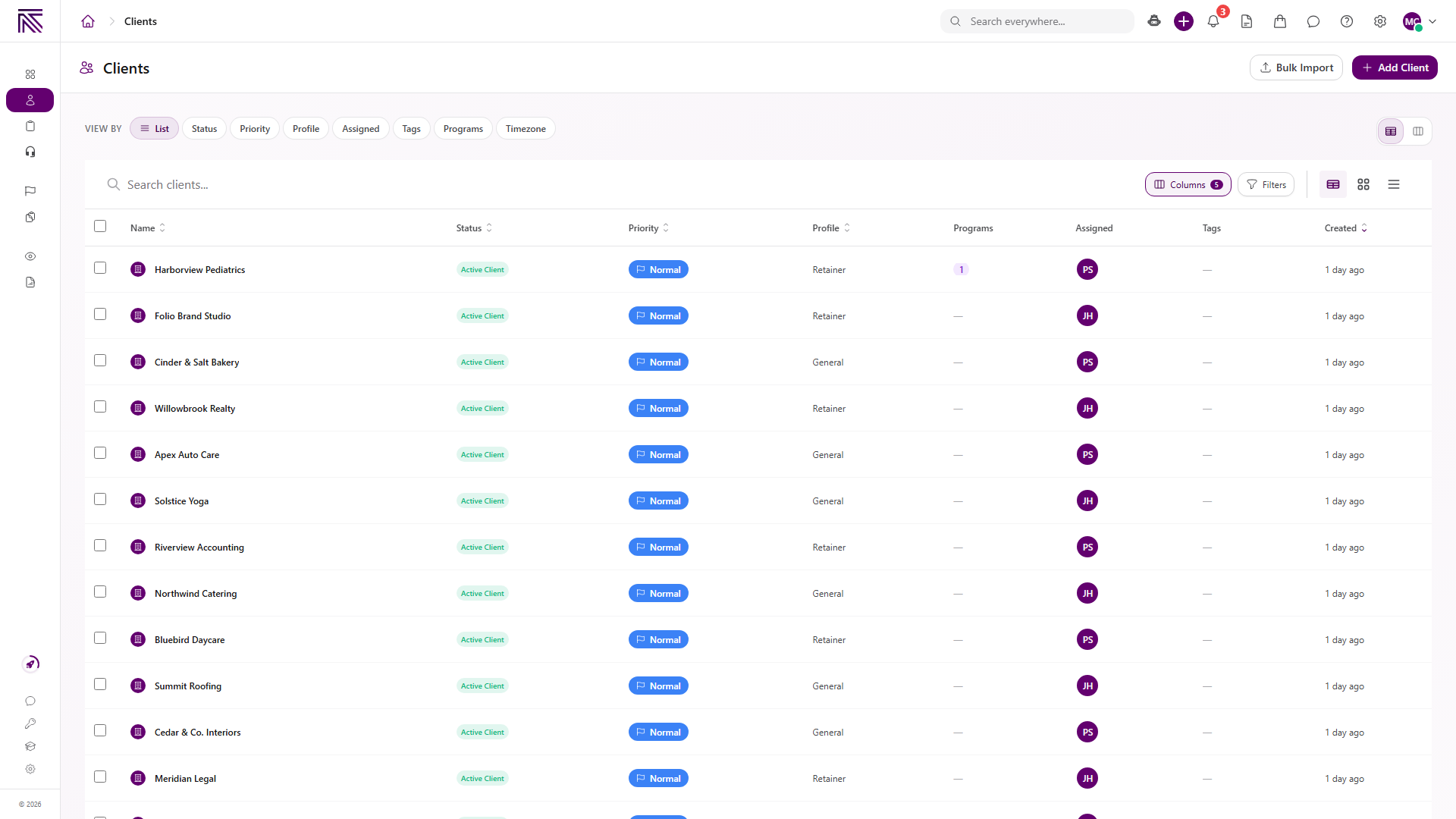
| Clients | Find an account and open its record | /clients (opens in new tab) | Overview |
| Tasks | Create and complete planned work from a process type | /tasks/active (opens in new tab) | Overview |
| Tickets | Triage incoming requests and reply | /tickets/inbox (opens in new tab) | Overview |
| Escalations | Handle flagged issues that need a higher-priority path | /escalations (opens in new tab) | Overview |
| Views | Open published dashboards and work lists | /views (opens in new tab) | Overview |
| Reports | Open reporting surfaces for time, work, and forms | /reports (opens in new tab) | Later |
| Forms | Review public form submissions | /forms (opens in new tab) | Later |
| Chat | Message teammates inside the agency | /chat (opens in new tab) | Overview |
| SOPs & Training | Read procedures and complete training | /knowledge (opens in new tab) | Overview |
| Credentials | Store and use shared logins for client work | /credentials (opens in new tab) | Later |
| AI Assistant | Ask questions and take actions in this agency | /ai (opens in new tab) | Later |
| AI Presets | Reuse saved AI configurations | /settings/ai-presets (opens in new tab) | Later |
| Automations | Build and manage event-driven runs | /settings/automations (opens in new tab) | Overview |
| Marketplace | Install or publish agency apps and packages | /marketplace (opens in new tab) | Later |
| Settings | Change shared definitions, access, and system setup | /settings (opens in new tab) | Overview |
Personal tools live outside that list:
- The bell opens Notification Center ( /notifications (opens in new tab) ).
- Your avatar menu holds agency switching, availability status, and Sign out.
First week
Section titled “First week”If you are an Owner or Admin setting up the workspace, do this before the team starts daily work:
- Create departments, add levels, and grant permissions. See Set up departments and levels.
- Invite teammates into those levels. See Invite your team.
For daily work:
- Open My Day and review Today’s List. See Work your day.
- Open Clients and find or create the account you will work. See Create a client.
- If the work is planned and repeatable, create a task from a Process Type. See Create a task.
- If a request arrived in an inbox or needs a reply, open Tickets. See Find and work tickets.
- Open Views when you need a board, calendar, chart, or filtered list that your agency already published.
- Read Core Concepts when a term such as process definition, view, or automation is unclear.
You do not need every area on day one. Start with the record in front of you.
Leave these until you need them
Section titled “Leave these until you need them”- Most Settings pages change shared configuration for the whole agency. See Settings overview.
- Automations and AI Presets are easier after the daily records are familiar.
- Programs, custom fields, branding, and billing belong to later setup work.
Get help
Section titled “Get help”- Search this Help Center or browse the category overviews from the Help home.
- Common account and data questions are in the FAQ.
- File a problem or question with Submit a ticket.
Related articles
 Concept Core Concepts Learn the AgencyTitan product model: workspace, clients, tasks, tickets, escalations, chat, SOPs, training, views, automations, programs, and settings.
  How-to Set up departments and levels Create departments, add levels, and grant permissions so Members get the right access before you invite the team.
  How-to Invite your team Invite agency teammates from Users so they can sign in to the agency app. This is not a client portal invite.
  Concept My Day overview Understand My Day, Today's List, Overflow, triage, and Timeline so you can plan and work assigned items for today.
  Concept Clients overview Understand the Clients list, client record anatomy, Client Profile templates, Info Sheets, notes, programs, tasks, and tickets.