
Invite your team

Invite people to your agency so they can sign in to the agency app. A team invite is not a client portal invite. Portal contacts stay outside your agency team.
Who this is for
Section titled “Who this is for”Owners and users with the Admin role who add agency teammates. Requires View Users to open the list and Invite Users to send invitations. Without Invite Users, the Invite Users button does not appear.
Before you begin
Section titled “Before you begin”- You are signed in to the correct agency.
- You have the person’s work email address.
- For a Member, know which department and level they should receive, if any. Create those first if they do not exist. See Set up departments and levels.
New to roles? See Core Concepts.
Open Users
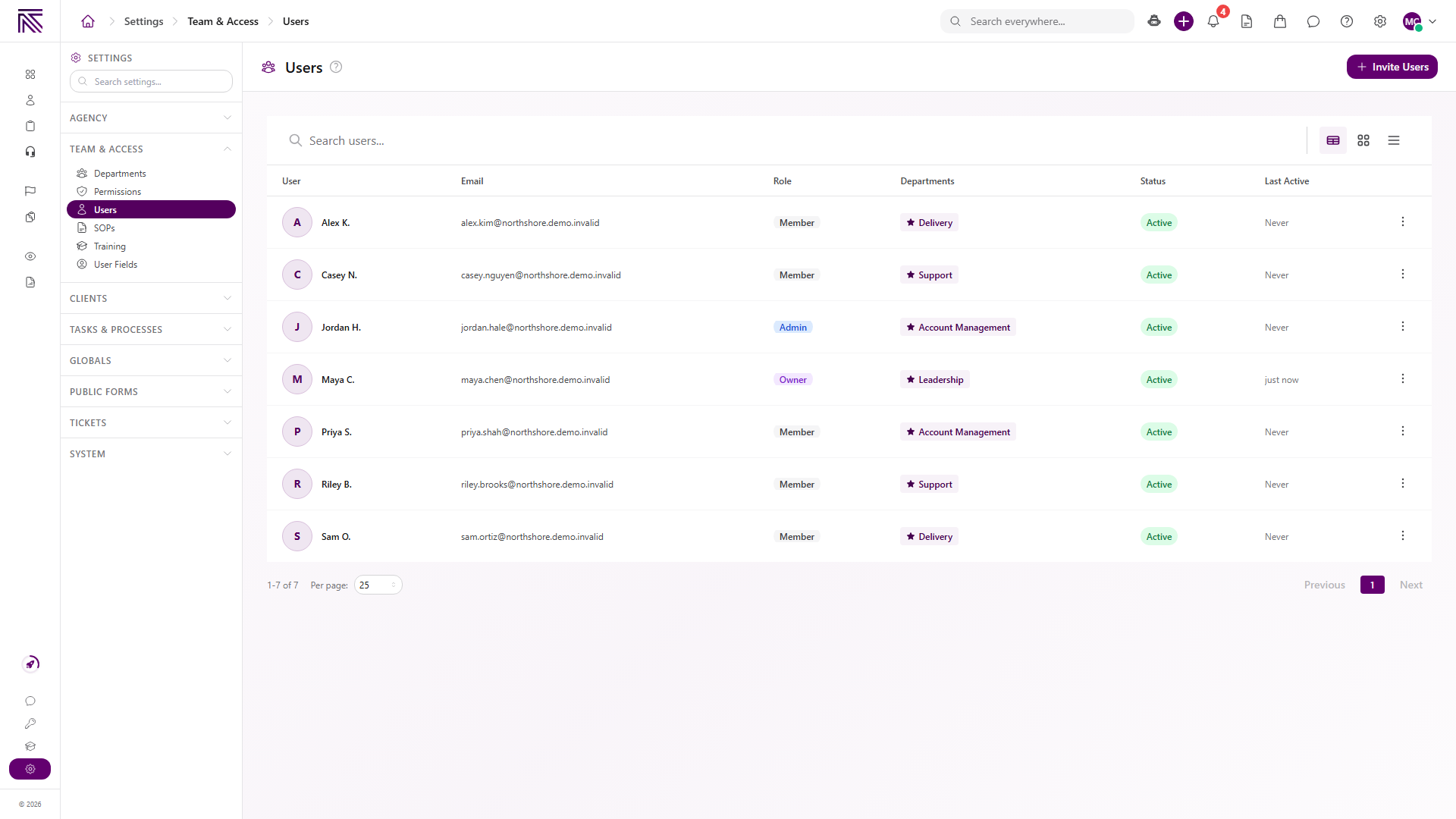
Section titled “Open Users”- Open Settings, then Team & Access, then Users ( /settings/agency/users (opens in new tab) ).
- Confirm the list shows each teammate’s name, email, role, departments, status, and last active time.
Open the invite page
Section titled “Open the invite page”Select Invite Users.
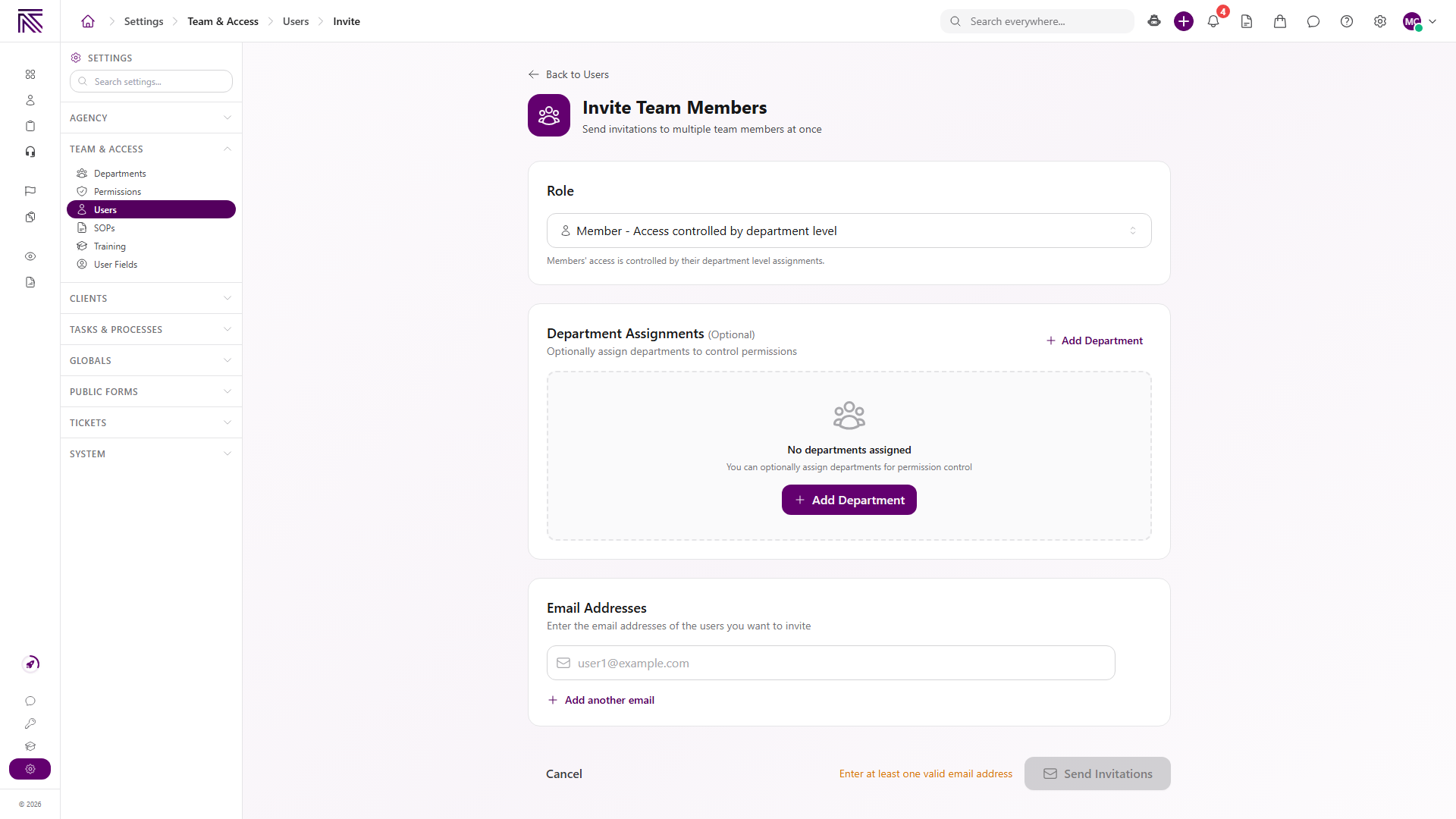
The Invite Team Members page opens. Back to Users returns to the list.
Choose a role
Section titled “Choose a role”- Under Role, keep Member - Access controlled by department level unless this person should be an Admin or Owner.
- Member access comes from department levels. Admin has the same product access as Owner, except impersonation rank and owner removal. See Core Concepts.
- Only an Owner can invite another Owner.
Optional department assignments
Section titled “Optional department assignments”Department assignments appear when Role is Member. They are optional.
- Select Add Department.
- Choose Department and Level.
- Optionally select Set as primary department.
- Select Add.
You can assign departments later from the user’s profile if you skip this step.
Enter email addresses
Section titled “Enter email addresses”- Under Email Addresses, enter the work email for the first person.
- Select Add another email to invite more people with the same role and department assignments.
Send Invitations stays disabled until at least one valid email address is entered. The page shows Enter at least one valid email address until that is true.
Send the invitations
Section titled “Send the invitations”- Select Send Invitations.
- Select Back to Users if the page does not return on its own.
If the address already has an AgencyTitan account, that person is added to this agency instead of creating a second login.
Expected result
Section titled “Expected result”- The Users list includes a row for each invited address.
- New invites show status Invited until the person accepts and signs in.
- Accepted teammates can open the agency app with the role you chose.
Troubleshooting
Section titled “Troubleshooting”| Symptom | Likely cause | What to do |
|---|---|---|
| Users is missing from Settings | You lack View Users | Ask an Owner or Admin to grant View Users |
| Invite Users is missing | You lack Invite Users | Ask an Owner or Admin to grant Invite Users |
| Send Invitations stays disabled | No valid email address is entered | Enter at least one complete email address |
| Invite as Owner fails | Only an Owner can invite another Owner | Sign in as an Owner, or invite as Admin or Member |
| The person received a portal login, not the agency app | A client portal invite was sent from the client record | Use Team & Access, then Users. See Invite a client portal user for the other path |
Related articles
 How-to Set up departments and levels Create departments, add levels, and grant permissions so Members get the right access before you invite the team.
  Concept Core Concepts Learn the AgencyTitan product model: workspace, clients, tasks, tickets, escalations, chat, SOPs, training, views, automations, programs, and settings.
  How-to Invite a client portal user Invite a client contact to the client portal so they can sign in and access this client's workspace. Send a client portal invite from the Client Portal Users page.
  How-to Agency settings Update agency identity and branding, and understand how users, roles, departments, and department-level permissions work together.
  Concept Welcome to AgencyTitan Sign in, find the main areas of the agency app, and choose a first-week path.