
Find and organize clients
Use the Clients list to find, search, and filter clients in your roster, tailor client columns to the work in front of you, and keep pinned clients easy to reach.
Who this is for
Section titled “Who this is for”Agency team members who browse and organize client records. Requires the View Clients permission. Without it, Clients is not available.
Before you begin
Section titled “Before you begin”- You are signed in to the correct agency workspace.
- At least one client record exists (or you expect an empty list until records are added).
New to client vocabulary? See Clients overview.
Open Clients
Section titled “Open Clients”-
Open Clients ( /clients (opens in new tab) ).
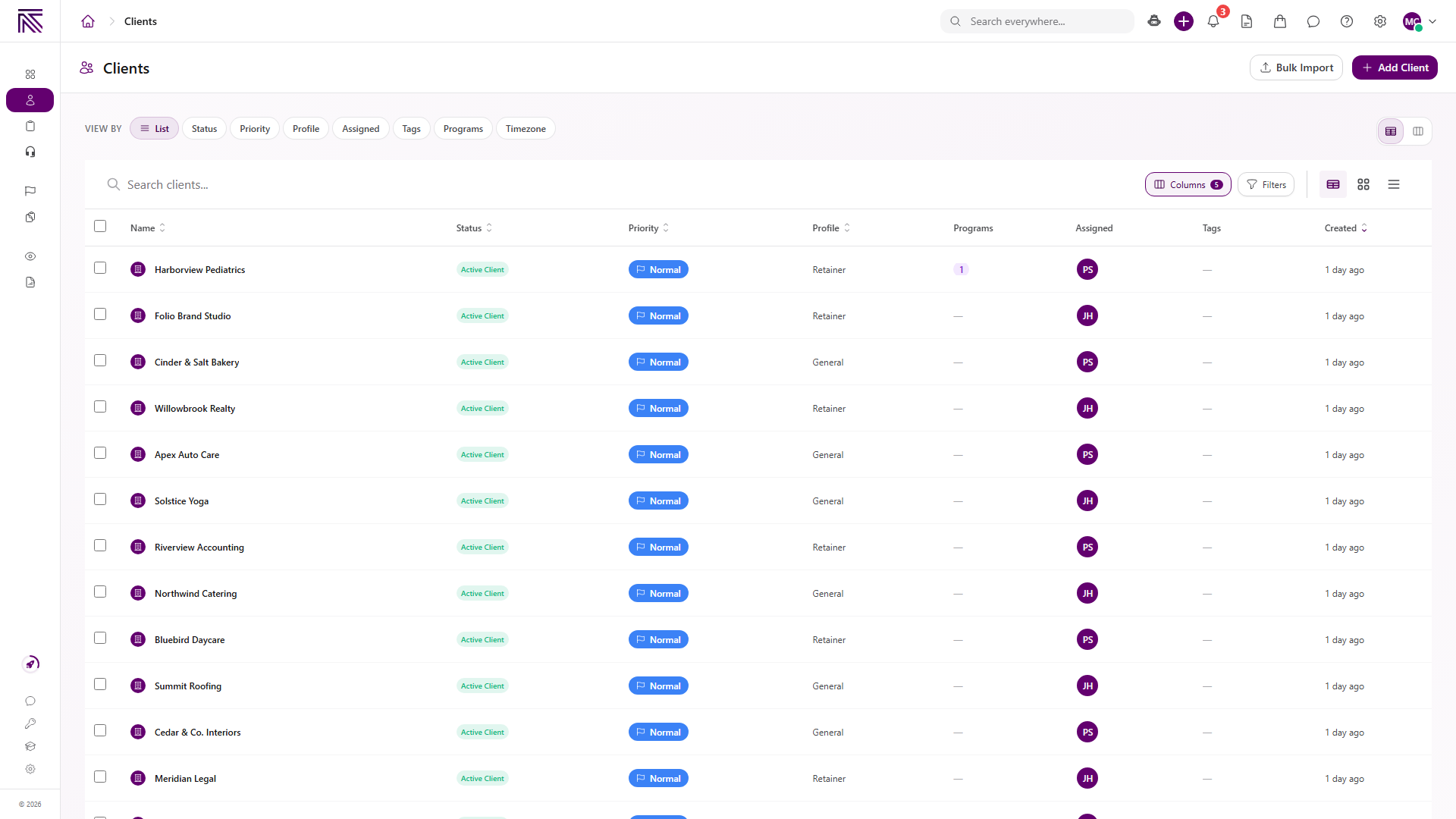
The page title is Clients. Primary actions are Bulk Import and + Add Client.
View full size
Search clients
Section titled “Search clients”Use Search clients… above the table to narrow the list by name and other client text. Results update as you type. Clear the field to return to the full list (respecting any active filters).
View By
Section titled “View By”VIEW BY switches how the roster is grouped or presented:
- List
- Status
- Priority
- Profile
- Assigned
- Tags
- Programs
- Timezone
Use Table View or Board View on the right when you want a table layout or a board-style layout for the current View By mode.
Display and layout controls
Section titled “Display and layout controls”Above the table, use the layout shortcuts to change density:
- Table layout (keyboard shortcut Alt+1)
- Grid layout (Alt+2)
- List layout (Alt+3)
These controls change how rows render. They do not change which clients you can access.
Customize columns
Section titled “Customize columns”-
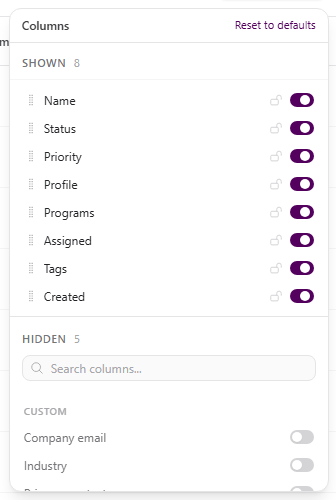
Select Columns. When your workspace has custom client fields, the button shows a CUSTOM badge. Any count on the button reflects available columns and varies by workspace.
-
Review SHOWN columns. Defaults include Name (locked), Status, Priority, Profile, Programs, Assigned, Tags, and Created.
-
Toggle additional columns from HIDDEN, Search columns…, or Custom fields sections.
-
Drag handles to reorder columns.
-
Select Reset to defaults to return to the standard column set.
View full size
Filter clients
Section titled “Filter clients”-
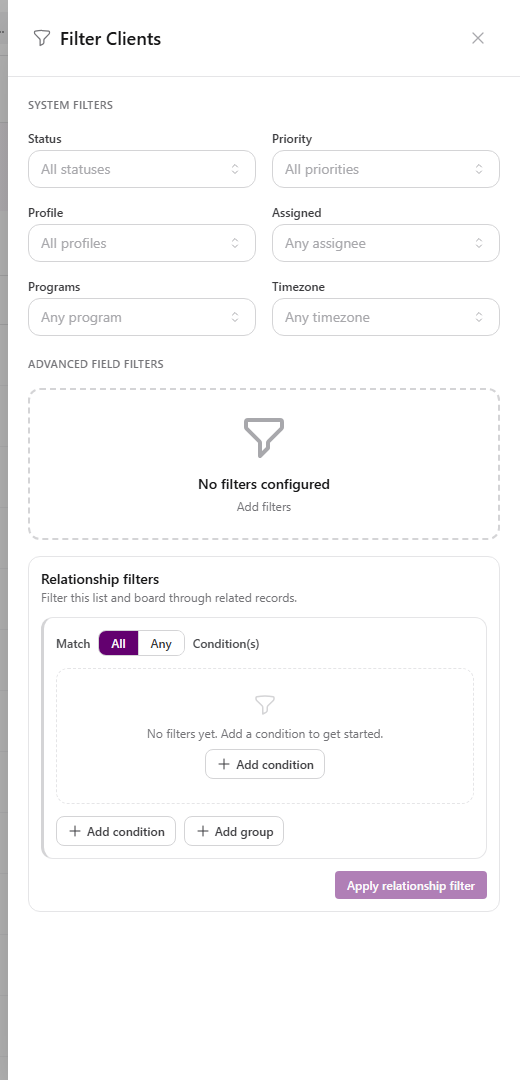
Select Filters to open Filter Clients.
-
Under SYSTEM FILTERS, narrow by Status, Priority, Profile, Assigned, Tags, Programs, or Timezone.
-
Under ADVANCED FIELD FILTERS, select Add filters to build custom filters on specific client fields when you need more precision than the system filters provide.
When no advanced rules exist, the drawer shows No filters configured.
View full size -
Close the drawer when finished. The table reflects your filter choices.
Sort the list
Section titled “Sort the list”In Table View, select sortable column headers to change order:
- Name
- Status
- Priority
- Profile
- Created
Select a header again to reverse sort direction. Sorting applies to the current search and filter state.
Pin clients
Section titled “Pin clients”-
Hover the Name column for a client and select the Pin client control beside the client name.
-
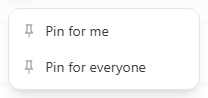
Choose Pin for me to keep that client pinned in your own list experience.
-
When Pin for everyone appears, workspace owners can use it to pin the client for all users in the agency UI.
View full size
Pinned clients stay easy to spot while you work through the rest of the roster.
Expected result
Section titled “Expected result”- The table shows only clients that match your search, View By mode, filters, and permissions.
- Visible client columns match your Columns choices.
- Sort order follows the header you selected.
- Pinned clients appear according to your pin choice (Pin for me, or Pin for everyone when you used that option).
Select a client name to open its record on the Info Sheet.
Troubleshooting
Section titled “Troubleshooting”| Symptom | Likely cause | What to do |
|---|---|---|
| Clients is missing from navigation | You lack View Clients | Ask a workspace owner to grant View Clients |
| List is empty | No clients yet, or filters/search exclude every row | Clear Search clients…, reset Filters, and confirm records exist |
| A column you need is missing | It is hidden in Columns | Open Columns, search HIDDEN or Custom fields, and toggle it on |
| Reset to defaults removed custom layout | Expected behavior | Re-enable the columns you need |
| Pin for everyone is missing | Your account is not shown team-wide pin controls in the UI | Use Pin for me, or ask a workspace owner to pin for the team |
| Sort appears wrong | Another sortable header is active | Check Name, Status, Priority, Profile, and Created header indicators |
Related articles
 Concept Clients overview Understand the Clients list, client record anatomy, Client Profile templates, Info Sheets, notes, programs, tasks, and tickets.
  How-to Create a client Add a client record from the Clients list using Client Name, Client Profile, and any agency-required fields.
  How-to Update a client Edit client details on the Info Sheet and Client Settings, change status and priority from the list, update branding and slug, and reassign the Client Profile template.
  How-to Invite a client portal user Invite a client contact to the client portal so they can sign in and access this client's workspace. Send a client portal invite from the Client Portal Users page.
  How-to Delete a client Remove a client from normal Clients lists with typed DELETE confirmation. Delete one client from the record page or several from the Clients list.
  Concept Core Concepts Learn the AgencyTitan product model: workspace, clients, tasks, tickets, escalations, chat, SOPs, training, views, automations, programs, and settings.