
Process settings

Use Process settings to define the structure and data behind repeatable tasks. This guide identifies the main configuration surfaces without covering deep process authoring.
Who this is for
Section titled “Who this is for”Agency team members who review or change process definitions. Opening the list requires View Process Definitions or View Processes. Creating a definition requires Create Process Definitions. Changing stages, fields, or process settings requires Edit Process Definitions.
Find a process definition
Section titled “Find a process definition”- Open Settings, then Tasks & Processes, then Processes ( /settings/processes (opens in new tab) ).
- Use Search processes… or the All, Active, and Archived filters to find a definition.
- Use the folder and layout controls when you need another way to organize or scan the list.
- Select a process name to open its configuration.
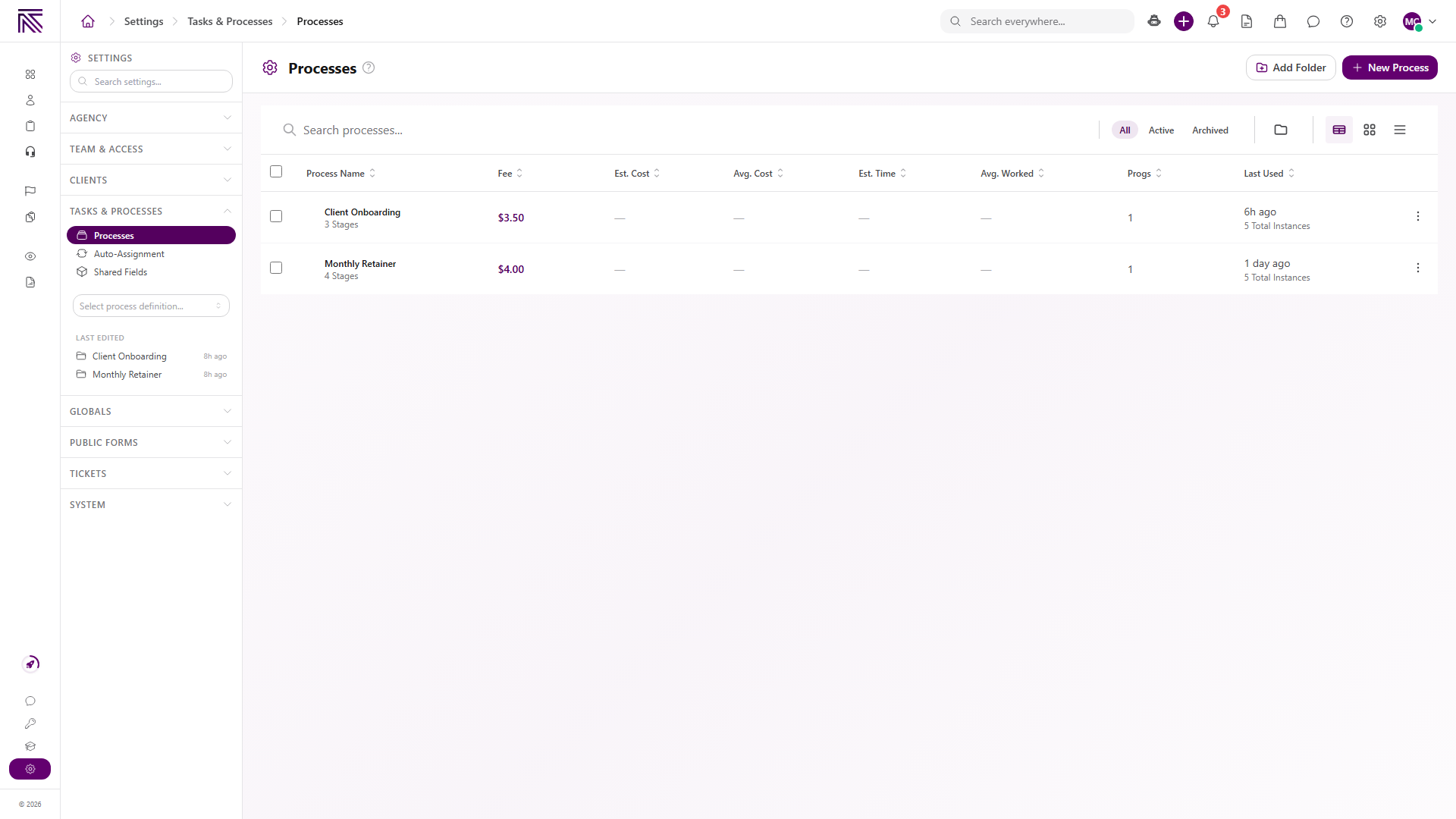
The list shows each process’s stages and available operational information such as fee, estimated time, use, and program count. Select New Process to begin a new definition or Add Folder to organize definitions.
Understand stages
Section titled “Understand stages”Open a process, then select Stages ( /settings/processes/:id/stages (opens in new tab) ). Use List or Flow to switch how the structure is displayed.
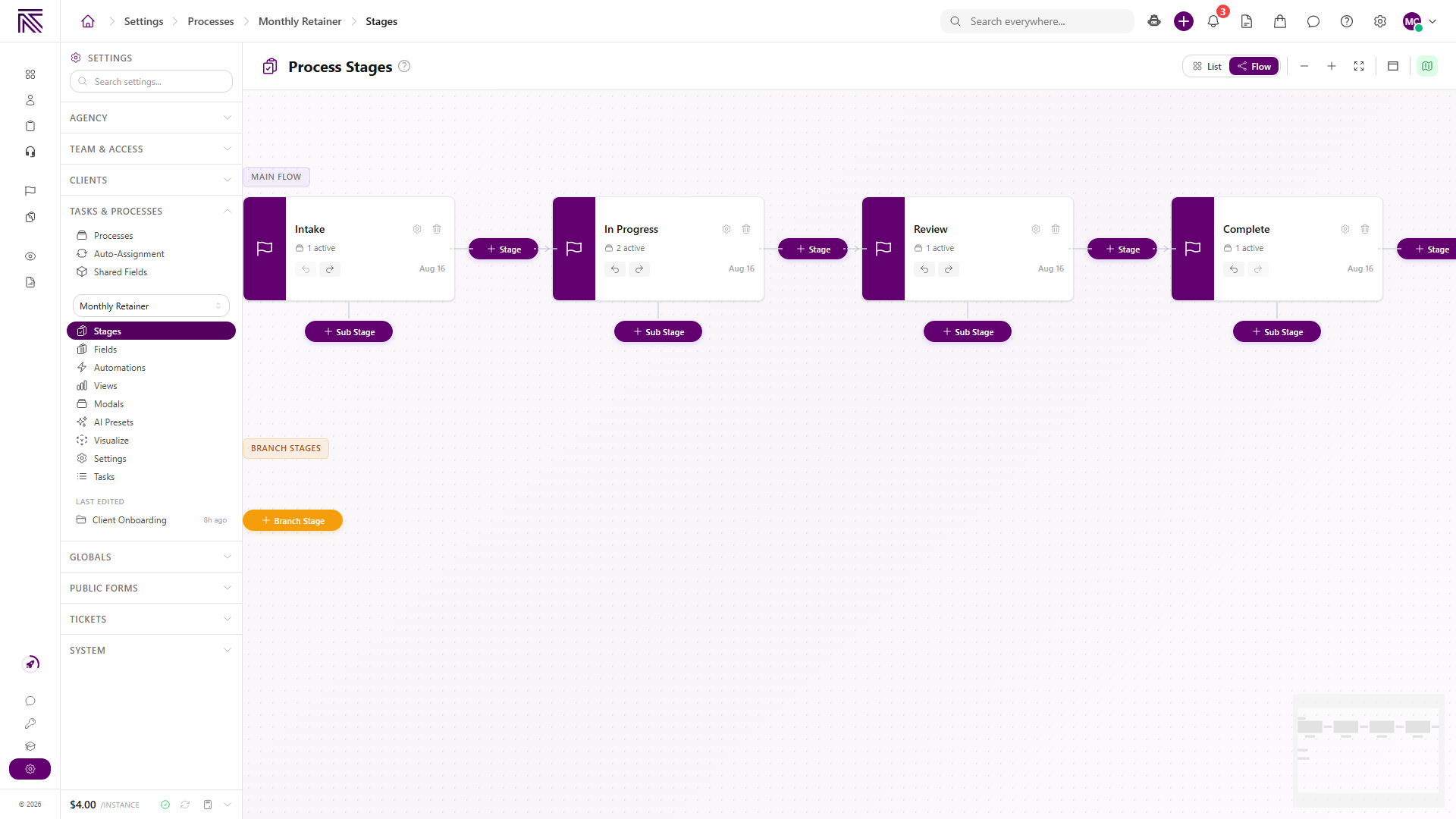
- Main flow stages form the primary task path.
- Sub Stage adds a nested stage below an existing stage.
- Branch Stage adds a separate branch-stage area.
- Each visible stage card shows its active task count and stage actions.
Stages define the path used by tasks created from this process. Keep the order and branch structure understandable before your agency relies on the definition for live work.
Route a complete-stage button by client data
Section titled “Route a complete-stage button by client data”When a stage layout includes a complete-stage button, set its target to Go to stage conditionally to route the task based on field values. In Branch Conditions, you can choose custom fields from the task’s directly linked client, including boolean fields. Use is true or is false to branch on a boolean client field such as Requires approval.
Branches are evaluated from top to bottom, and the first matching branch wins. Configure a default branch for tasks that do not match any condition. The condition builder shows only the fields and operators supported for complete-stage routing; this linked-client option covers the client directly associated with the task, not an arbitrary chain of related records.
Understand process fields
Section titled “Understand process fields”Select Fields ( /settings/processes/:id/fields (opens in new tab) ). Fields define the data your agency can track for each task created from the process.
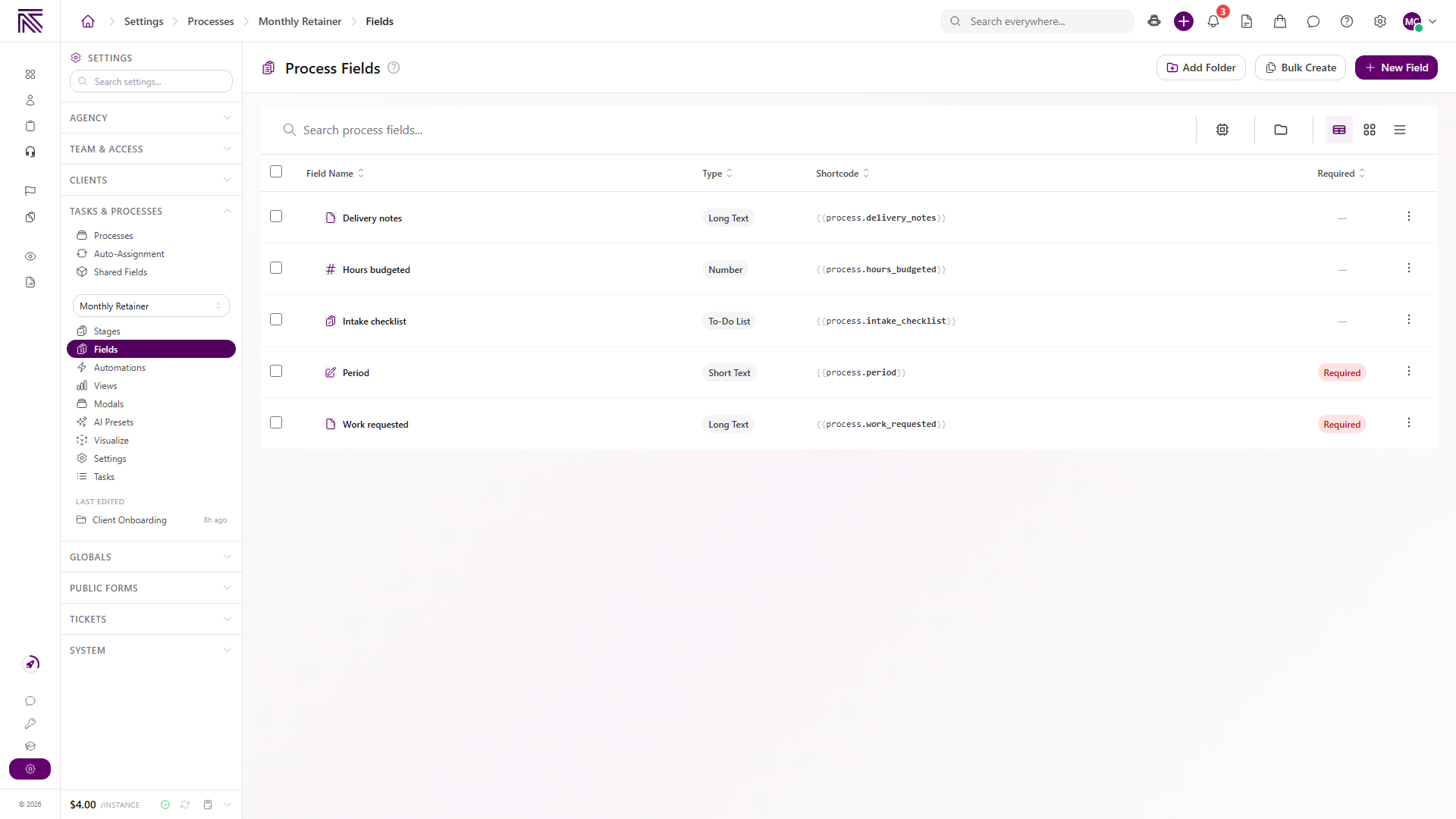
Use New Field to create each field the process should collect. Field type and layout choices are part of deeper authoring and should follow your agency’s data standards.
When configuring a process field, Include in AI Context is on by default. Turn it off to exclude the field from automatic AI record-context loading. This does not affect search indexing or explicit lookups.
Configure object/value schedule sources
Section titled “Configure object/value schedule sources”Program schedules can create more than one task per run from a matching object or client value. Open a program from Settings, then Agency, then Programs, and select Processes ( /settings/agency/programs/:id/processes (opens in new tab) ). In a process schedule, turn on Create Instances from Object/Value and choose an Object or value source:
- A mapped integration account creates instances for each matching account.
- A client-linked custom object creates instances for each matching object record.
- A client number field creates the configured number of instances for that client.
Saving the source is optional. Leave Save each object/value in this process field (optional) empty when the created tasks do not need the source value. For an object source, choose a compatible reference process field to save the whole object. If you choose a compatible scalar process field instead, use Property to save to select a scalar property such as the object’s ID or name.
Object sources include the Only include objects that match filter. Leave it empty to include every matching object for the client, or add conditions to narrow the objects that can create tasks. The separate Only create when client matches conditions apply to the client as a whole: when the client does not match, a recurring occurrence is skipped; a one-time schedule keeps trying until its due window ends.
Configure task naming, pinning, statuses, and sidebar defaults
Section titled “Configure task naming, pinning, statuses, and sidebar defaults”Select Settings for the current process ( /settings/processes/:id/settings (opens in new tab) ).
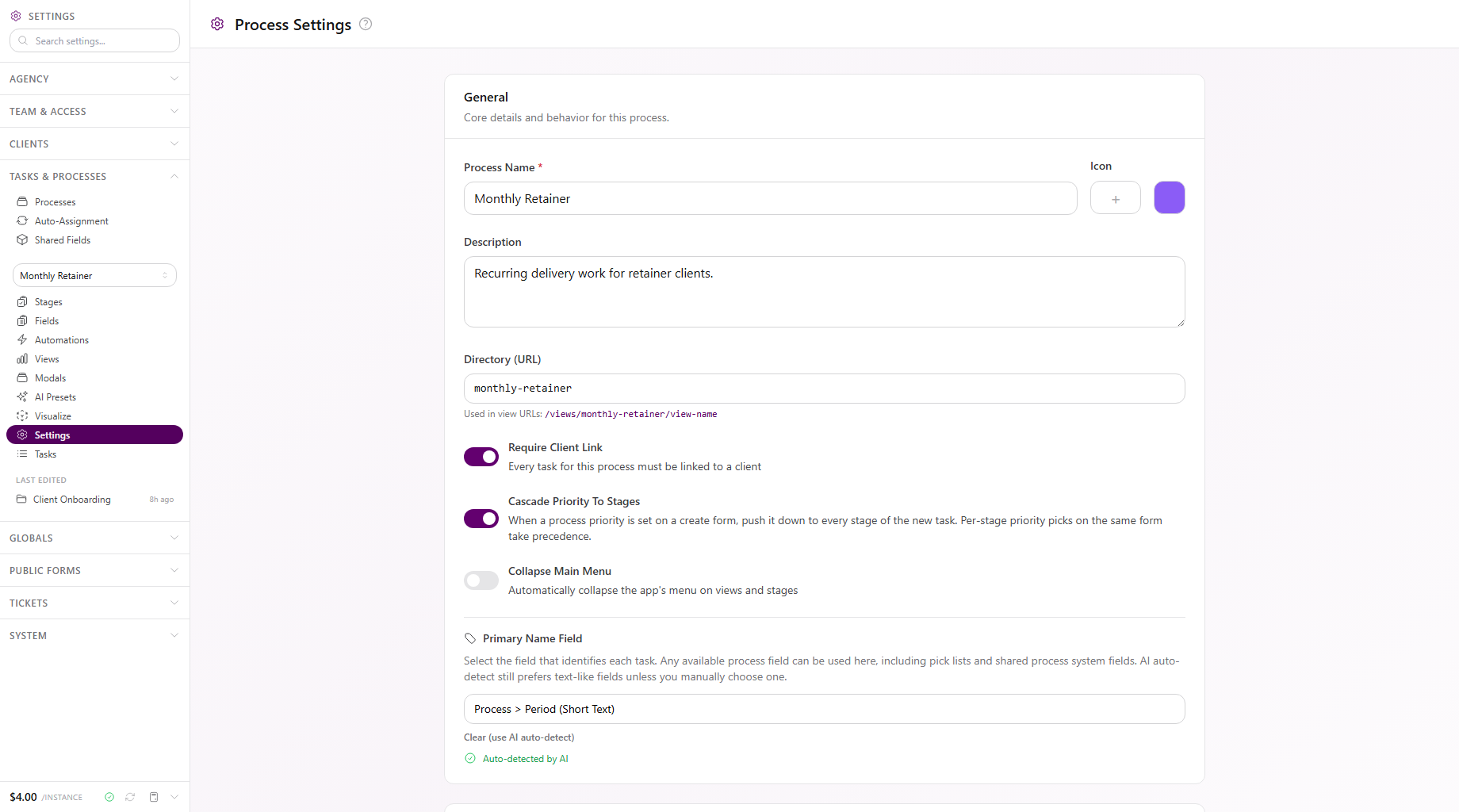
The visible configuration includes:
- Primary Name Field chooses the process field that identifies each task. AgencyTitan can automatically detect the best field when none is chosen manually.
- Pin for Me keeps the process prominent for you; Pin for Everyone makes it visible to all team members.
- Process Statuses define the task lifecycle and related business logic. Select Edit Statuses, Use Template, or Save as Template as needed.
- Default Sidebar controls which sections appear in the task sidebar and their order.
The visible status set includes Not Started, In Progress, On Hold, and Complete. Your agency can configure a different set.
Expected result
Section titled “Expected result”- The process appears under the correct active or archived filter and folder.
- Stages show the intended main flow, substages, and branch stages.
- Fields represent the data the team needs on each task.
- The primary name field, status set, pinning, and default sidebar match how the team should work the process.
For the task-working experience, see Work a task.
Troubleshooting
Section titled “Troubleshooting”| Symptom | Likely cause | What to do |
|---|---|---|
| Processes is missing from Settings | You lack View Process Definitions and View Processes | Ask a workspace owner to grant View Process Definitions or View Processes |
| A process is missing from the list | Search, status filter, or folder excludes it | Clear search, select All, and review folders |
| A task has no useful name | No primary name field is selected or the selected field is empty | Choose an appropriate Primary Name Field and complete that field on the task |
| A field is unavailable on tasks | It is not configured on the process | Open Fields and review the process field set |
| A status is missing | It is not in the process’s configured status set | Open process Settings and review Process Statuses |
| Sidebar sections differ from expectations | The process uses another default sidebar configuration | Review enabled sections and their order under Default Sidebar |
Related articles
 Concept Settings overview Find AgencyTitan settings and understand how agency, ticket, process, notification, and personal controls fit together.
  How-to Work a task Work the current stage, update task details, complete required fields, and move a task through its configured stages.
  How-to Notification and personal settings Configure agency-wide email and in-app notification defaults, review the notification center, and use personal agency and availability controls.