
Clients overview

The Clients area is where your agency manages every account you serve. Start on the Clients list to scan your roster, then open a client record when you need full context.
Three terms to know
Section titled “Three terms to know”| Term | What it is |
|---|---|
| Client record | The live account for one business: status, priority, contacts, tasks, tickets, notes, programs, files, and custom field values. |
| Client Profile | The template that defines which fields and defaults apply when you create or edit clients of that type. |
| Info Sheet | The default detail view for a client record after you open it from the list. |
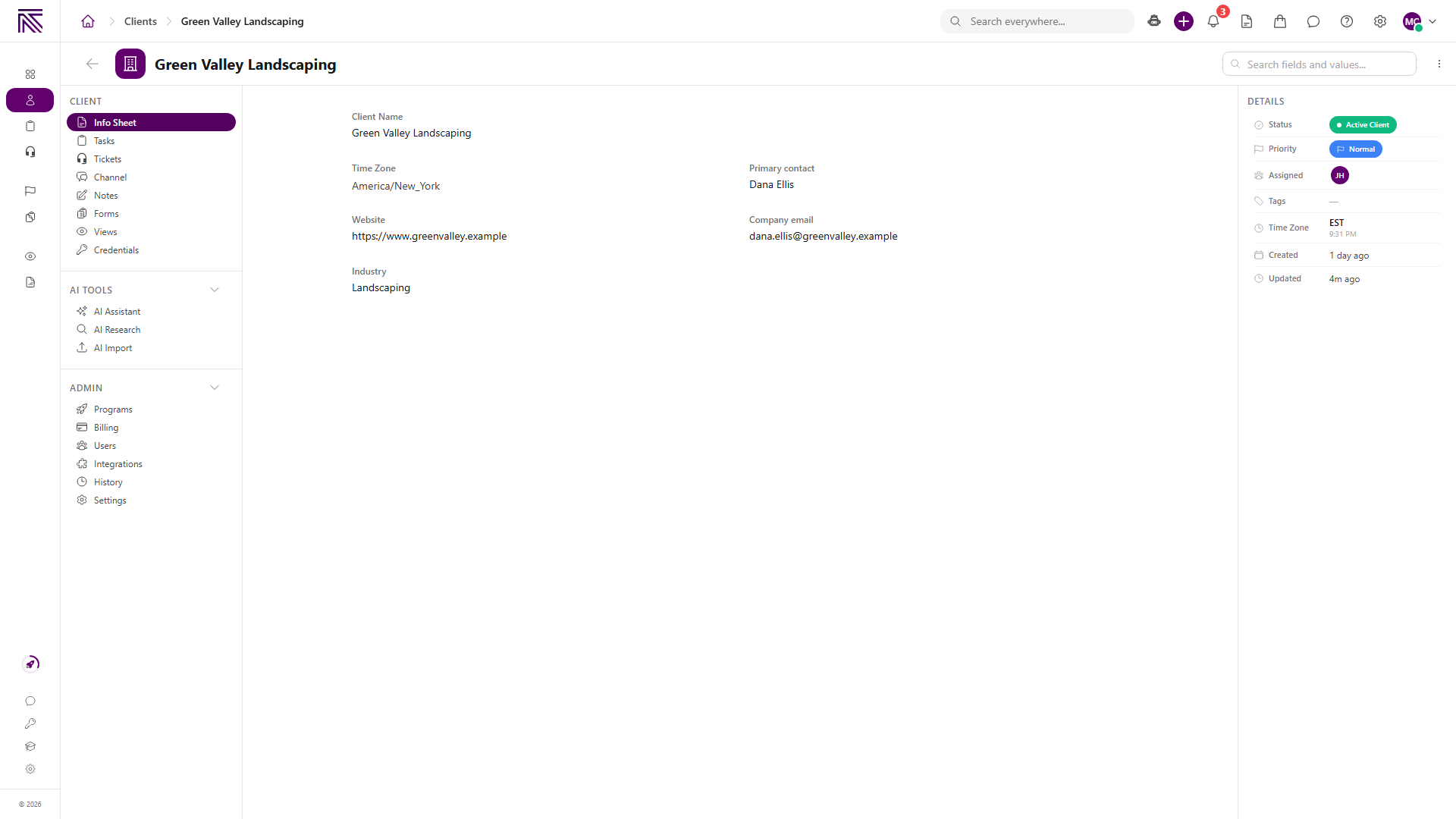
Creating a client picks a Client Profile template and saves a new Client record. Opening that record lands on its Info Sheet.
List to record
Section titled “List to record”- Open Clients to see every client you can access.
- Use search, View By, Columns, and Filters to find and organize the roster.
- Select a client name to open its record and work from the Info Sheet.
Client record anatomy
Section titled “Client record anatomy”- The header shows the client name plus status, priority, tags, assignment, and time zone.
- Info Sheet shows the sections and fields defined by the assigned Client Profile.
- Tasks, Tickets, Channel, Notes, Forms, Views, and Credentials keep client-specific work and context together when your permissions allow them. Channel is the internal Chat conversation for that client. See Chat overview.
- Programs, Billing, Users, Integrations, History, and Settings provide additional client controls when your permissions allow them.
- The details rail repeats core client values and provides section navigation on the Info Sheet.
The client portal is a separate signed-in surface where external contacts can access shared work and conversations for client accounts linked to them.
Guides in this category
Section titled “Guides in this category” Concept Client portal Understand how the signed-in client portal gives external contacts access to shared client work, tickets, billing history, and account areas.
  How-to Create a client Add a client record from the Clients list using Client Name, Client Profile, and any agency-required fields.
  How-to Find and organize clients Search and filter clients on the Clients list, customize columns, sort results, pin important accounts, and switch list layouts.
  How-to Update a client Edit client details on the Info Sheet and Client Settings, change status and priority from the list, update branding and slug, and reassign the Client Profile template.
  How-to Create custom client fields Add custom fields on Client Fields so client records can store the data your agency needs, then place them on a Client Profile layout.
  How-to Work with client notes and folders Create rich-text notes, find important context, and organize a client's notes with folders, pins, favorites, types, tags, and attachments.
  How-to Add a program to a client Subscribe a client to a published program and review billing, dates, task pick-up, one-time tasks, and backfill choices.
  How-to Find a client's tasks and tickets Open the Tasks and Tickets views on a client record and continue the same linked work in the main task or ticket area.
  How-to Invite a client portal user Invite a client contact to the client portal so they can sign in and access this client's workspace. Send a client portal invite from the Client Portal Users page.
  How-to Delete a client Remove a client from normal Clients lists with typed DELETE confirmation. Delete one client from the record page or several from the Clients list.
 Related articles
 Concept Core Concepts Learn the AgencyTitan product model: workspace, clients, tasks, tickets, escalations, chat, SOPs, training, views, automations, programs, and settings. How-to Create a client Add a client record from the Clients list using Client Name, Client Profile, and any agency-required fields. How-to Find and organize clients Search and filter clients on the Clients list, customize columns, sort results, pin important accounts, and switch list layouts. How-to Work with client notes and folders Create rich-text notes on a client record, find important notes, and organize them with folders, pins, favorites, types, tags, and attachments. How-to Add a program to a client Subscribe a client to a published program and review the visible billing, date, task pick-up, one-time task, and backfill choices before saving. How-to Find a client's tasks and tickets Open the Tasks and Tickets views on a client record, understand what appears there, and continue work in the main task or ticket area. How-to Create custom client fields Add custom fields on Client Fields so client records can store the data your agency needs, then place them on a Client Profile layout.