
Agency settings
Use Agency and Team & Access settings to maintain your agency identity, shared branding, users, roles, departments, and permissions.
Who this is for
Section titled “Who this is for”Agency owners, users with the Administrator role, and team members with View Settings. Changing General or Branding requires Edit Settings. User and department pages require the matching Team Management permissions, such as View Users, Invite Users, and View Departments. Members can see and change only the areas granted through their department level.
Before you begin
Section titled “Before you begin”- Gather approved values for Agency Name, Time Zone, Contact Information, Business Address, and Social Profiles.
- Prepare brand assets for light and dark modes when your agency uses both themes.
- Review the intended roles, department levels, and user assignments before changing access.
Update general agency information
Section titled “Update general agency information”- Open Settings, then Agency, then General ( /settings/agency/general (opens in new tab) ).
- Review Basic Information:
- Agency Name
- Time Zone
- Your Agency Slug, which can be copied but is not edited on this page
- Complete the visible Contact Information, Business Address, and Social Profiles fields that apply to your agency.
- Confirm All changes saved appears in the page header.
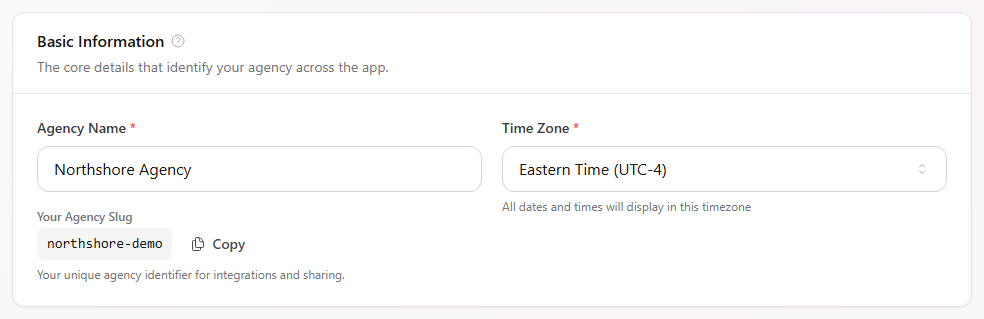
The agency time zone controls how dates and times display across the app. Contact and address details can appear in customer-facing areas where AgencyTitan uses them.
Configure branding
Section titled “Configure branding”- Open Agency, then Branding ( /settings/agency/branding (opens in new tab) ).
- Under Agency Logo, upload the light-mode logo and optionally a separate dark-mode logo.
- Under Favicon, upload the light-mode favicon and optionally a separate dark-mode favicon.
- Under Navigation Background, choose whether to replace the default background for light mode or dark mode.
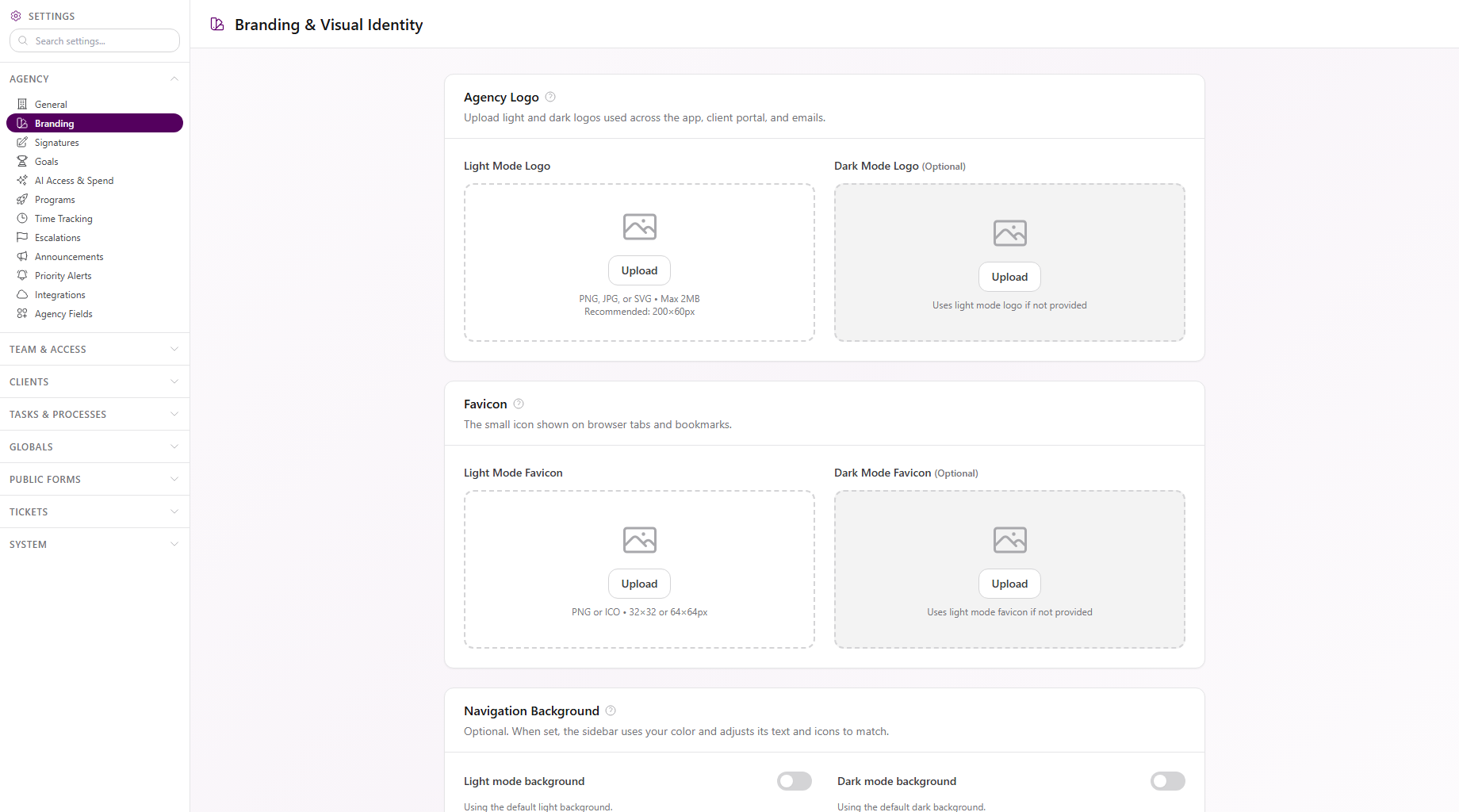
The visible upload guidance accepts PNG, JPG, or SVG logos up to 2 MB and recommends 200 by 60 pixels. Favicons accept PNG or ICO at 32 by 32 or 64 by 64 pixels. If a dark-mode asset is not provided, AgencyTitan uses the light-mode asset.
Understand users and roles
Section titled “Understand users and roles”Open Team & Access, then Users ( /settings/agency/users (opens in new tab) ). The list shows each user’s email, role, department assignments, status, and last active time. Use Search users… to narrow the list.
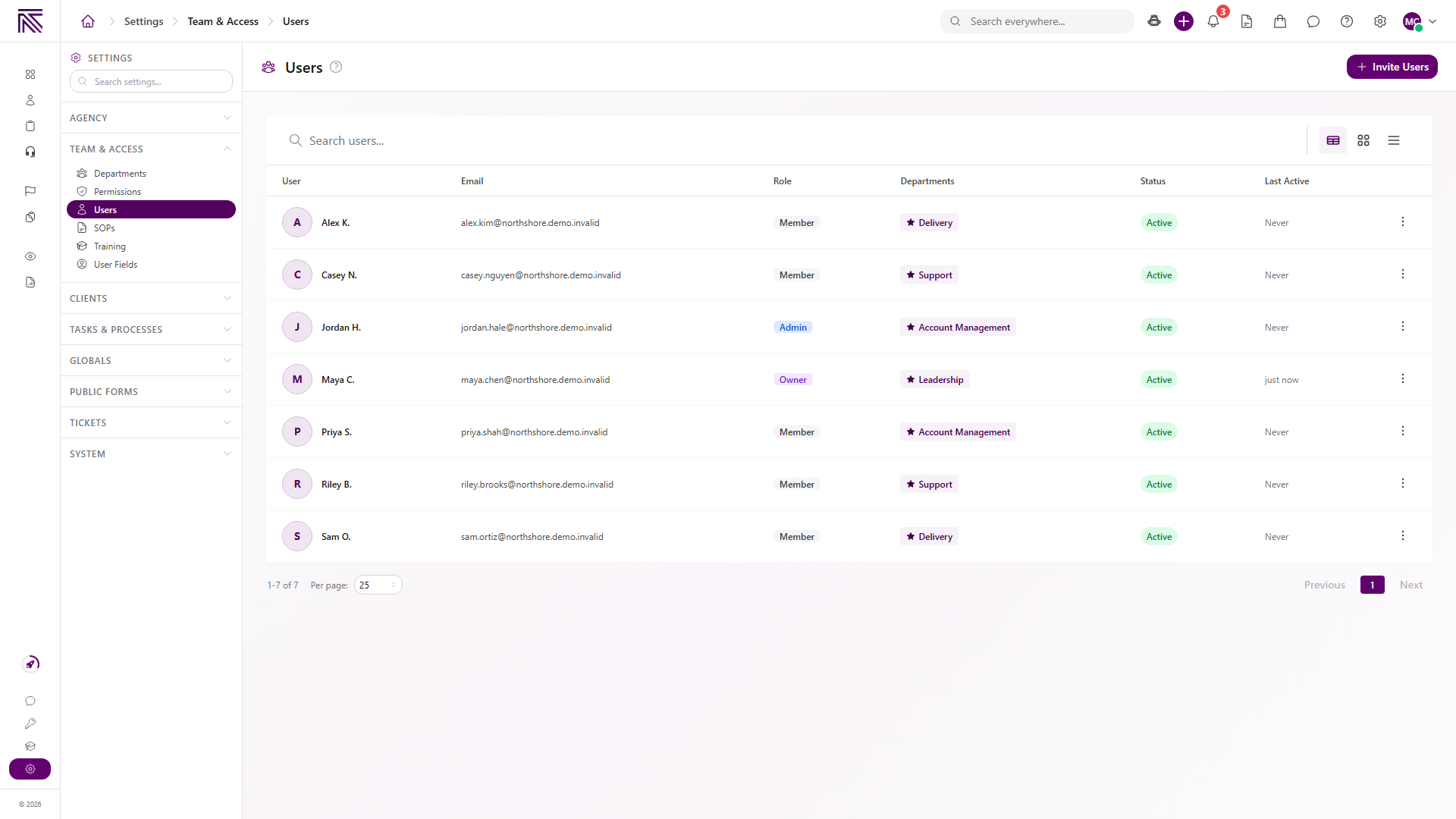
Owner and Administrator both have full product access. The differences are:
- A lower role cannot impersonate a higher role.
- Administrators cannot remove Owners.
- The agency must keep at least one Owner.
Member access is controlled by department-level assignments and permissions. See Core Concepts for the role table.
To add agency teammates, select Invite Users and follow Invite your team. That invite is for the agency app, not the client portal.
Review department-level permissions
Section titled “Review department-level permissions”Open Team & Access, then Permissions ( /settings/agency/permissions (opens in new tab) ). Search for a permission or expand a permission group to see which department levels and users receive it.
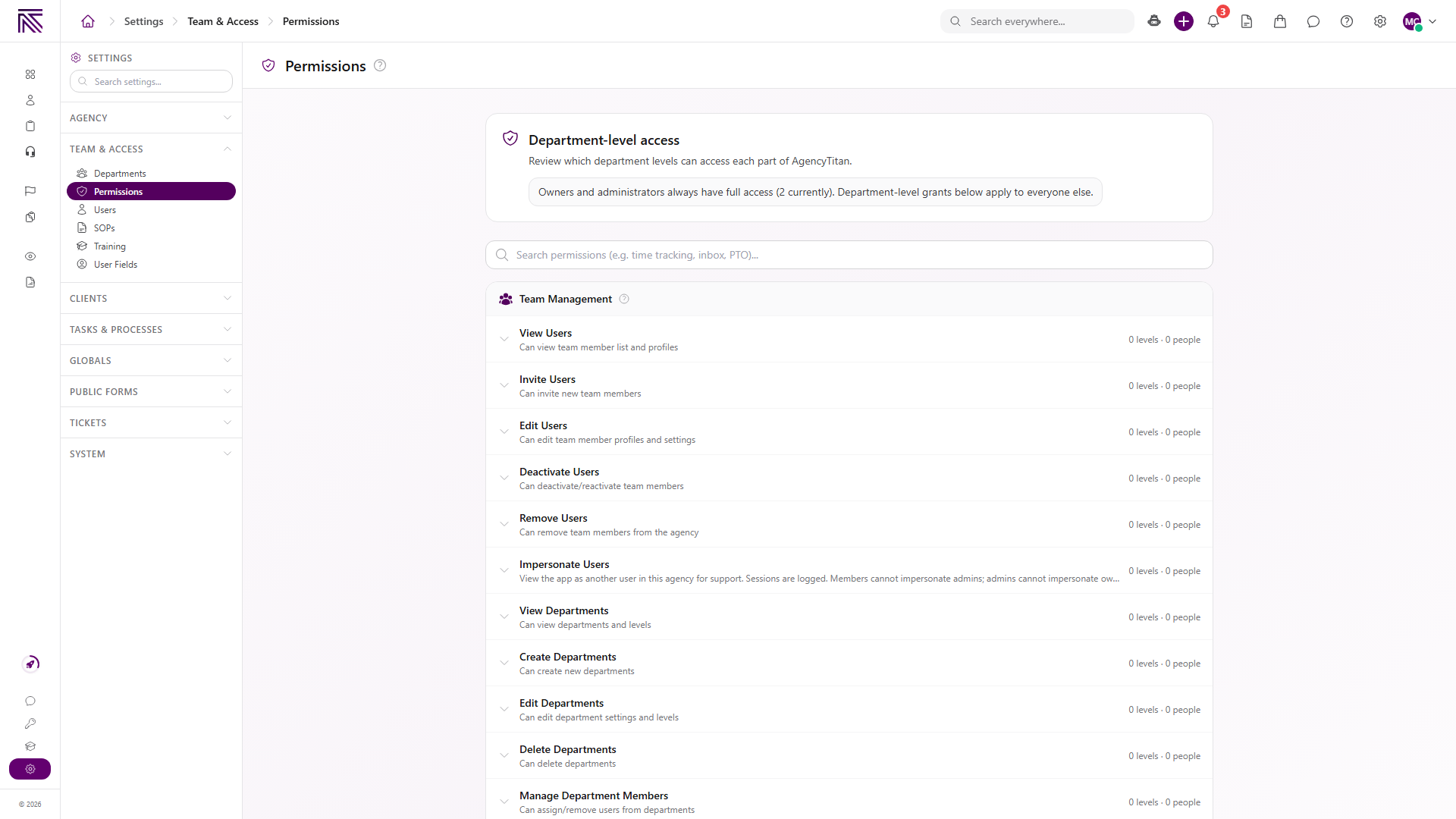
The page separates permissions such as viewing users, inviting users, editing users, and managing departments. Owners and users with the Administrator role always have full access; the displayed department-level grants apply to everyone else.
Organize departments
Section titled “Organize departments”Open Team & Access, then Departments ( /settings/agency/departments (opens in new tab) ). Each department card shows its number of levels and users. Select Manage Levels & Permissions to configure that department, or select Create Department to add another team structure.
To create departments, add levels, and grant permissions step by step, see Set up departments and levels.
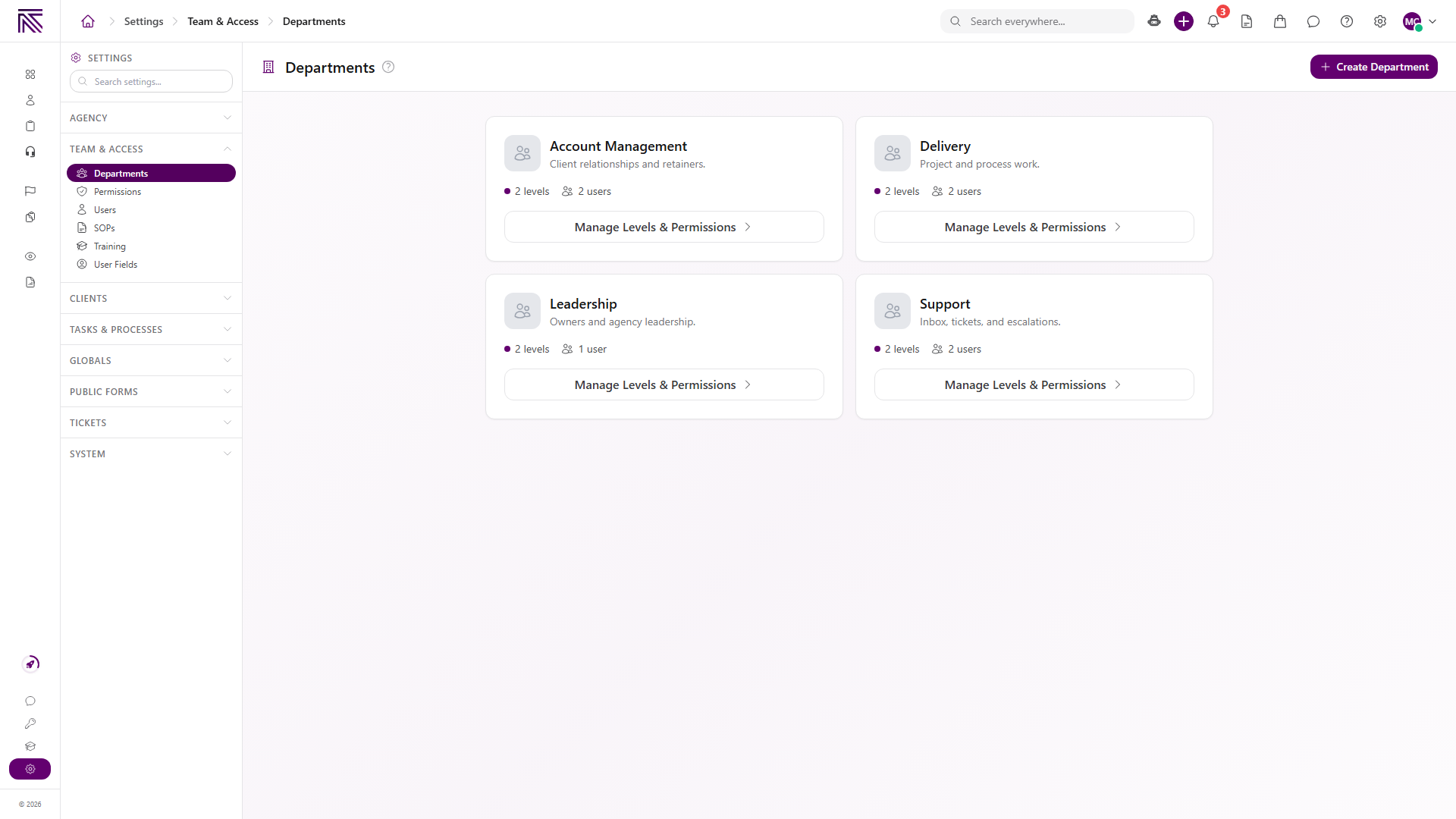
Department assignments connect members to their access level. They can also be selected while inviting a user.
Expected result
Section titled “Expected result”- General settings show the correct agency identity, time zone, and contact details.
- Branding assets and navigation background match the agency’s intended visual identity.
- The Users list shows the correct role, department assignments, and status for each team member.
- Department levels grant only the permissions their members need.
Troubleshooting
Section titled “Troubleshooting”| Symptom | Likely cause | What to do |
|---|---|---|
| An Agency or Team & Access page is missing | You lack View Settings or the matching Team Management permission | Ask a workspace owner to grant View Settings, View Users, or View Departments as needed |
| A member cannot use a feature | Their department level does not grant the required permission | Find the feature on Permissions and review the member’s department assignment |
| A user has the wrong access | Their role or department assignment does not match the intended access | Review the user’s role and assigned department levels |
| Dark-mode branding looks like light mode | No dark-mode asset was uploaded | Upload a dark-mode logo or favicon if the light-mode asset is not suitable |
Related articles
 Concept Settings overview Find AgencyTitan settings and understand how agency, ticket, process, notification, and personal controls fit together.
  How-to Set up departments and levels Create departments, add levels, and grant permissions so Members get the right access before you invite the team.
  How-to Invite your team Invite agency teammates from Users so they can sign in to the agency app. This is not a client portal invite.
  Concept Process settings Find process definitions and understand stages, statuses, fields, task naming, pinning, and sidebar configuration at a high level.