
Create custom client fields

Create custom client fields on Client Fields so every client record can store the data your agency needs. Choose a field type, configure the label and settings, then place the field on a Client Profile layout when you want it to appear on the client page.
Who this is for
Section titled “Who this is for”Agency team members who define client data in Settings. You need access to Settings so Client Fields appears under Clients. Without that access, the page may not be available.
Before you begin
Section titled “Before you begin”- You are signed in to the correct agency workspace.
- You know what data the field should collect (for example a short label, email, or a reusable structured record).
New to clients and profiles? See Clients overview and Core Concepts.
-
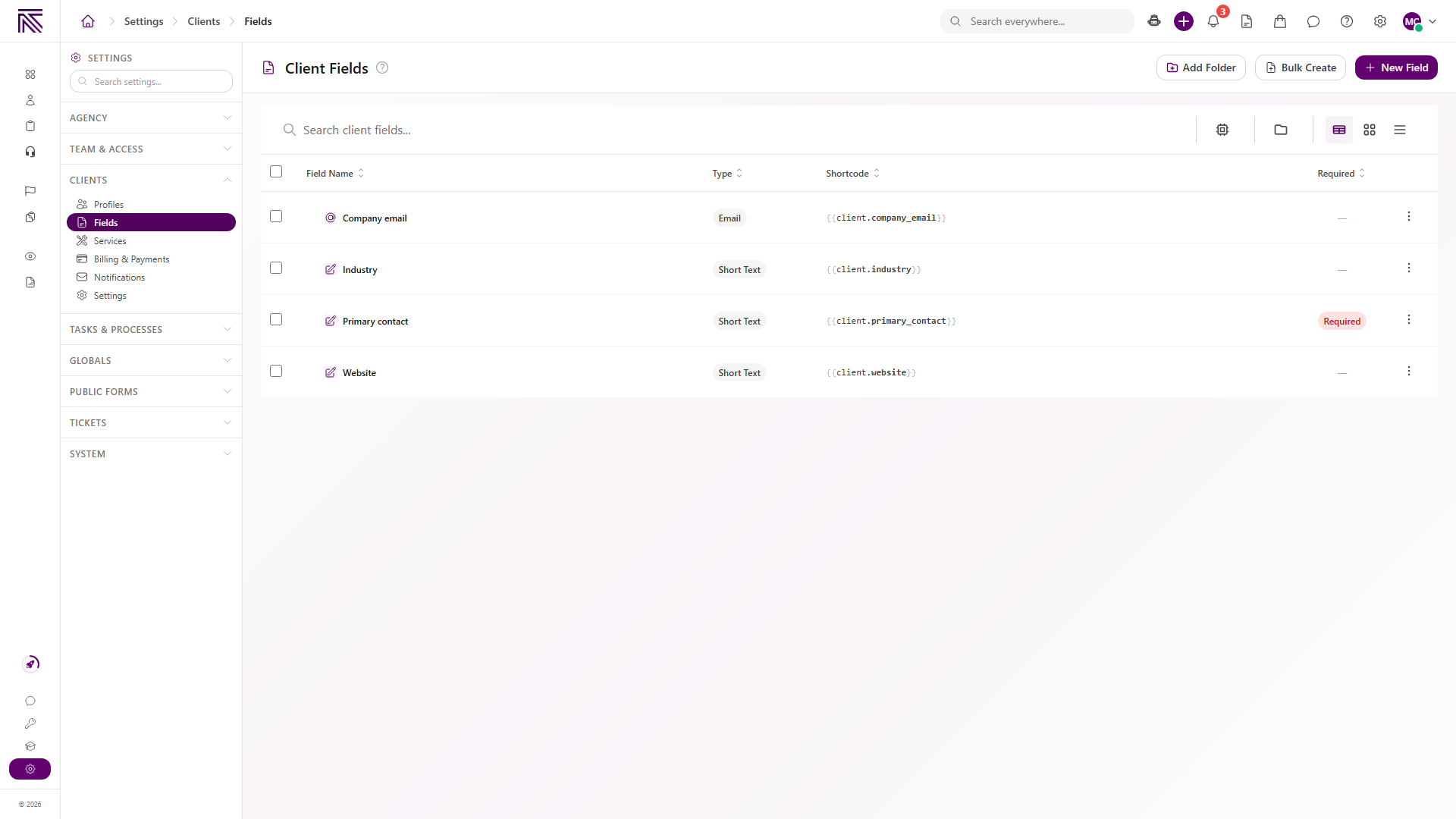
Open Settings, then Clients, then Fields ( /settings/clients/fields (opens in new tab) ).
The page title is Client Fields. Use Add Folder, Bulk Create, and + New Field from the header. Search with Search client fields…. The list columns are Field Name, Type, Shortcode, and Required.
View full size -
Select + New Field.
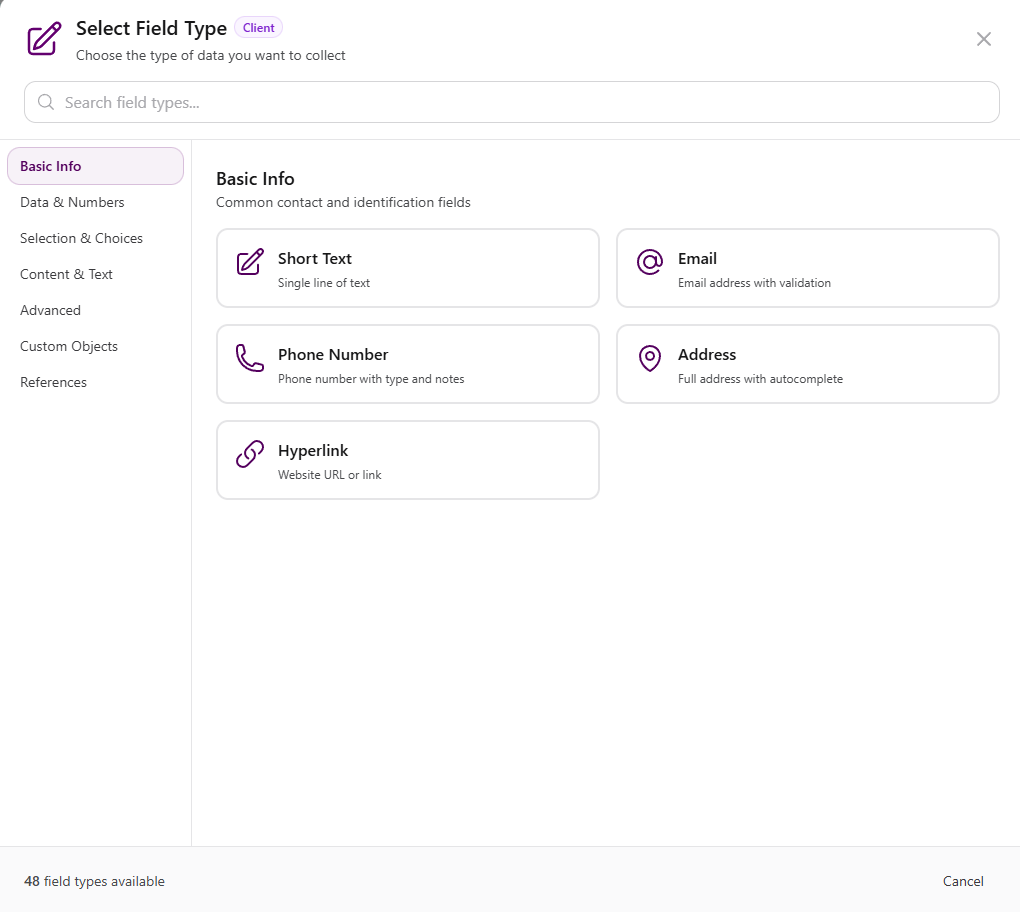
Select Field Type opens with a Client badge. Categories include Basic Info, Data & Numbers, Selection & Choices, Content & Text, Advanced, Custom Objects, and References. The modal reports 48 field types available. Use Cancel to close without creating a field.
-
Choose a field type.
Under Basic Info, common options include Short Text, Email, Phone Number, Address, and Hyperlink.
View full size Pick the category that matches the data you need:
- Simple fields store one configured value (or multiple values when you enable that option), such as short text, email, or phone.
- Simple List stores an ordered list of text items. When editing the field, drag an item’s grip handle or use its Move left/right buttons (Move up/down for a vertical list) to change the order; the order is saved with the record.
- Custom Objects lists the reusable object types already defined in your workspace, plus + Create Custom Object. Your workspace list will differ from other agencies.
- References link to other records. Options include Client, User, Department, Program, Task, Client Field, Client Service, and Custom Object Reference.
View full size 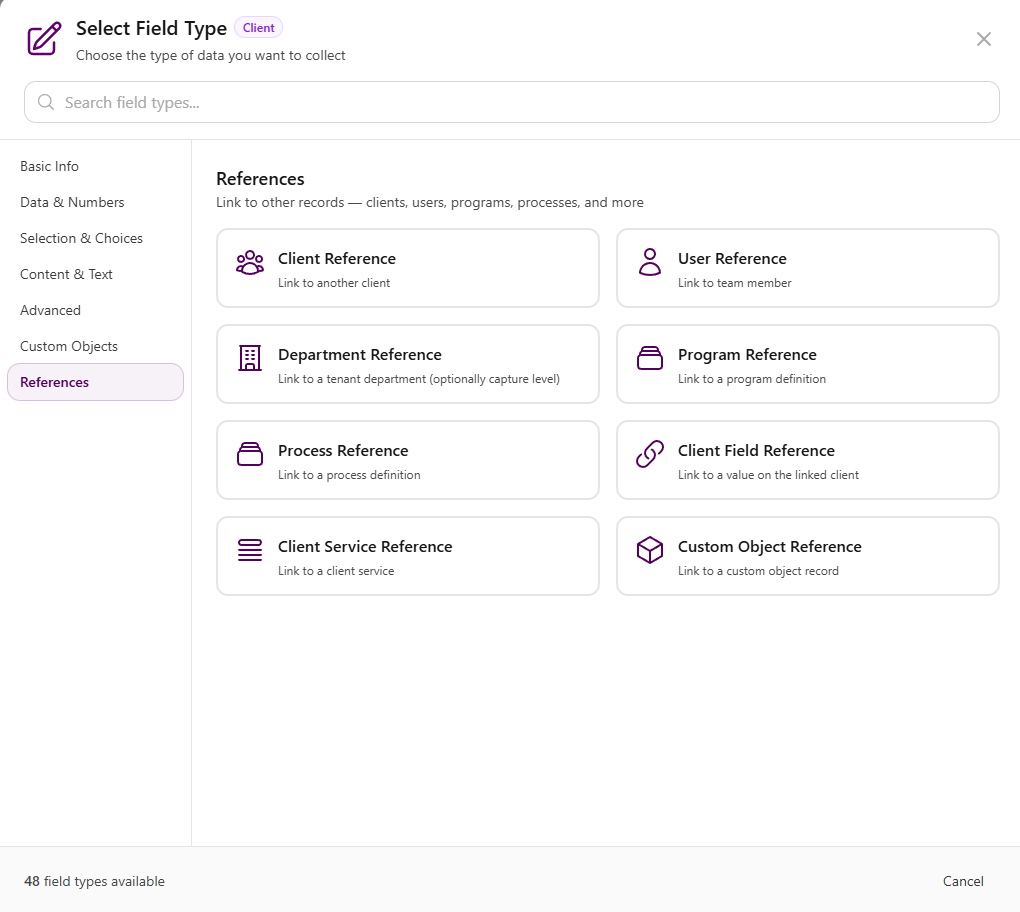
View full size -
Configure the field, then select Create Field.
For Short Text, the Configure Short Text screen includes:
- Field Label (required)
- Icon
- Placeholder Text
- Min Length (default
0) and Max Length (default255) - Required field
- Allow multiple values
- Default Value (optional)
- Help Text
- Include in AI Context (on by default). Turn this off to exclude the field from automatic AI record-context loading. This does not affect search indexing or explicit lookups.
- Back, Cancel, and Create Field
AgencyTitan generates the field key from the label. That key becomes the shortcode form
{{client.field_key}}in the fields list after creation.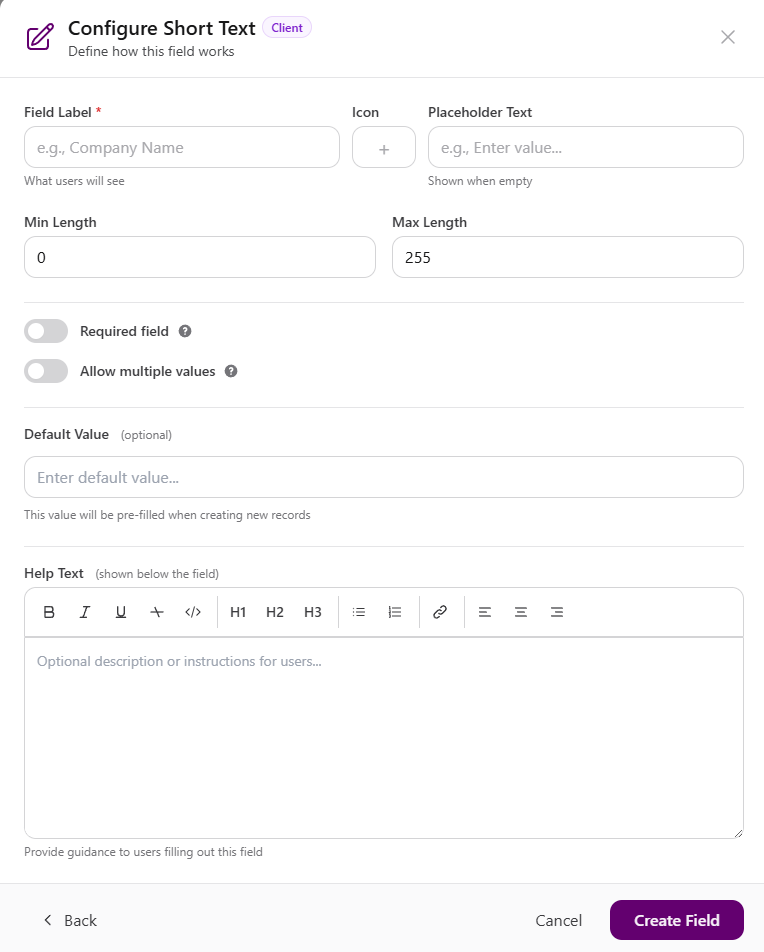
View full size
Expected result
Section titled “Expected result”- The new field appears on Client Fields with its Field Name, Type, and generated Shortcode.
- Creating the field definition does not place it on a client page by itself. Open the Client Profile builder to add it to a layout when you want it visible there.
Organize and find fields
Section titled “Organize and find fields”-
Add Folder groups related fields in the list.
-
Search client fields… filters by name as you type.
-
Bulk Create opens when you need to add several fields in one pass.
-
Turn on Show System Fields to include built-in fields. System rows show a System badge and a fixed shortcode, for example Client Name with
{{client.client_name}}and Required.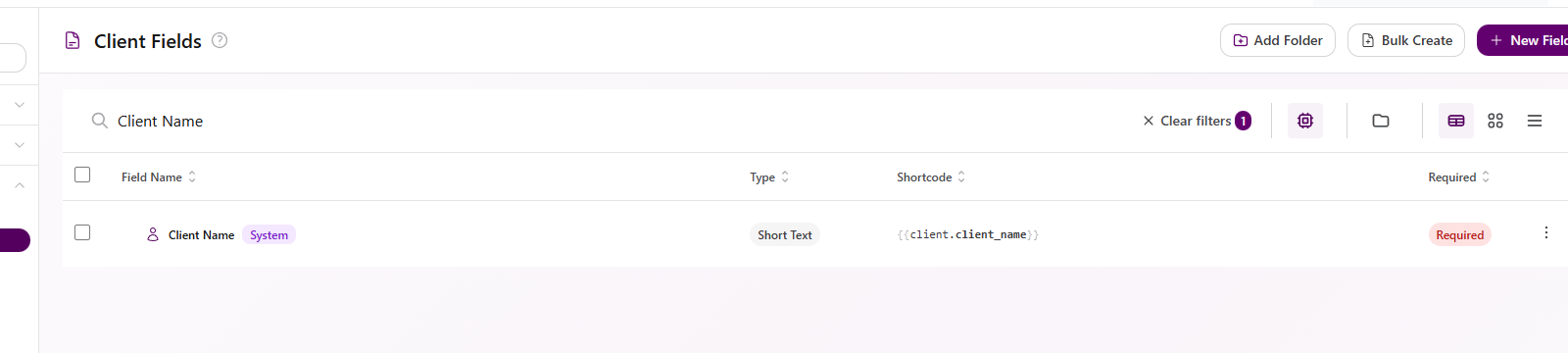
View full size
Place fields on a Client Profile
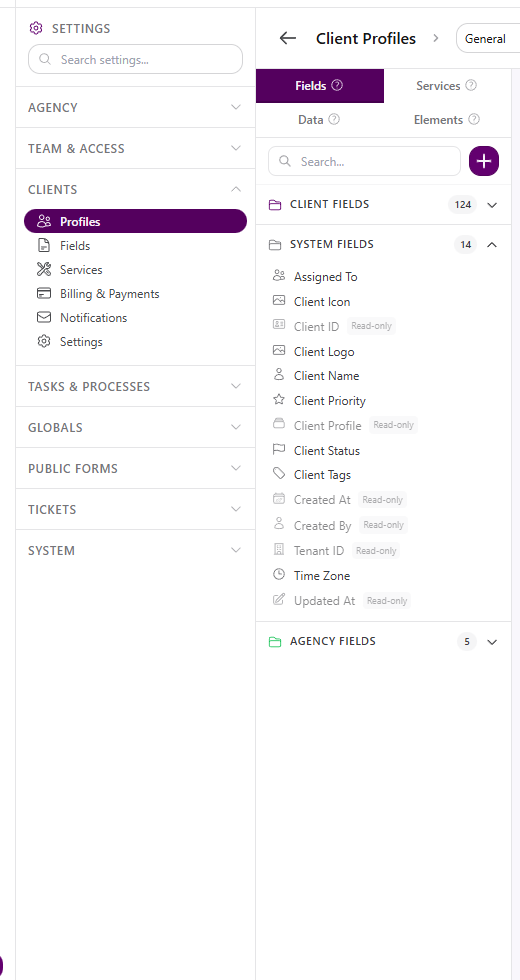
Section titled “Place fields on a Client Profile”After you create a field, open a Client Profile in the builder when you want it on the client page. With Fields selected, the palette groups CLIENT FIELDS, SYSTEM FIELDS, and AGENCY FIELDS. Some system fields are marked Read-only.
Creating a field on Client Fields only adds the definition. Placement on a profile layout is a separate step.
Troubleshooting
Section titled “Troubleshooting”| Symptom | Likely cause | What to do |
|---|---|---|
| Client Fields is missing under Settings | You lack access to Settings | Ask a workspace owner to grant Settings access for your role |
| + New Field is missing | You cannot manage field definitions | Ask a workspace owner to review your Settings access |
| Create Field stays unavailable | Field Label or another required setting is empty | Enter Field Label and complete required options for that field type |
| New field does not appear on a client page | The field is not on that Client Profile layout yet | Open the profile builder and place the field from CLIENT FIELDS |
| Custom object types look different than expected | Object types are defined per workspace | Use the types listed for your agency, or select + Create Custom Object |
Related articles
 Concept Clients overview Understand the Clients list, client record anatomy, Client Profile templates, Info Sheets, notes, programs, tasks, and tickets.
  How-to Create a client Add a client record from the Clients list using Client Name, Client Profile, and any agency-required fields.
  How-to Update a client Edit client details on the Info Sheet and Client Settings, change status and priority from the list, update branding and slug, and reassign the Client Profile template.
  How-to Find and organize clients Search and filter clients on the Clients list, customize columns, sort results, pin important accounts, and switch list layouts.
  Concept Core Concepts Learn the AgencyTitan product model: workspace, clients, tasks, tickets, escalations, chat, SOPs, training, views, automations, programs, and settings.