
Find a client's tasks and tickets

Open Tasks or Tickets from a client record to work in that client’s context. These views show records linked to the current client; they do not create a second copy of the task or ticket.
Who this is for
Section titled “Who this is for”Agency team members who deliver client work or handle client requests. You need access to the client plus the corresponding task or ticket permission.
Before you begin
Section titled “Before you begin”- Open the correct client from Clients ( /clients (opens in new tab) ).
- Confirm the task or ticket is linked to that client if you expect it to appear.
Open a client’s tasks
Section titled “Open a client’s tasks”- Open the client record.
- Select Tasks ( /clients/:id/tasks (opens in new tab) ).
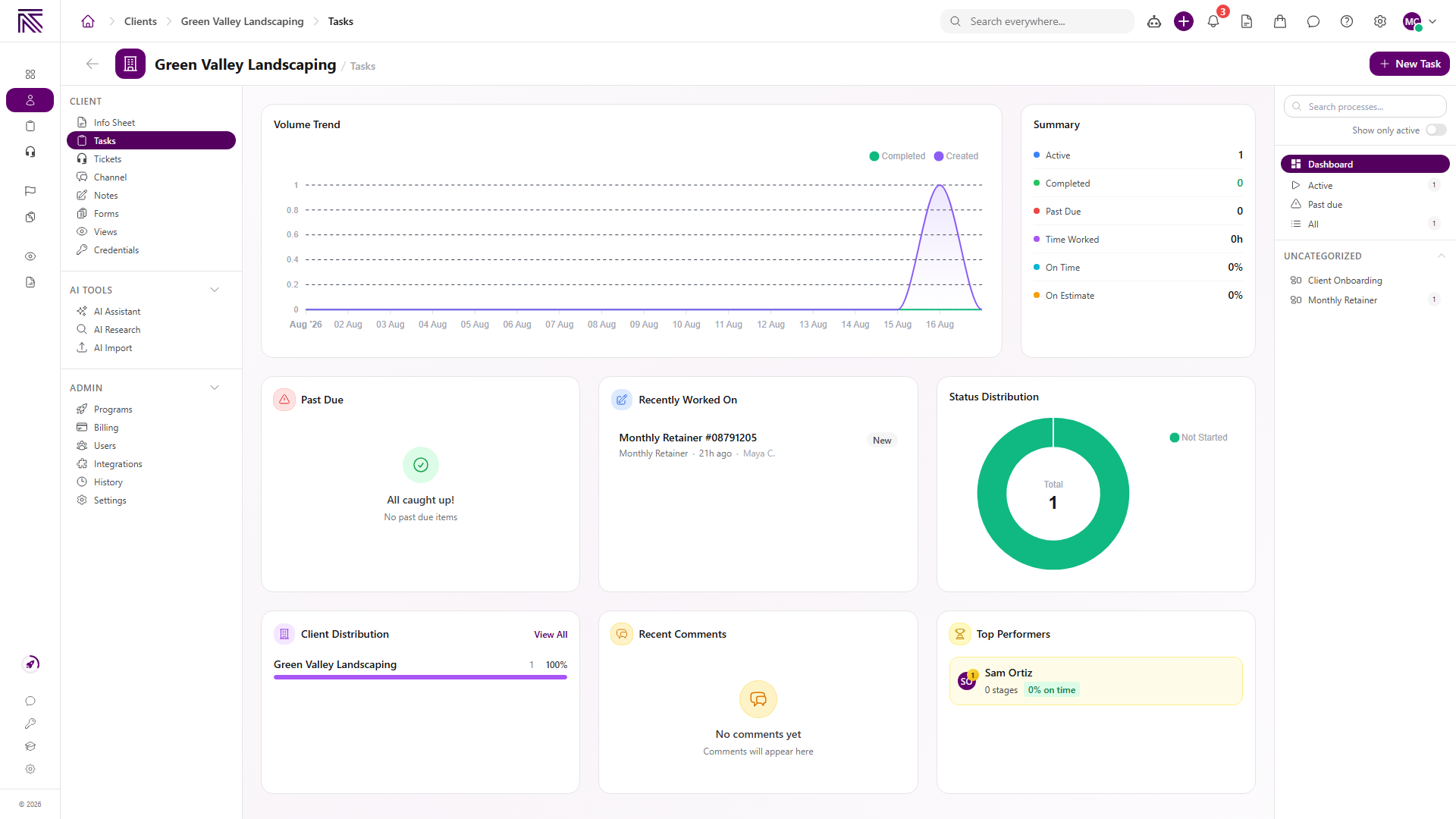
- Use the dashboard for a summary, or choose Active, Past due, or All in the right sidebar.
- Select a task type in the sidebar to narrow the list further.
The client Tasks view includes volume and status summaries, recent work and comments, and task-type navigation. Select New Task when you have permission to create work for this client.
For the full task guide, see Find tasks and Work a task.
Open a client’s tickets
Section titled “Open a client’s tickets”- Open the client record.
- Select Tickets ( /clients/:id/tickets (opens in new tab) ).
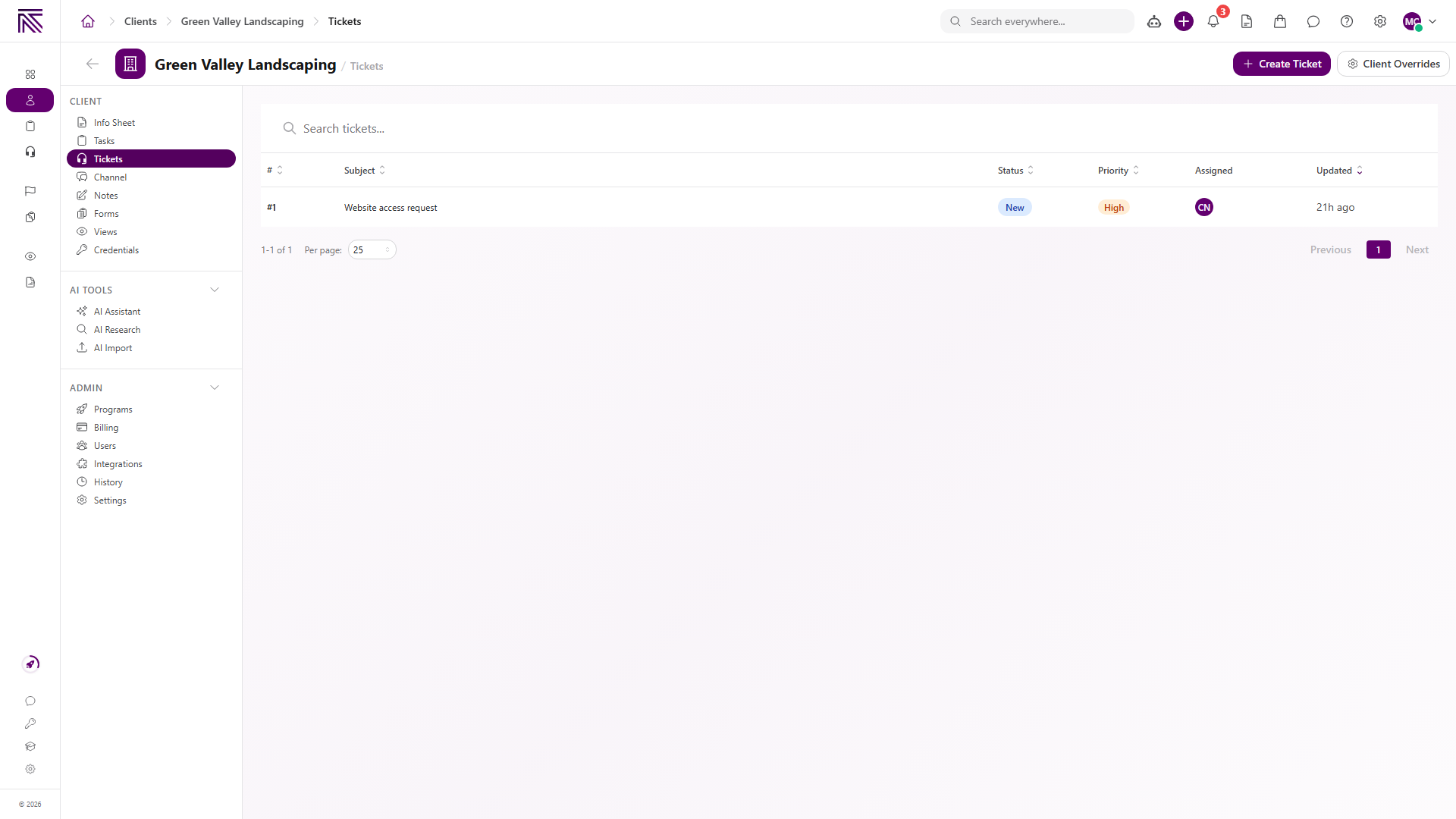
- Select a ticket to open its conversation when tickets are present.
- Select Create Ticket to start a request already linked to this client.
The empty state says Tickets linked to this client will appear here. The page also exposes Client Overrides when your permissions and ticket setup make those controls available.
See Find and work tickets to use the main inbox. See Assign and update a ticket to link or change a ticket’s client from the ticket details panel.
How client links behave
Section titled “How client links behave”- A client-linked task appears in this client’s Tasks view and in the main Tasks area according to your filters and permissions.
- A client-linked ticket appears in this client’s Tickets view and in the main Tickets inbox according to inbox access and filters.
- Changing the client on a ticket moves that ticket’s client context; it does not duplicate the ticket.
- Program schedules can create tasks for an enrolled client. See Add a program to a client.
Expected result
Section titled “Expected result”- The client Tasks view shows only work associated with the current client.
- The client Tickets view shows only tickets linked to the current client.
- Opening a record continues into the same task or ticket your team uses elsewhere in AgencyTitan.
Troubleshooting
Section titled “Troubleshooting”| Symptom | Likely cause | What to do |
|---|---|---|
| Tasks or Tickets is missing | You lack the corresponding view permission | Ask a workspace owner to review your task or ticket permissions |
| Expected task is missing | It is linked to another client or excluded by the selected task view | Choose All, clear narrower choices, and verify the client link |
| Expected ticket is missing | It is not linked to this client or your inbox access excludes it | Check the ticket’s Client field and inbox access |
| Empty state appears | No linked records match this client and view | Create or link a record, or choose a broader view |
| A ticket moved out of this client view | Its Client field changed | Open the ticket from the main inbox and review its details |
Related articles
 Concept Clients overview Understand the Clients list, client record anatomy, Client Profile templates, Info Sheets, notes, programs, tasks, and tickets.
  How-to Add a program to a client Subscribe a client to a published program and review the visible billing, date, task pick-up, one-time task, and backfill choices before saving.
  How-to Find tasks Use Tasks queues, process views, search, stage and assignee filters, tables, and boards to find work.
  How-to Find and work tickets Use inboxes, quick filters, statuses, departments, client filters, and search to find and open tickets in the Tickets inbox.
  How-to Assign and update a ticket Change ticket status, priority, assignees, client, department, tags, privacy, and inbox from the ticket view.