
View automation run history
The Activity tab records automation executions. Use it to see whether runs completed, failed, are still in progress, or ended in another surfaced status.
Who this is for
Section titled “Who this is for”Agency team members who monitor or diagnose automations. Requires View Automations. Re-running also requires Execute Automations.
Before you begin
Section titled “Before you begin”- Identify the automation and date range you want to review.
- If you plan to re-run an execution, confirm its actions are safe to repeat.
Open Activity
Section titled “Open Activity”- Open an automation from Settings, then Automations ( /settings/automations (opens in new tab) ).
- Select Activity.
- Choose Today, 7d, 30d, This Month, or a custom date range.
- Optionally search the execution list.
The summary shows success rate, completed and failed counts, and a timeline chart. The legend includes Pending, Running, Waiting, Completed, Failed, Cancelled, Skipped, and Dropped.
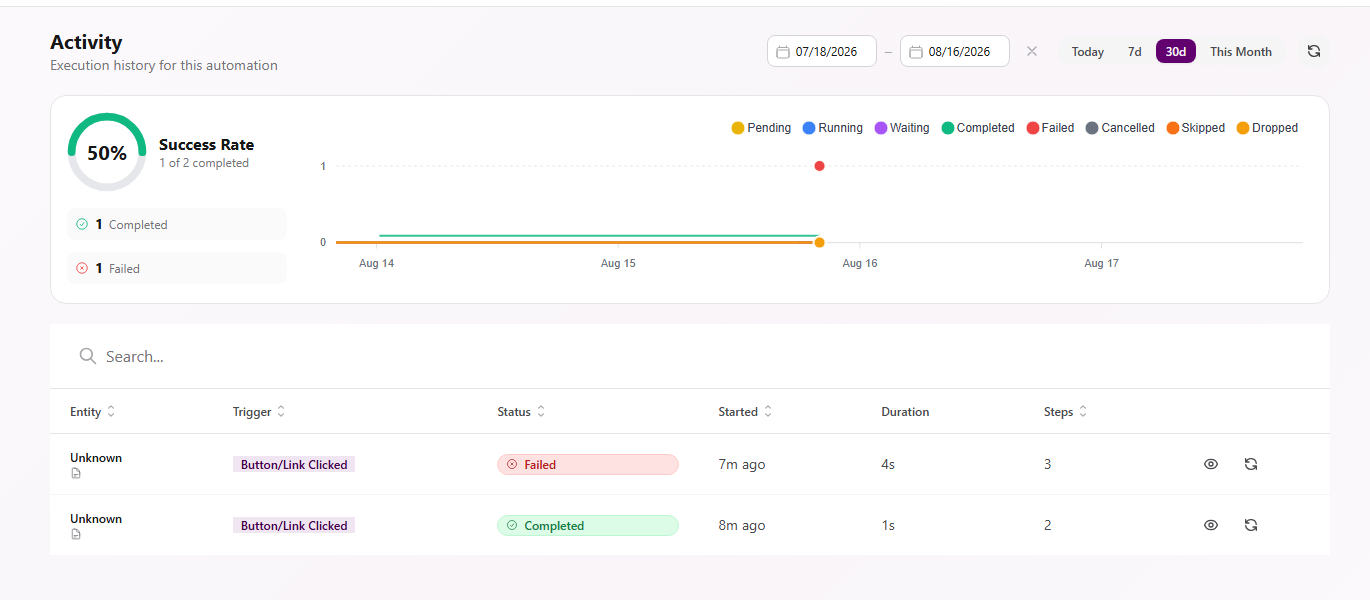
Each row shows the entity when one is available, trigger, status, start time, duration, and step count. Use the refresh control when a running execution has not updated yet.
Open an execution
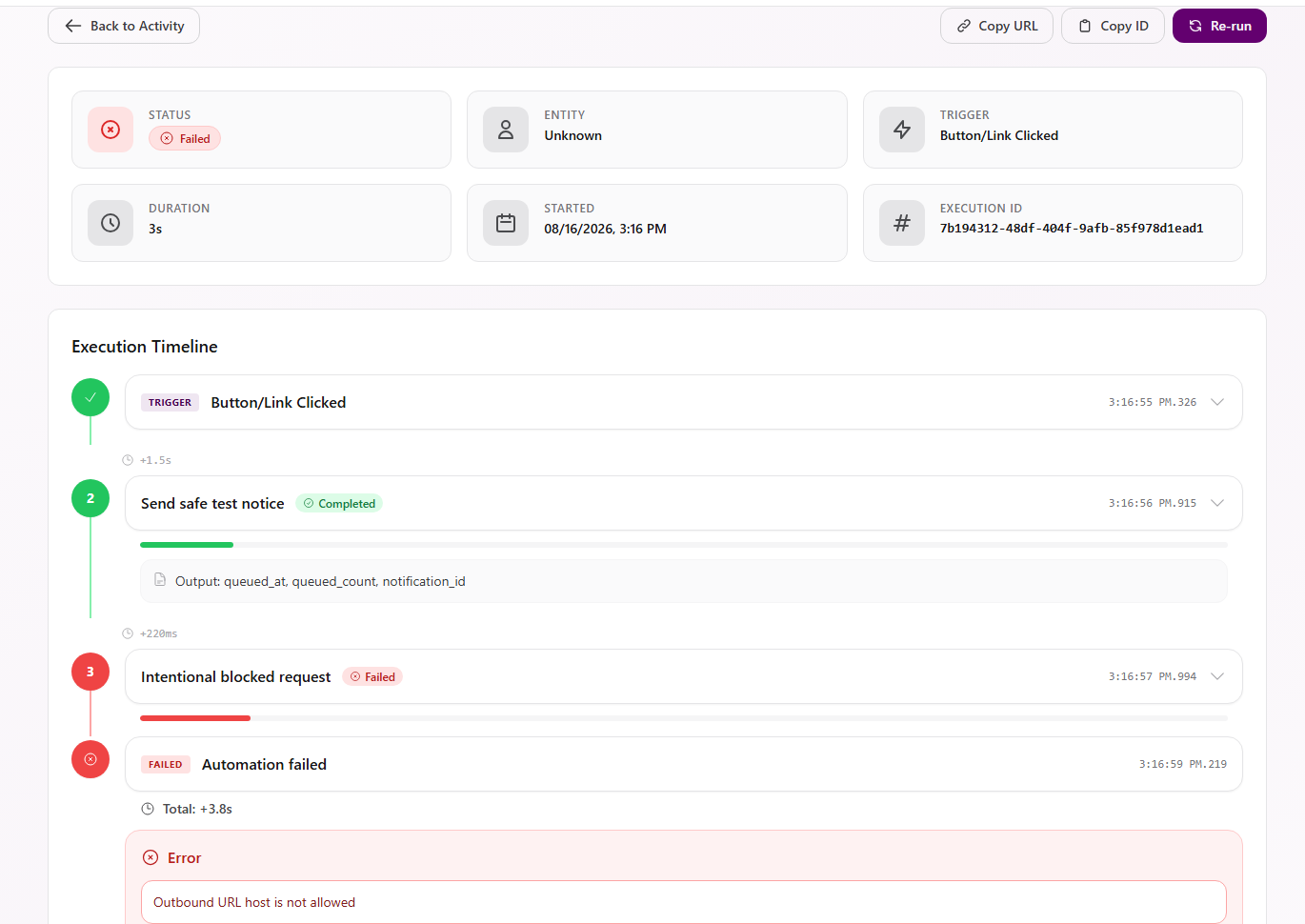
Section titled “Open an execution”Select a row or its view control. The execution detail shows:
- Status, entity, trigger, duration, start time, and execution ID
- An ordered execution timeline
- Each step’s time and outcome
- A surfaced error when the run failed
- Tree and Raw detail views
- Copy URL, Copy ID, and Re-run controls
Re-run an execution
Section titled “Re-run an execution”Select Re-run only after reviewing why the original run failed and what steps can repeat. A re-run can resend messages, create records, update data, or call external systems again.
After re-running, return to Activity and open the new execution row. The original run remains in history.
Expected result
Section titled “Expected result”- The selected date range controls the runs and summary counts shown.
- Opening a row shows its complete timeline and surfaced error details.
- A re-run creates a separate execution record.
Troubleshooting
Section titled “Troubleshooting”| Symptom | Likely cause | What to do |
|---|---|---|
| Activity is empty | No runs match the selected date range | Select 30d or a custom range and refresh |
| Entity shows Unknown | The trigger did not provide a recognized entity | Use the trigger, execution ID, and timeline to identify the run |
| Status stays Running or Waiting | The execution has not reached a terminal state | Refresh and reopen the row before taking action |
| Re-run is unavailable | You lack Execute Automations | Ask a workspace owner to grant Execute Automations |
| Failed row lacks enough context | The summary is condensed | Open the execution and inspect the failed step, error, Tree, and Raw views |
Related articles
 Concept Automations overview Understand where automations live, how triggers and connected steps work, and how draft, published, active, and inactive states differ.
  How-to Publish and manage automations Publish and activate an automation, edit a live version safely, restore an older version as a draft, duplicate, organize, or delete.
  Troubleshoot Troubleshoot automations Diagnose validation issues, missing runs, inactive automations, and failed steps using the builder and Activity execution details.