
Troubleshoot automations

Start with what AgencyTitan shows in the builder or Activity. Builder issues explain why a draft cannot publish. Execution details show where an accepted run stopped and the error surfaced by that step. Open the automation from Settings, then Automations ( /settings/automations (opens in new tab) ).
A draft cannot publish
Section titled “A draft cannot publish”- Open Builder.
- Select the numbered issue control in the toolbar.
- Open each affected node.
- Complete the settings under Configuration Errors.
- Confirm the graph has at least one trigger and a connected path.
- Save each node, then select Save Draft.
- Reload and confirm the issue count is clear before publishing.
The publish control’s tooltip also summarizes why publishing is blocked.
An automation did not start
Section titled “An automation did not start”Check these visible states first:
- Confirm the automation is Published and Active.
- Confirm you are viewing the correct automation and date range in Activity.
- Review the trigger configuration and any conditions.
- For a schedule, verify schedule type, timezone, and Next Scheduled Executions.
- For a button or link, confirm the correct source is connected to that automation.
- For an integration event, confirm the required integration is available to the agency.
If the header says Draft (v# is Active), the active version is receiving triggers rather than the draft you are viewing.
A run failed
Section titled “A run failed”- Open Activity and select the Failed row.
- Read the execution timeline from the trigger to the red failed step.
- Expand the failed step when more detail is available.
- Read the Error message.
- Use Tree or Raw when the summarized message is not enough.
- Copy the execution ID when sharing the failure through Submit a ticket.
- Fix the draft, publish it, and use Re-run only when repeating earlier actions is safe.
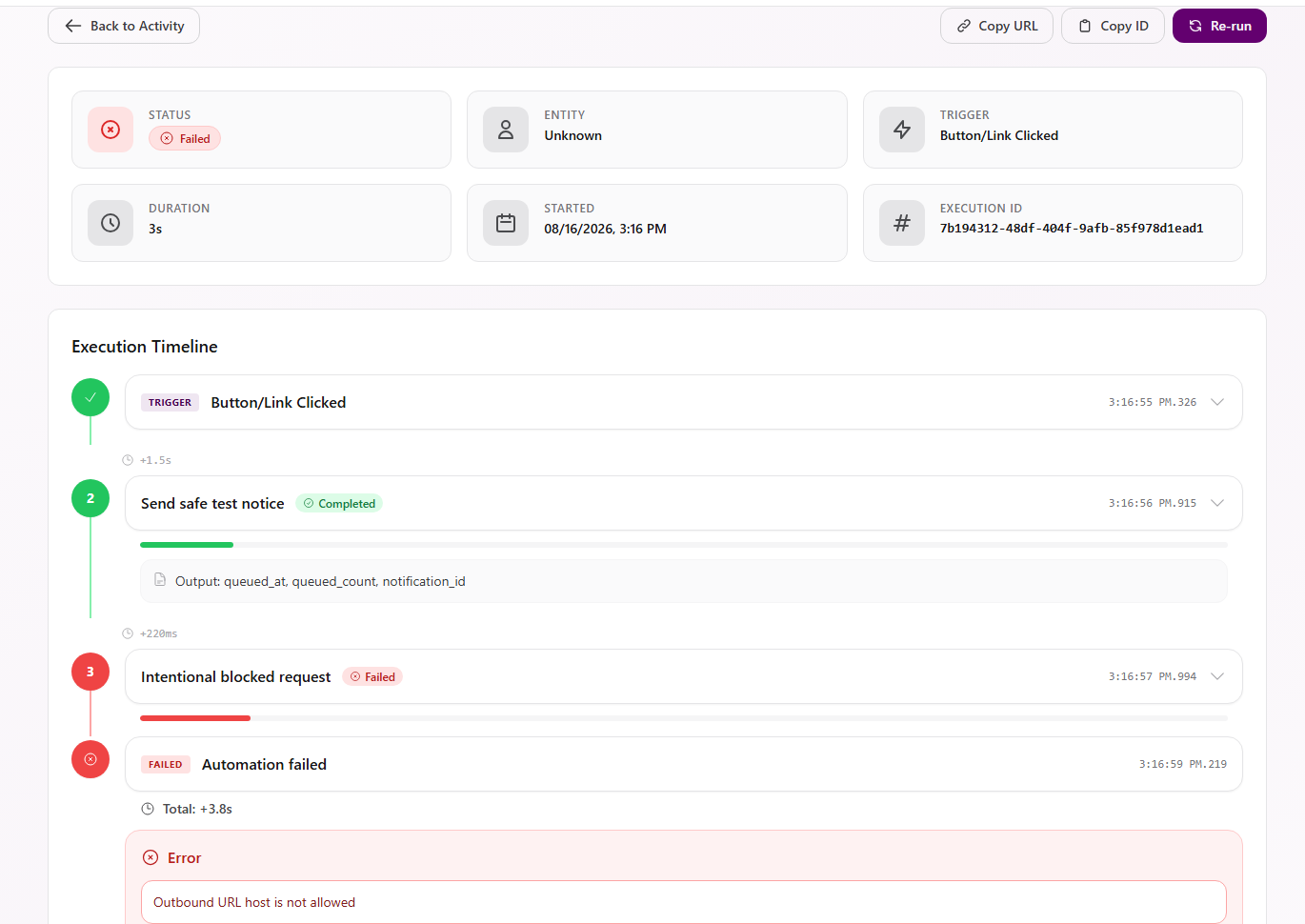
In the example above, the HTTP action used a blocked local address. Activity shows Failed, identifies the failing action in the timeline, and surfaces Outbound URL host is not allowed. Your error text will reflect the step that failed.
Common symptoms
Section titled “Common symptoms”| Symptom | What the UI can tell you | What to do |
|---|---|---|
| Publish control is disabled | Issue count and tooltip identify validation problems | Open every issue, complete required fields, connect the path, and save the draft |
| Published automation has no runs | Header may show Inactive | Turn on the toggle and confirm Active |
| Draft changes are not running | Header shows Draft (v# is Active) | Publish the draft when ready; until then the named version remains active |
| Expected run is missing from Activity | Date filter excludes it or the trigger did not start | Expand the date range, refresh, then review trigger and condition settings |
| Condition is missing after reopening a trigger | It did not persist in the draft | Add it again, select Done, save the node and draft, and submit a ticket if it repeats |
| Row shows Failed | One or more steps surfaced an error | Open the row and inspect the red step and error details |
| Row shows Running or Waiting | The run is not terminal | Refresh before re-running or changing the automation |
| Re-run could duplicate work | Earlier actions may have succeeded before a later failure | Review the timeline and side effects; repair manually or re-run only when safe |
| Automation should stop taking new work | It is active | Turn it inactive; existing activity remains visible |
When submitting a ticket
Section titled “When submitting a ticket”Include the automation name, execution ID, start time, trigger, failed step, and surfaced error. Use Copy URL and Copy ID from execution detail instead of copying a long raw stack. See Submit a ticket.
Related articles
 How-to Create an automation Create an automation draft, choose from the triggers available in the builder, and add field or related-record conditions.
  How-to Add actions and steps Add and configure actions, connect nodes in execution order, and use control-flow and utility steps in the automation builder.
  How-to Publish and manage automations Publish and activate an automation, edit a live version safely, restore an older version as a draft, duplicate, organize, or delete.
  How-to View automation run history Use the Activity tab to filter automation runs, open an execution timeline, inspect step errors, copy identifiers, and re-run safely.