
Find and work tickets

Use the Tickets inbox to find requests by ownership, status, department, client, or text. Open a row to read its conversation and work from the ticket view.
Who this is for
Section titled “Who this is for”Agency team members who triage or respond to customer requests. Requires View Tickets. Actions that change a ticket require ticket management access.
Before you begin
Section titled “Before you begin”- You are signed in to the correct agency workspace.
- At least one ticket exists, or you expect an empty list until a request arrives.
- If your team receives email or SMS, the appropriate inbox is connected. See Set up a ticket inbox.
New to ticket vocabulary? See Tickets overview.
Open the Tickets inbox
Section titled “Open the Tickets inbox”-
Open Tickets ( /tickets/inbox (opens in new tab) ).
-
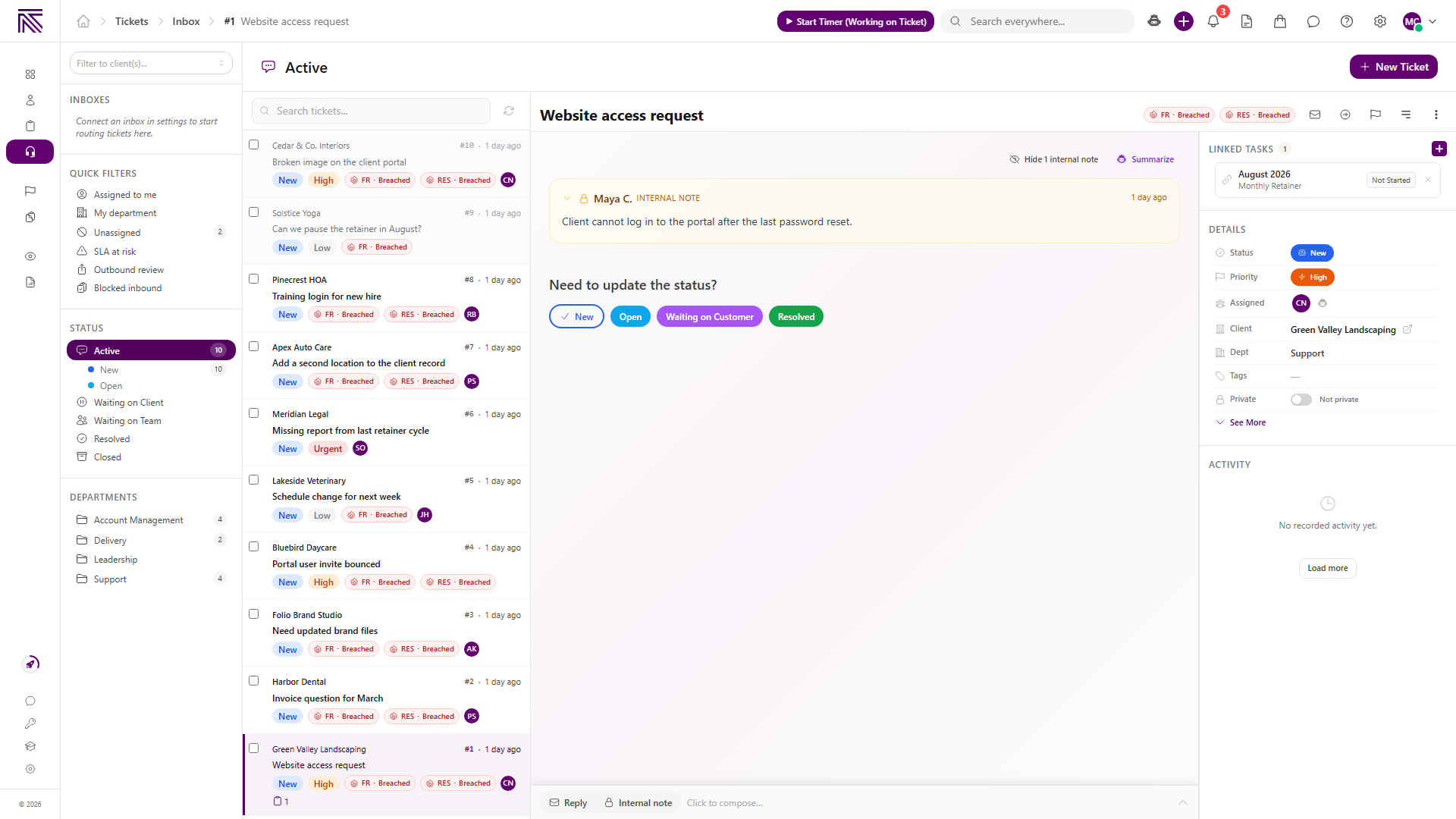
Choose a view in the left sidebar.
View full size
Use inboxes and quick filters
Section titled “Use inboxes and quick filters”When connected inboxes are available, they appear under INBOXES. Select an inbox to see tickets routed there.
Use QUICK FILTERS for common work queues:
- Assigned to me shows tickets assigned directly to you.
- My department shows tickets assigned to your department.
- Unassigned shows tickets without an assignee.
- SLA at risk shows tickets approaching or past an SLA target.
- Outbound review shows replies waiting for review.
- Blocked inbound opens inbound messages that need attention before they become normal tickets.
Counts beside a filter show how many tickets currently match it.
Filter by status or department
Section titled “Filter by status or department”Under STATUS, choose Active or a specific lifecycle group such as New, Open, Waiting on Client, Waiting on Team, Resolved, or Closed. Your agency’s configured ticket statuses can differ from these defaults.
Under DEPARTMENTS, select a department to narrow the list to that team.
Filter by client and search
Section titled “Filter by client and search”- Use Filter to client(s)… above the sidebar to limit all ticket views to one or more clients.
- Use Search tickets… above the list to match ticket subjects and other searchable ticket text.
- Clear either field to return to the broader view while keeping your other filters.
Open and understand a ticket
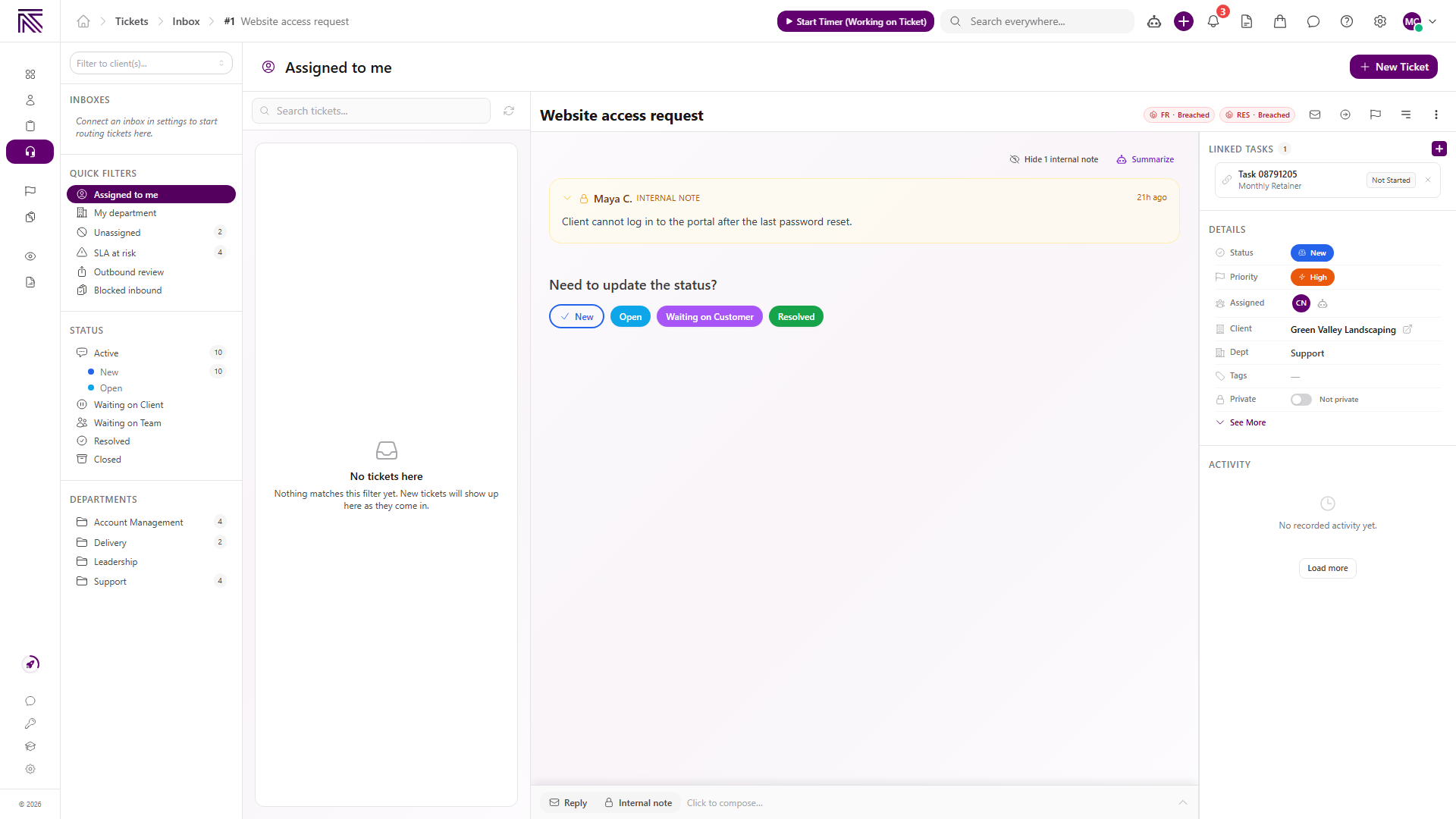
Section titled “Open and understand a ticket”Select a ticket row. The ticket view includes:
- The subject and ticket number in the header
- The customer conversation and internal notes in the main thread
- Quick status choices below the latest conversation item
- Reply and Internal note in the composer
- Move to inbox, Escalate, Show details panel, and More actions in the header
Open Show details panel to see status, priority, assignees, client, department, tags, privacy, SLA information, linked tasks, and activity.
Create a ticket manually
Section titled “Create a ticket manually”- Select New Ticket.
- Enter Subject.
- Optionally choose an Inbox, Client, and Department.
- Choose Priority.
- Select Create Ticket.
If no inbox is available to you, AgencyTitan keeps the ticket visible to the agency until it is moved. An intake routing rule may also place the ticket in a different inbox from the one selected during creation.
Expected result
Section titled “Expected result”- The list reflects the inbox, quick filter, status, department, client, and search choices you made.
- Selecting a row opens that ticket’s conversation and details.
- A manually created ticket opens in the ticket view and appears in the appropriate list.
Troubleshooting
Section titled “Troubleshooting”| Symptom | Likely cause | What to do |
|---|---|---|
| Tickets is missing | You lack View Tickets | Ask a workspace owner to review your ticket permissions |
| List is empty | The selected view has no matches | Clear search and client filters, then try Active or Unassigned |
| A ticket is missing from Assigned to me | It is unassigned or assigned to someone else | Check Unassigned, the relevant department, or search by subject |
| Expected inbox is missing | It is inactive, restricted, or not connected | Ask someone with ticket settings access to review the inbox |
| Ticket opens but change controls are unavailable | You have view-only access | Ask a workspace owner to review your ticket management permission |
Related articles
 Concept Tickets overview How the Tickets inbox, ticket conversations, assignment, statuses, inboxes, routing rules, and reply templates fit together.
  How-to Reply to a ticket Send a customer reply from the ticket composer, add recipients and attachments, use a template, or leave an internal note.
  How-to Assign and update a ticket Change ticket status, priority, assignees, client, department, tags, privacy, and inbox from the ticket view.
  How-to Set up a ticket inbox Connect an email or SMS channel in ticket settings and configure visibility, defaults, inbound behavior, and outbound behavior.
  How-to Create reply templates Create shared ticket reply templates with formatted content and shortcodes, then insert active templates from the ticket composer.