
Add a program to a client
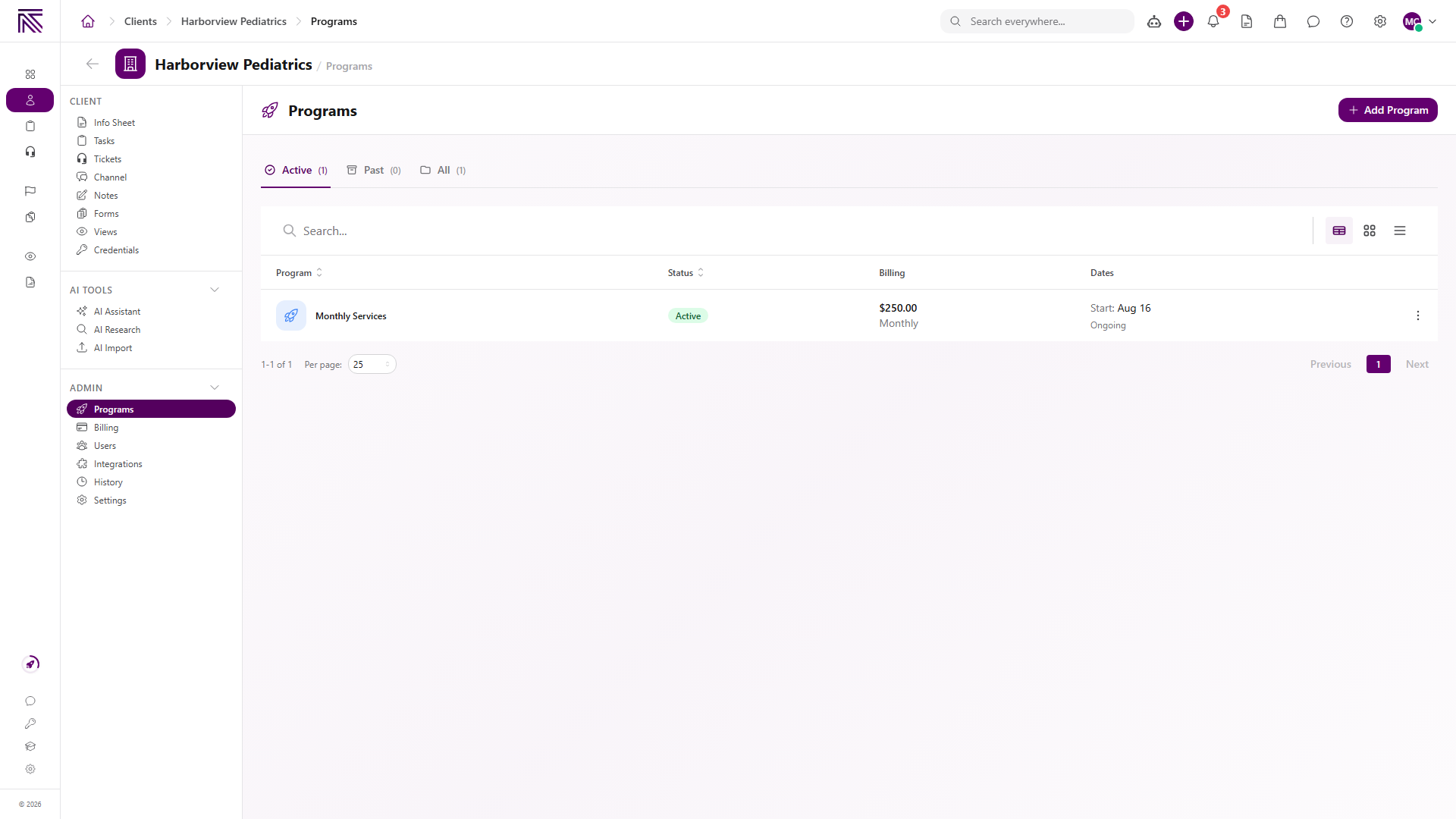
A program is a published service package that can create scheduled tasks for a client and, when configured, define how that client is billed. Add a program from the client’s Programs page and review the dates and billing choices shown in the drawer before saving.
Who this is for
Section titled “Who this is for”Agency team members who enroll clients in published programs. You need access to the client and permission to edit it. Billing choices also depend on the program and your workspace’s billing setup.
Before you begin
Section titled “Before you begin”- The client record exists and is the correct account.
- A program has been created and published in Settings, then Programs.
- The published program has the billing frequencies and prices your agency intends to offer, when client billing is enabled.
- You know the service start date and when scheduled tasks should begin.
Open the client’s Programs page
Section titled “Open the client’s Programs page”- Open a client record.
- Select Programs in the client navigation ( /clients/:id/programs (opens in new tab) ).
- Use Active, Past, or All to review existing program subscriptions.
- Select Add Program.
If no published program is available, AgencyTitan directs you to create a program first. Draft programs do not appear in the add flow.
Select a program and billing source
Section titled “Select a program and billing source”-
In Add Program to Client, select a published program.
-
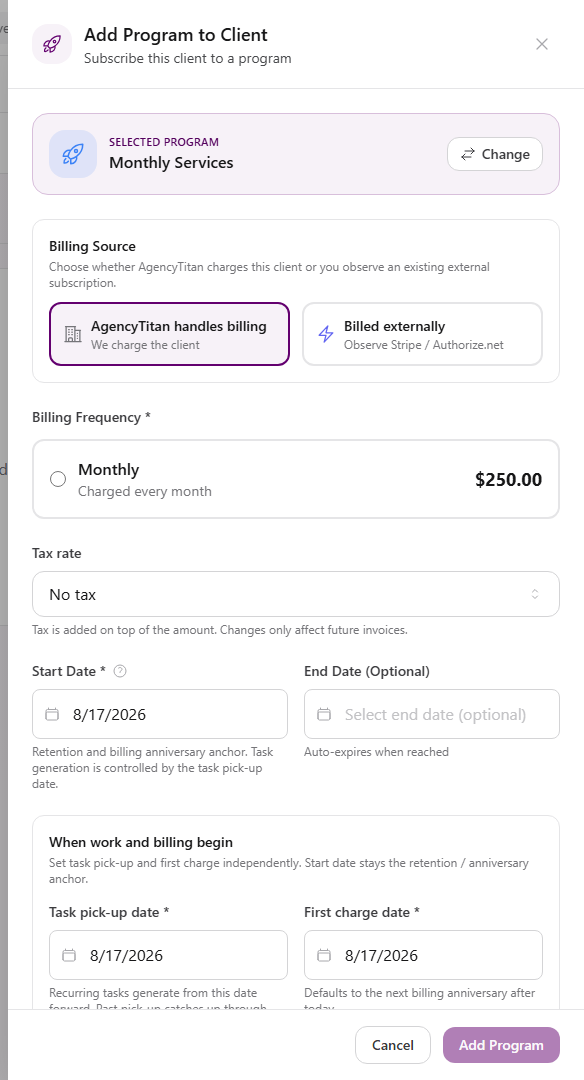
Under Billing Source, choose the option available for this subscription:
- AgencyTitan handles billing uses the frequencies and prices configured on the program.
- Billed externally observes a connected external subscription. The drawer shows the provider and subscription choices when this option is available.
-
For AgencyTitan billing, select a Billing Frequency and review the price.
-
Choose a Tax rate when one applies.
View full size
The exact billing controls vary with the selected program and connected payment services. Document only the choices shown for the client you are enrolling.
Set dates and task behavior
Section titled “Set dates and task behavior”Complete the visible scheduling choices:
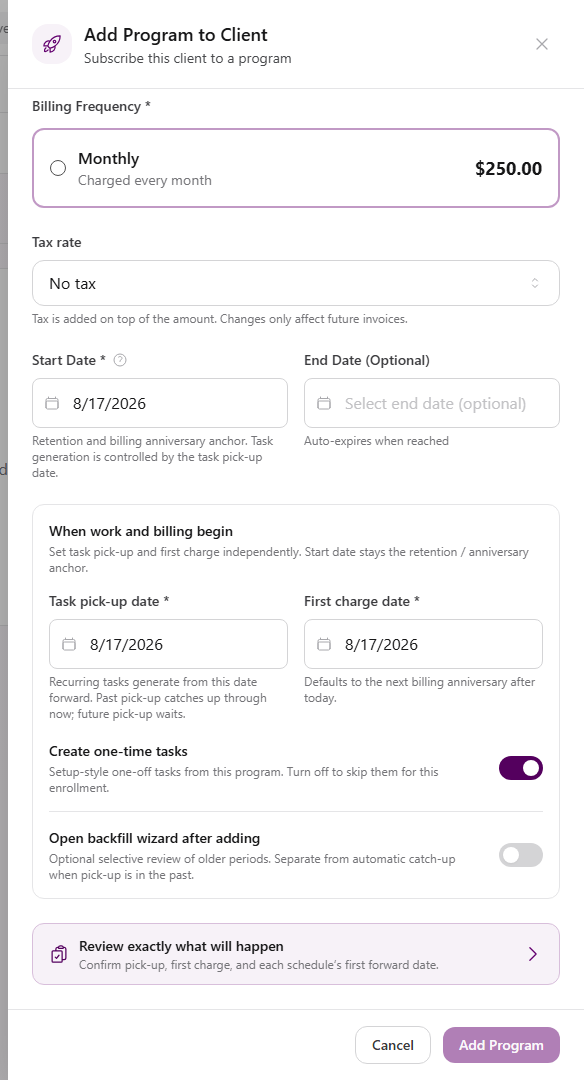
- Start Date is the subscription’s retention and schedule anchor. It can also be the billing anniversary for AgencyTitan billing.
- End Date is optional. The subscription expires when this date is reached.
- Task pick-up date controls when recurring scheduled tasks begin. A past date can catch up through today; a future date waits.
- First charge date appears for AgencyTitan billing. External billing shows that AgencyTitan does not set a charge date.
- Create one-time tasks controls setup-style one-time tasks included by the program.
- Open backfill wizard after adding opens an optional review of older periods after the program is added.
Review before saving
Section titled “Review before saving”-
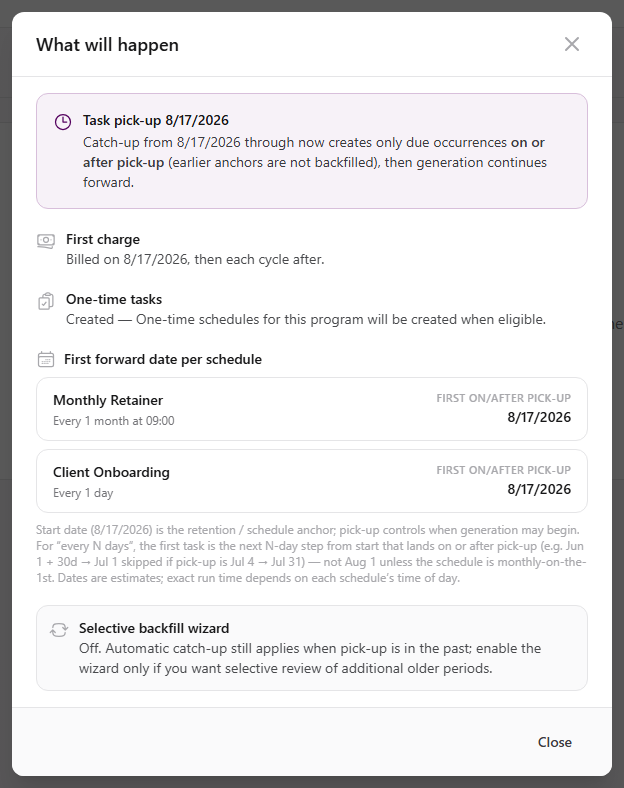
Select Review exactly what will happen.
-
Review the task pick-up date, first charge, one-time task choice, and the first forward date for each configured schedule.
-
Close the preview and correct the drawer choices if anything is unexpected.
-
Select Add Program.
View full size
Expected result
Section titled “Expected result”- The program appears under Active with its status, billing frequency and amount, start date, and end state.
- Scheduled tasks follow the program’s configured schedules and the selected task pick-up date.
- Billing follows the selected source and frequency shown during enrollment.
See Client-linked work to find tasks created for the client.
Troubleshooting
Section titled “Troubleshooting”| Symptom | Likely cause | What to do |
|---|---|---|
| Add Program is missing | You cannot edit the client | Ask a workspace owner to review your client permissions |
| Program is not listed | It is still a draft or is unavailable to this workspace | Publish the program in Settings, then reopen the add drawer |
| Billing frequency is empty | No priced frequency is enabled on the program | Configure an offered frequency and price in the program’s pricing settings |
| External subscription cannot be selected | The provider is not connected or no eligible subscription is available | Connect the provider or choose AgencyTitan billing when appropriate |
| Add Program stays disabled | A required program, frequency, subscription, or date is missing | Complete every required choice marked with an asterisk |
| Dates do not produce the expected tasks | Task pick-up and start date have different purposes | Open Review exactly what will happen and check each schedule before saving |
Related articles
 Concept Clients overview Understand the Clients list, client record anatomy, Client Profile templates, Info Sheets, notes, programs, tasks, and tickets.
  How-to Find a client's tasks and tickets Open the Tasks and Tickets views on a client record, understand what appears there, and continue work in the main task or ticket area.
  Concept Tasks & processes overview Understand how task types, process definitions, stages, fields, layouts, assignments, and tasks fit together.