
Work an escalation

Use Escalations to take a flagged issue, keep the right people involved, and close the flag when the linked work is handled.
Who this is for
Section titled “Who this is for”Agency team members granted Manage Escalations. If your access is limited to assigned escalations, you can act on rows you are assigned to or involved in. Owners, Admins, and users granted All access can work the full inbox.
Before you begin
Section titled “Before you begin”- Open Escalations ( /escalations (opens in new tab) ).
- Stay on Open unless you need a closed row.
- Completing the linked ticket or task still uses the same permissions as working that record.
Find an escalation
Section titled “Find an escalation”- Confirm Open is selected to see active rows.
- Use Search escalations… when you know part of the linked record.
- Select Filters to narrow by user (when you can see all), priority, or type. Use Clear to reset.
- Select Resolved only when you need a closed escalation.
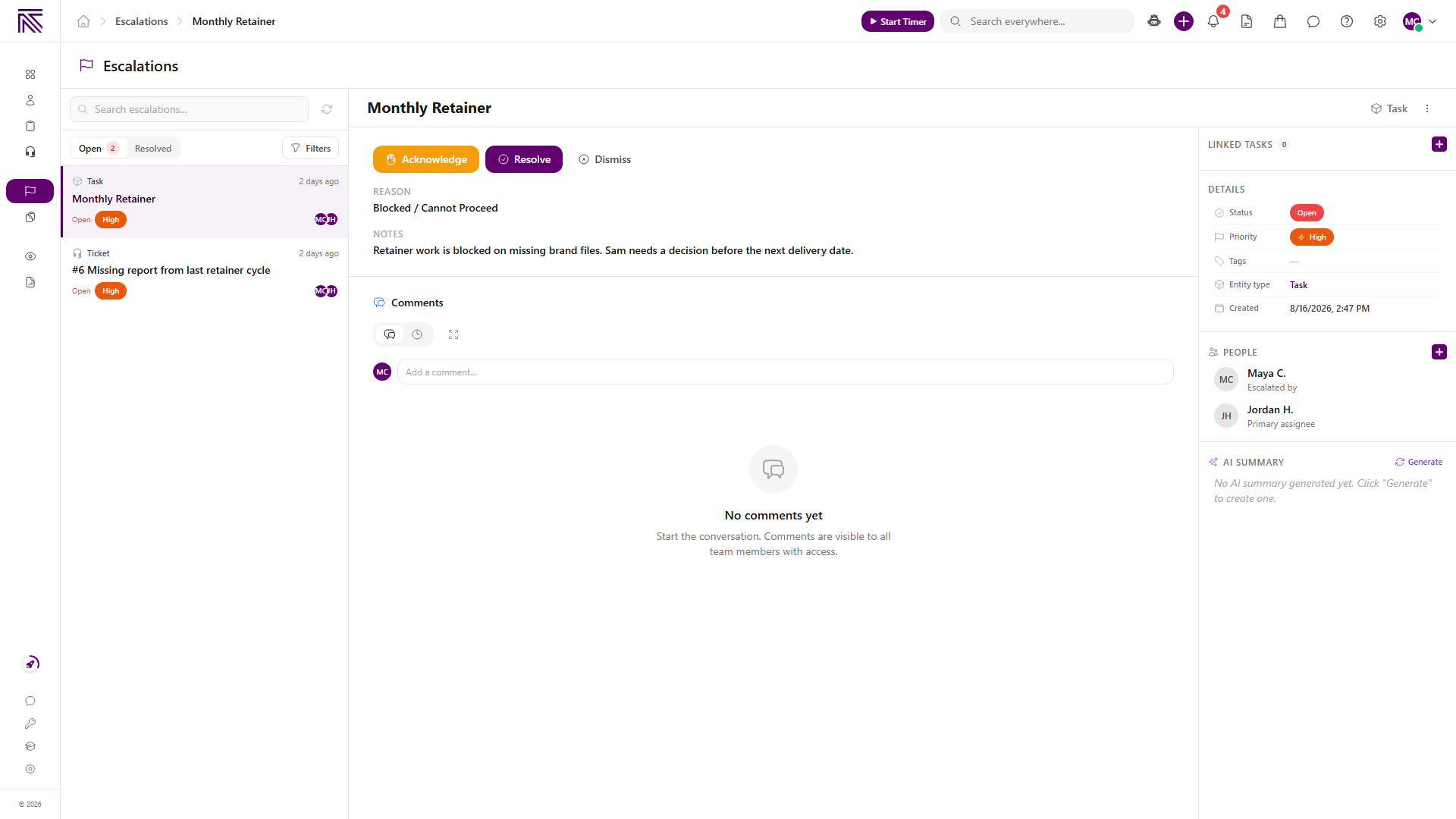
- Select a row to open the detail.
Acknowledge, resolve, or dismiss
Section titled “Acknowledge, resolve, or dismiss”- Read Reason and Notes. Policy rows can show Policy Findings instead of notes.
- Select Acknowledge while the escalation is still open. The button leaves after that.
- When the issue is handled, select Resolve. In Resolve Escalation, enter Resolution Notes, then confirm Resolve.
- If it should not stay open, select Dismiss. In Dismiss Escalation, enter Reason for dismissal, then confirm Dismiss.
Closed rows move to the Resolved tab. The detail keeps Resolution or Dismissal Reason.
Comment and update people
Section titled “Comment and update people”- Use Comments on the detail to leave a note on the escalation.
- Open the Details rail if it is collapsed.
- Review Escalated by and Primary assignee. Select the assignee to change it when you can act.
- Select Add person to open Add Participant. Search by name, email, or department, then select Add.
- Use Remove participant on a person who is not the primary assignee.
- Select Generate or Refresh under AI Summary when you want a summary.
- If Recommendations are present, select one to mark it.
Open the linked record
Section titled “Open the linked record”- Select Open Ticket, Open Task, or the matching open control in the header or Entity type row.
- Work the ticket or task there. Status changes on that record do not close the escalation by themselves.
- Return to Escalations and Resolve or Dismiss the flag when the path is finished.
Escalations in the My Day side panel open a peek of the same record. They do not add a Today’s List row.
Raise an escalation
Section titled “Raise an escalation”- Open the ticket, task, client, or client note.
- Select Escalate…. On some surfaces the control is Escalate.
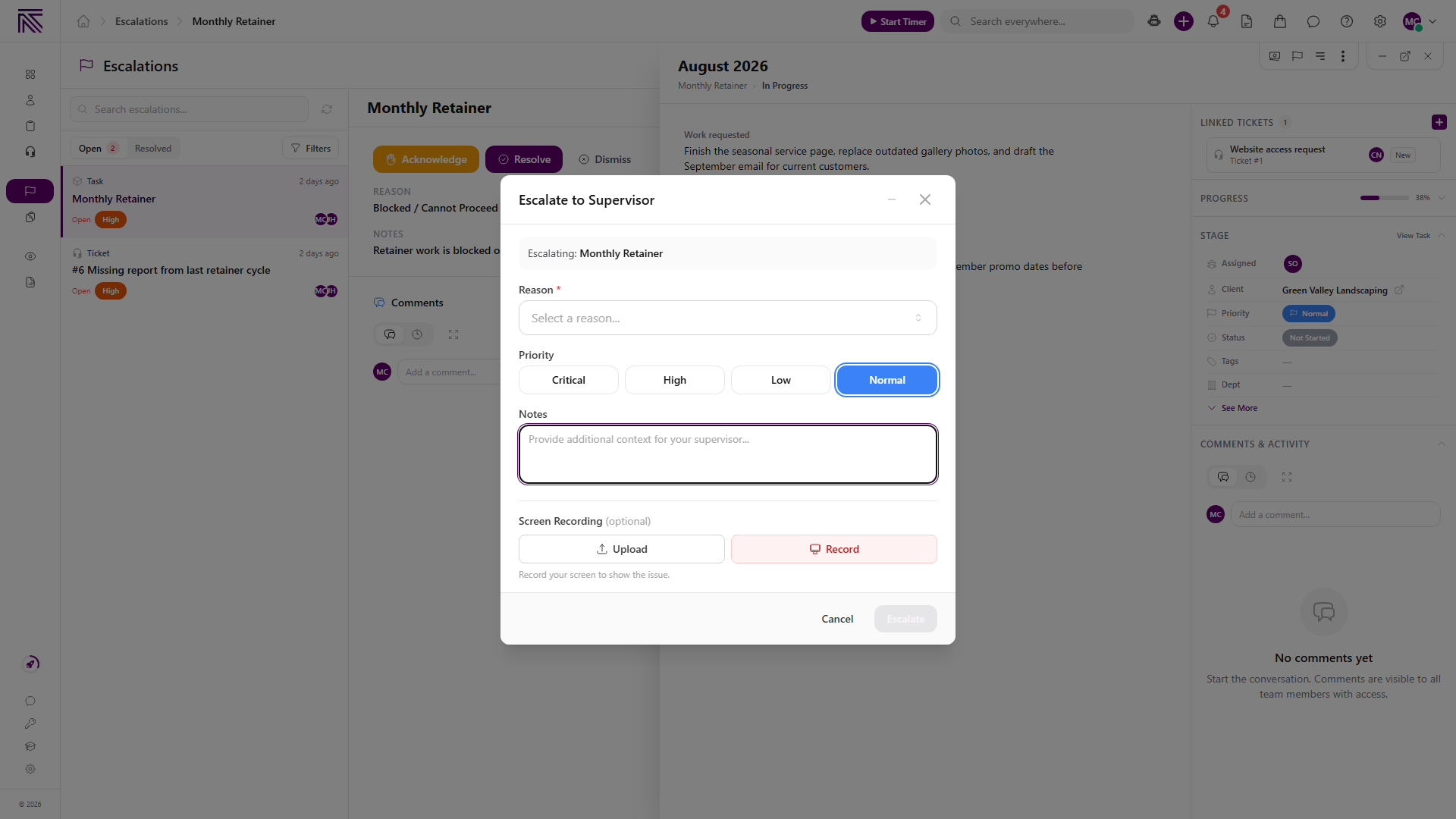
- In Escalate to Supervisor, choose a Reason.
- Set Priority if needed. Add Notes and an optional Screen Recording.
- Confirm Escalate.
Expected result
Section titled “Expected result”- The row you selected is open in the detail pane.
- Acknowledged rows stay on Open and no longer show Acknowledge.
- Resolved and dismissed rows appear under Resolved.
- Comments and participants stay on the escalation.
- The linked ticket or task opens from the escalation without removing the flag.
Troubleshooting
Section titled “Troubleshooting”| Symptom | Likely cause | What to do |
|---|---|---|
| Escalations is missing from navigation | Manage Escalations is not granted | Ask an owner to grant Manage Escalations |
| The list is shorter than you expect | Your access is limited to assigned escalations, or Filters are on | Select Clear, or ask for All access if you should see every row |
| Acknowledge is missing | The row is already acknowledged or closed | Use Resolve or Dismiss, or open Resolved for closed rows |
| You see Escalation Not Found | The row was removed, or you cannot view it | Return with Back to Escalations, or open a notification only if you are involved |
| All caught up! is showing | There are no active escalations for your access | Stay on Open, or check Resolved for closed rows |
| You cannot finish the linked work | The ticket or task permission is missing | Ask an owner to grant the matching ticket or process permission |
Related articles
 Concept Escalations overview Understand Escalations, how they differ from tickets and tasks, and how the inbox, statuses, and linked records fit together.
  How-to Find and work tickets Use inboxes, quick filters, statuses, departments, client filters, and search to find and open tickets in the Tickets inbox.
  How-to Work a task Work the current stage, update task details, complete required fields, and move a task through its configured stages.
  How-to Work your day Start the next My Day item, reorder Today's List, promote Overflow, snooze work, and review Timeline.