
Filter and sort view data

Filters and sorting are configured on each data block. This lets one dashboard show different slices of the same records, such as all active tasks in a table and overdue tasks in a metric.
Who this is for
Section titled “Who this is for”Agency team members who edit view layouts and need each block to show a focused set of records. Requires View Layouts and Edit Layouts.
Before you begin
Section titled “Before you begin”- Create a view and add at least one table, chart, metric, or Kanban block. See Create a view.
- Decide which records should be included and whether every condition or any condition should match.
- Identify the field that should control sorting or date filtering.
Open a block’s data settings
Section titled “Open a block’s data settings”- Open Settings, then Views ( /settings/views (opens in new tab) ), and open the view.
- Select the table, chart, or metric on the canvas.
- Expand General or Data, depending on the block.
- Confirm Data Source before building conditions.
Build a filter
Section titled “Build a filter”- Find Filters in the block’s properties.
- Under Match, choose:
- All when every condition must match.
- Any when at least one condition can match.
- Select Add condition.
- Choose a field, operator, and value.
- Select Done to finish the highlighted condition.
- Add more conditions as needed.
- Use Add group when a nested group needs its own All or Any logic.
- Select Save Draft.
Sort and limit a table
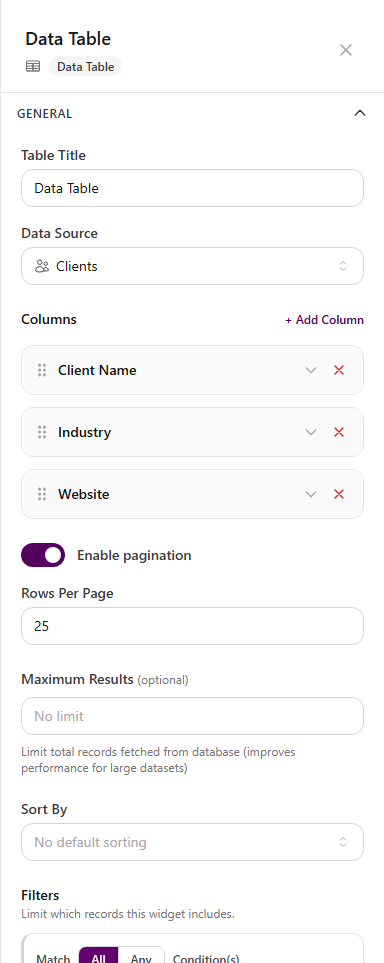
Section titled “Sort and limit a table”In a Data Table block:
- Add the columns the table should display.
- Under Sort By, choose a sortable field.
- Choose the direction when the direction control appears.
- Set Rows Per Page when pagination is enabled.
- Optionally set Maximum Results to limit the records fetched.
- Select Save Draft.
Charts provide Sort Order and Data Limit in their Data section. Kanban column order comes from its configured column field rather than the table sorting control.
Save and reuse filters
Section titled “Save and reuse filters”The Views builder does not show a separate named Saved Filters library. The conditions are part of the table, chart, metric, or Kanban configuration and are saved with the view draft. Reopen the view and select the same block to update that saved filter definition.
To reuse a complete configuration, use Duplicate on the view and edit the copy. See Manage views.
Use the view-level date picker
Section titled “Use the view-level date picker”- Open View Settings from the builder header.
- Turn on Enable Date Range Filter and choose a default range.
- Return to the block.
- Under Date Filtering, use Follow View Picker and choose a Date Field.
- Save the view settings and the draft.
The date picker only drives blocks that have a date field configured to follow it.
Expected result
Section titled “Expected result”- Each configured block shows only records that match its saved conditions.
- Tables and charts use the selected sort and result limits.
- Blocks configured to follow the view picker update when its date range changes.
Troubleshooting
Section titled “Troubleshooting”| Symptom | Likely cause | What to do |
|---|---|---|
| Filter cannot be saved | A highlighted condition is incomplete | Finish or remove the condition |
| Filter returns no records | Field, operator, value, or data source does not match the intended records | Review the condition from left to right and confirm the block’s Data Source |
| Sort By has no useful choice | The needed column or field is not available for the selected data source | Add the field as a column or change the data source |
| Date picker does not affect a block | Date filtering or Date Field is not configured | Enable the view date range, then set the block to Follow View Picker |
| Library order looks wrong | The Views library has its own sort control | Change Recently Updated, Recently Created, or Name (A-Z) in the library |
Related articles
 Concept Views and dashboards overview Understand how AgencyTitan views combine tables, Kanban boards, calendars, charts, and metrics into scoped dashboards and work surfaces.
  How-to Create a view Choose a global, client, or process scope, create the view, and add table, Kanban, calendar, chart, or metric blocks in the builder.
  How-to Configure Kanban and calendar views Configure Kanban grouping, cards, behavior, filters, and calendar data sources, date fields, and default display.
  How-to Configure charts and metrics Add chart series, grouping, sorting, filters, and metric calculations to build a useful AgencyTitan dashboard.