
Create intake routing rules

Use Intake Routing to choose the destination inbox for a brand-new email ticket while the message is being received. Rules can match the arrival inbox, sender email, subject, and whether AgencyTitan matched the sender to a known client.
Who this is for
Section titled “Who this is for”Agency team members who manage ticket settings and incoming email distribution. Requires Manage Ticket Settings.
Before you begin
Section titled “Before you begin”- Create at least one active email destination inbox. See Set up a ticket inbox.
- Decide which arrival inboxes the rule should evaluate.
- Put narrow, specific rules above broader rules because the first full match wins.
Open Intake Routing
Section titled “Open Intake Routing”-
Open Settings, then Tickets, then Intake Routing ( /settings/tickets/intake-routing (opens in new tab) ).
-
When no rules exist, select Add Your First Rule. Otherwise select Add rule.
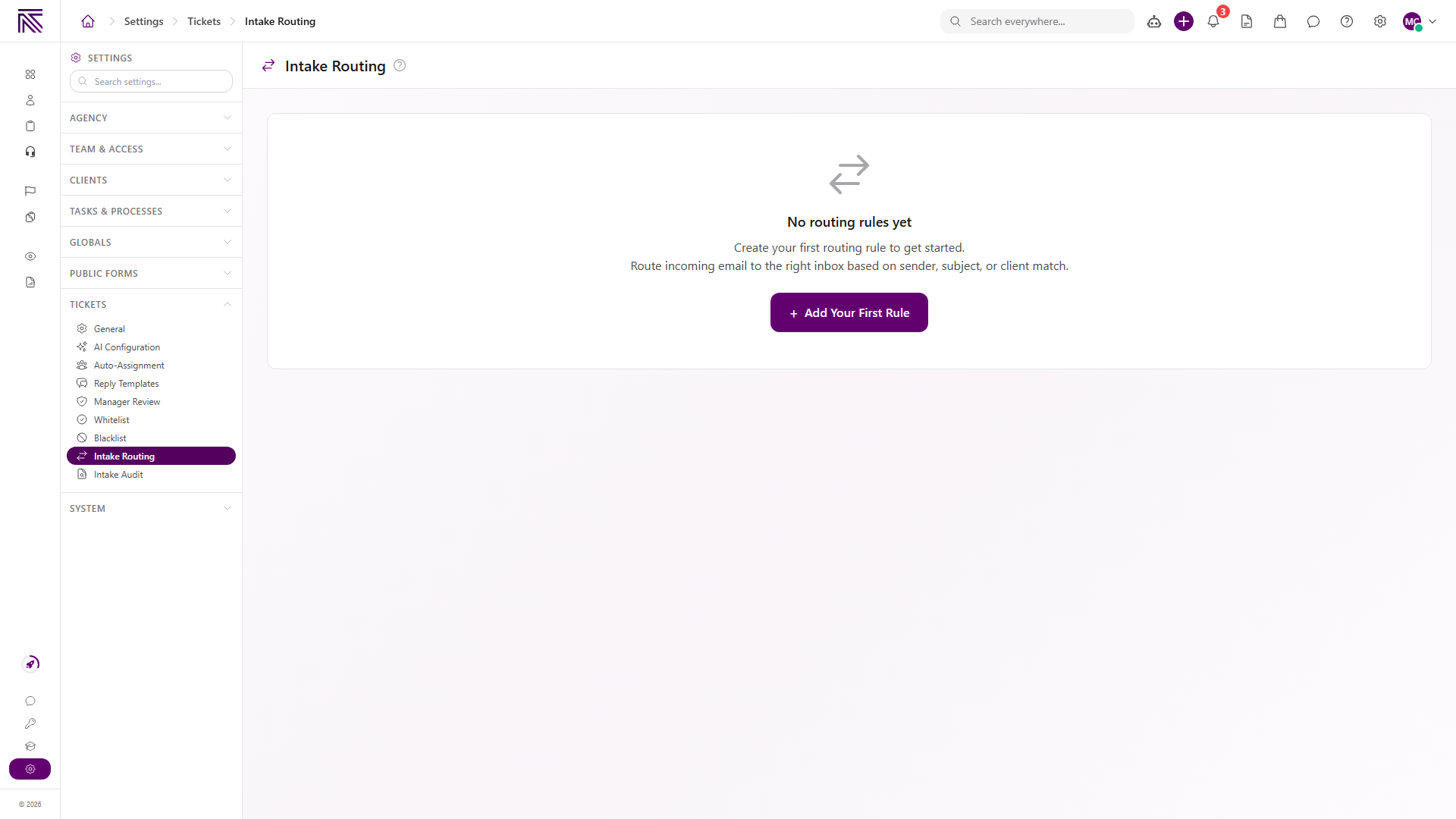
View full size
Create a rule
Section titled “Create a rule”-
Enter Rule name.
-
Under Applies to inboxes, optionally choose one or more arrival inboxes.
Leave this empty to evaluate the rule for email arriving on any inbox.
-
Under Conditions, select Add condition.
-
Choose a field and operator:
Field Available matches Known client is matched or is not matched Sender email is, ends with (domain), or contains Subject contains or does not contain -
Enter a value when the selected operator requires one.
-
Add more conditions when needed. Every condition in a rule must match. Text matching is not case-sensitive.
-
Choose Route to inbox.
-
Keep Active on when the rule should run immediately.
-
Select Create rule.
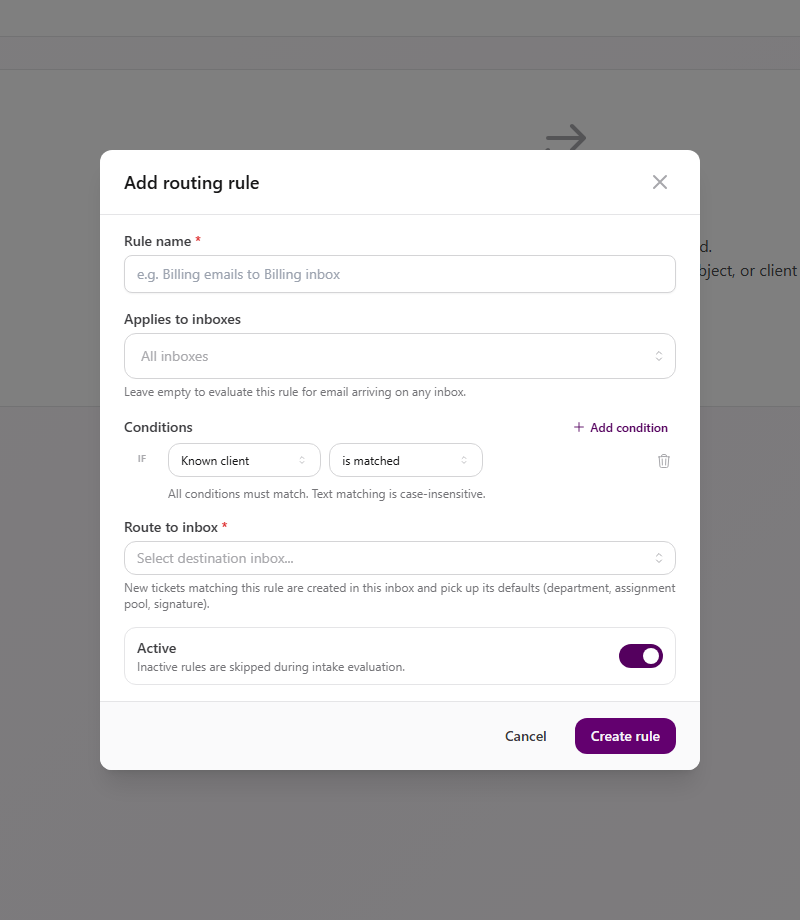
View full size
Understand rule order
Section titled “Understand rule order”Active rules run from top to bottom. The first rule whose inbox scope and conditions all match chooses the destination inbox. Later rules are not evaluated for that message.
After you create more than one rule, use the up and down controls to put specific rules first and broad catch-all rules last. An active rule with no conditions matches every inbound email in its selected arrival-inbox scope.
What happens after a match
Section titled “What happens after a match”- AgencyTitan creates the ticket in the destination inbox.
- The destination inbox defaults can set department, assignees, and signature.
- When the destination inbox has default assignees, those defaults take precedence over general automatic assignment.
- If the destination inbox is unavailable or rule evaluation fails, intake continues in the arrival inbox instead of blocking ticket creation.
Expected result
Section titled “Expected result”- The rule appears in Intake Routing in display order.
- Active rules evaluate brand-new inbound email tickets.
- Matching tickets enter the selected destination inbox and use its defaults.
Troubleshooting
Section titled “Troubleshooting”| Symptom | Likely cause | What to do |
|---|---|---|
| Destination inbox is missing | It is not an active email inbox | Activate the inbox or choose another active email inbox |
| Create rule stays disabled | Rule name or destination inbox is missing, or a condition value is empty | Complete required fields and every value-bearing condition |
| Rule never matches | Arrival inbox scope or one condition excludes the message | Review each condition; every condition must match |
| Broader rule wins unexpectedly | It is above the specific rule | Move the specific rule higher |
| Existing ticket did not move | Intake routing does not apply after ticket creation | Use Move to inbox on the ticket |
| Rule should pause temporarily | Rule is still active | Edit the rule and turn off Active |
Related articles
 Concept Tickets overview How the Tickets inbox, ticket conversations, assignment, statuses, inboxes, routing rules, and reply templates fit together.
  How-to Set up a ticket inbox Connect an email or SMS channel in ticket settings and configure visibility, defaults, inbound behavior, and outbound behavior.
  How-to Find and work tickets Use inboxes, quick filters, statuses, departments, client filters, and search to find and open tickets in the Tickets inbox.
  How-to Assign and update a ticket Change ticket status, priority, assignees, client, department, tags, privacy, and inbox from the ticket view.