
My Day overview

My Day is your daily plan. It shows the assigned tasks and tickets you intend to work today, plus ready work that did not fit, and items that still need a look from the side panel.
Who this is for
Section titled “Who this is for”Agency team members who start the day from a personal plan. Every signed-in agency user can open My Day. Completing a task or ticket still uses the same permissions as working that record.
Open My Day
Section titled “Open My Day”- Sign in to the agency app.
- Open My Day ( /dashboard/my (opens in new tab) ). The app logo also returns here.
- Confirm the page tab My Workday is selected.
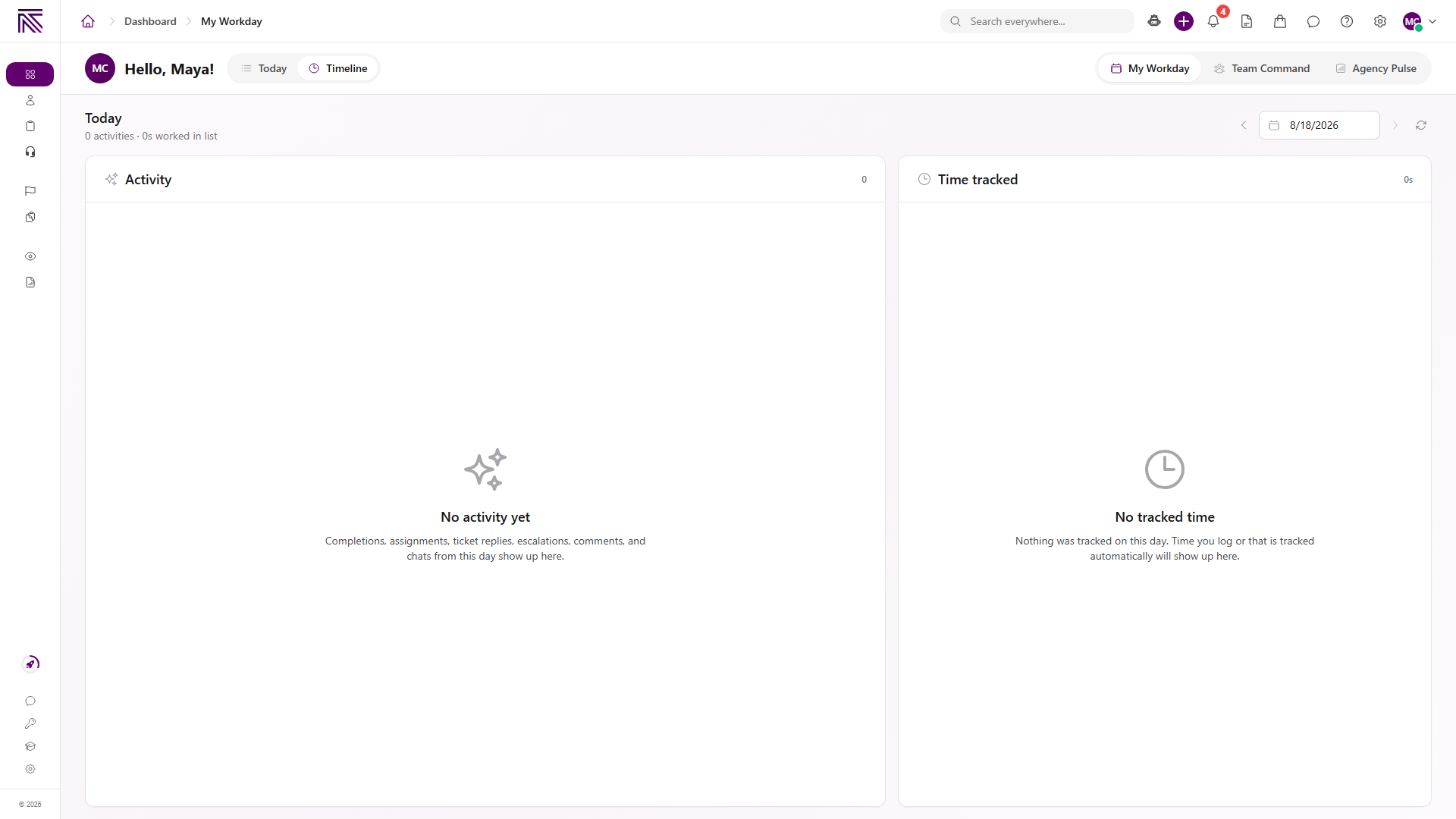
- Stay on Today to plan and work. Open Timeline to review activity and tracked time.
Owners, Admins, and members granted Dashboard access for those surfaces also see Team Command and Agency Pulse as sibling tabs. Those pages are not the personal plan.
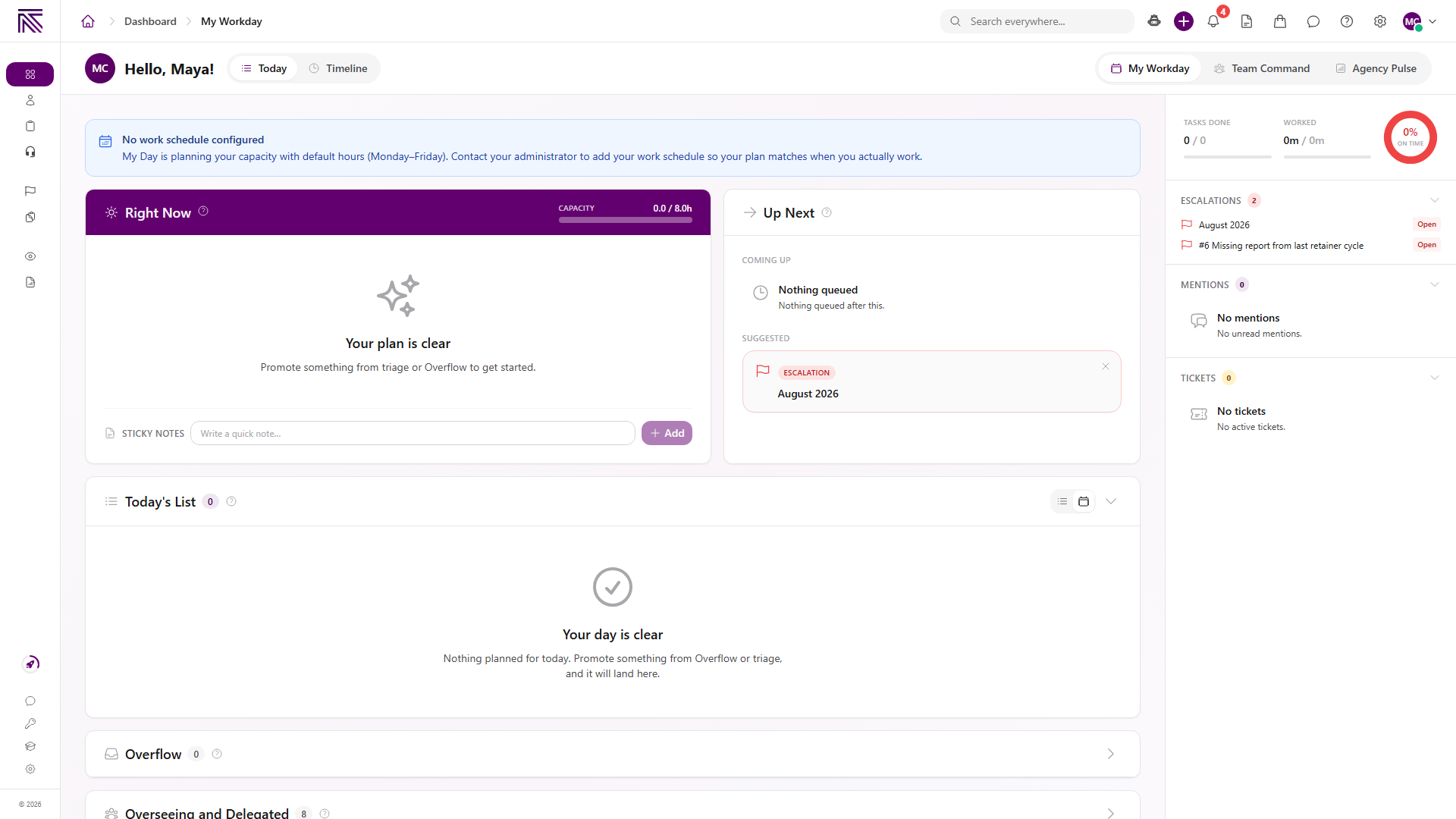
How the Today page is organized
Section titled “How the Today page is organized”| Area | What it is for |
|---|---|
| Right Now | The item you are working, or the first item ready to start. Includes Capacity. |
| Up Next | Coming up is the next item already on Today’s List. Suggested is an urgent pick from triage. |
| Today’s List | The ordered plan that counts toward capacity. |
| Overflow | Ready work that did not fit on Today after must-do items were planned. |
| Overseeing and Delegated | Exceptions on work you own or handed off. Appears only when there is something to review. |
| Watching | Tasks you chose to follow. |
| Side panel | Escalations, Mentions, and Tickets, plus an On Time summary. |
New Tasks appears when items were added or reprioritized since your last visit. No work schedule configured appears when your work hours are not set. In that case My Day uses default weekday hours until an administrator adds your schedule.
My Day is not a separate record type. Items here are tasks and tickets that already exist. See Tasks & processes overview and Tickets overview.
How Today is filled
Section titled “How Today is filled”Must-do work lands on Today’s List first: overdue or due-today stages, tickets with SLA pressure, and other deadline work. Remaining ready items fill until the day is full. Everything after that stays in Overflow until you select Today on the row.
Long work stays on Today and can carry over. It is not moved to Overflow only because it is longer than the remaining window.
When Today’s List is empty, the page shows Your day is clear. Promote an item from Overflow or triage to start a plan.
Today versus Timeline
Section titled “Today versus Timeline”Today is the working plan: start an item, reorder the list, insert a break, complete work, or snooze something off the day.
Timeline is a review of the selected date. It shows Activity and Time tracked. Use the date control, Previous day, Next day, and Today to change the date. Next day is unavailable when you are already on the current date.
Guides in this category
Section titled “Guides in this category”Related articles
 Concept Welcome to AgencyTitan Sign in, find the main areas of the agency app, and choose a first-week path.
  How-to Work your day Start the next My Day item, reorder Today's List, promote Overflow, snooze work, and review Timeline.
  Concept Tasks & processes overview Understand how task types, process definitions, stages, fields, layouts, assignments, and tasks fit together.
  Concept Tickets overview How the Tickets inbox, ticket conversations, assignment, statuses, inboxes, routing rules, and reply templates fit together.
  Concept Escalations overview Understand Escalations, how they differ from tickets and tasks, and how the inbox, statuses, and linked records fit together.