
Reply to a ticket

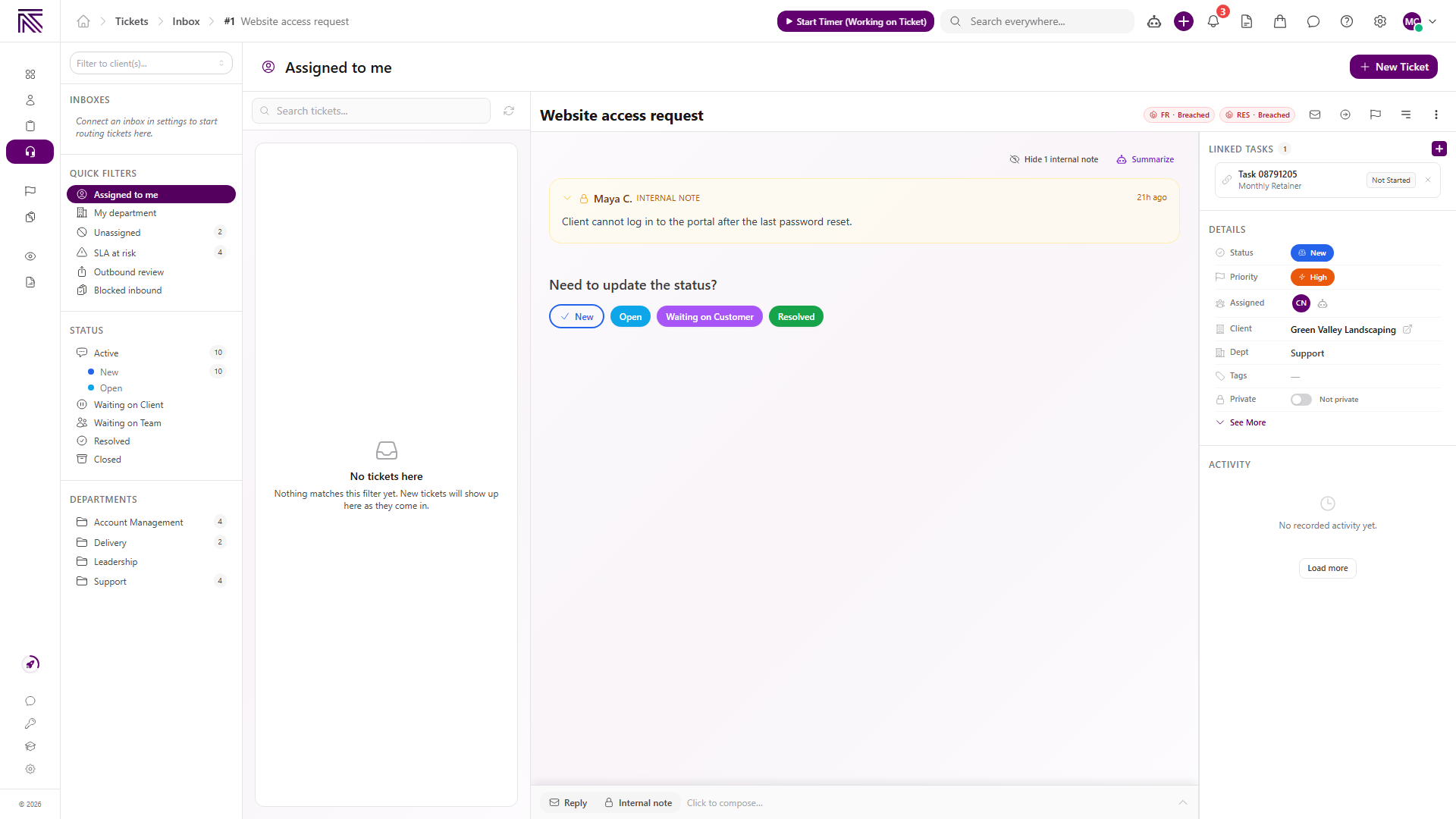
Use Reply to send a message to the customer. Use Internal note when the message is only for your agency team. Both options live in the composer at the bottom of the ticket conversation.
Who this is for
Section titled “Who this is for”Agency team members who communicate with customers or add private context to tickets. Requires ticket management access to send replies or add notes.
Before you begin
Section titled “Before you begin”- Open the ticket from Tickets ( /tickets/inbox (opens in new tab) ). See Find and work tickets.
- For an email reply, the ticket needs an outbound-capable connected inbox and at least one valid To recipient.
- For an SMS reply, the ticket must have a requester phone number and an outbound-capable SMS inbox.
Send a customer reply
Section titled “Send a customer reply”-
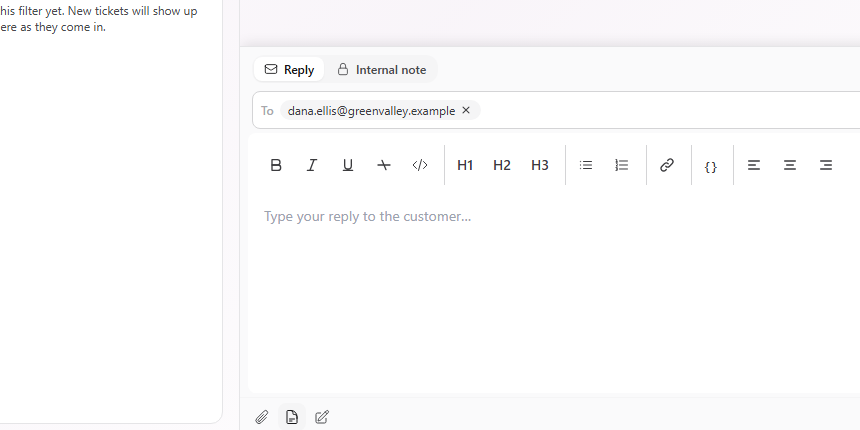
At the bottom of the ticket, select Reply.
-
When a From control appears, confirm the sending inbox. If more than one sender is available, choose the correct one.
-
Review the To recipient. Add at least one valid address for an email reply.
-
Optionally add Cc or Bcc recipients.
-
Write the response in the composer.
View full size -
Optionally use the composer tools:
- Format text with bold, italic, underline, lists, links, and other controls.
- Attach a file.
- Insert an active reply template. See Create reply templates.
- Choose a signature.
- Select Draft with AI, or Enhance with AI when text is already present.
-
Select Send.
The arrow beside Send opens additional options such as Schedule send… and Request review… when those features are available to you.
Add an internal note
Section titled “Add an internal note”- Select Internal note in the composer.
- Enter the context your team needs.
- Select Add note.
Internal notes are marked INTERNAL NOTE in the conversation. They are private to your agency and are never sent to the customer.
Draft behavior
Section titled “Draft behavior”- Reply and internal-note modes keep separate text while you switch between them.
- Reply drafts can save automatically and may appear in a draft tab.
- Another team member’s claimed draft is read-only unless you adopt or manage it through the available draft controls.
- Do not treat a draft as sent until the message appears in the conversation.
Expected result
Section titled “Expected result”- A sent reply appears in the ticket conversation as an outbound message.
- An internal note appears in the conversation with an INTERNAL NOTE label.
- The ticket activity records the update.
Troubleshooting
Section titled “Troubleshooting”| Symptom | Likely cause | What to do |
|---|---|---|
| Send stays disabled | Reply body or valid To recipient is missing | Add the message and at least one valid recipient |
| No From sender is available | Ticket has no outbound-capable inbox | Ask someone with ticket settings access to connect or repair the inbox |
| Sender shows Disconnected | The inbox credential is no longer connected | Reconnect the provider in Integrations, then retry |
| Template is missing | Template is inactive or your search excludes it | Clear template search or activate it in Reply Templates |
| Message should not go to the customer | Wrong composer mode | Switch to Internal note and select Add note |
| SMS cannot include the attachment | SMS does not deliver attachments | Remove the attachment or send it through another approved channel |
Related articles
 Concept Tickets overview How the Tickets inbox, ticket conversations, assignment, statuses, inboxes, routing rules, and reply templates fit together.
  How-to Find and work tickets Use inboxes, quick filters, statuses, departments, client filters, and search to find and open tickets in the Tickets inbox.
  How-to Assign and update a ticket Change ticket status, priority, assignees, client, department, tags, privacy, and inbox from the ticket view.
  How-to Create reply templates Create shared ticket reply templates with formatted content and shortcodes, then insert active templates from the ticket composer.
  How-to Set up a ticket inbox Connect an email or SMS channel in ticket settings and configure visibility, defaults, inbound behavior, and outbound behavior.