
Delete a client

Delete a client to remove that account from your normal Clients lists. The product labels this action Delete (not Archive). If you searched for archive client, that wording points to the same outcome here: the client no longer appears in day-to-day client lists.
This is a high-risk action that cannot be undone in the app. There is no in-app restore. Related tasks are not removed automatically.
Who this is for
Section titled “Who this is for”Agency team members who need to remove client records from the active roster. Requires the Delete Clients permission. Without it, Delete does not appear in More actions or bulk Actions.
Before you begin
Section titled “Before you begin”- The client record already exists. See Create a client if you need to add one instead.
- You can open the client from Clients ( /clients (opens in new tab) ). See Find and organize clients for search and filters.
- Understand what stays behind: tasks linked to the client are not automatically deleted. See What is not deleted before you confirm.
- You cannot bring a deleted client back through the app. Do not treat delete as something you can undo later from Clients.
- Only proceed when you are certain the client should leave active lists. Do not run these steps against production accounts for practice.
Delete one client
Section titled “Delete one client”From a client record:
-
Open Clients and select a client name to open its record.
-
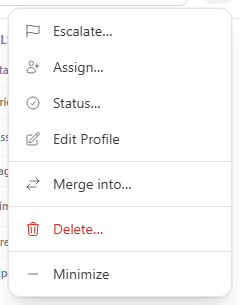
In the page header, open More actions (⋯).
-
Select Delete.
View full size -
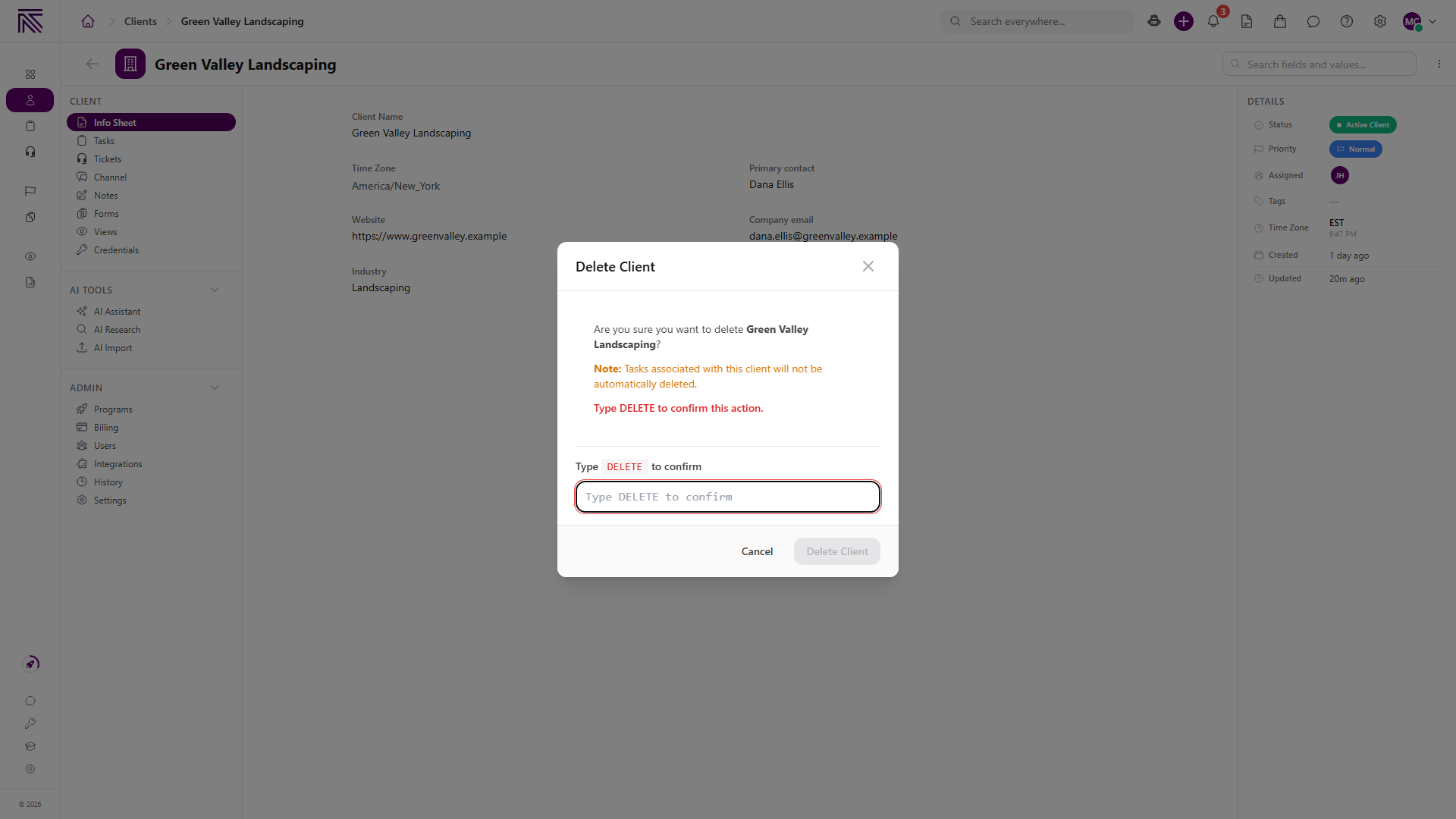
The Delete Client modal opens. Review the copy carefully:
- Are you sure you want to delete followed by the client name?
- Amber Note: Tasks associated with this client will not be automatically deleted.
- Red instruction: Type DELETE to confirm this action.
View full size
- In Type
DELETEto confirm, type the exact word DELETE (all caps). The placeholder reads Type DELETE to confirm. The field must stay empty until you deliberately type the word. - When DELETE matches exactly, Delete Client enables. Select Delete Client to confirm.
Close the modal with Cancel, the X control, or Escape to abort. No delete runs and the client stays in active lists.
Bulk delete clients
Section titled “Bulk delete clients”To remove several clients from the list at once:
-
Open Clients ( /clients (opens in new tab) ).
-
Select the checkbox on each client row you want to remove.
-
When one or more rows are selected, the toolbar shows N selected and an Actions menu.
-
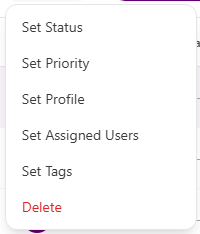
Open Actions and select Delete.
View full size -
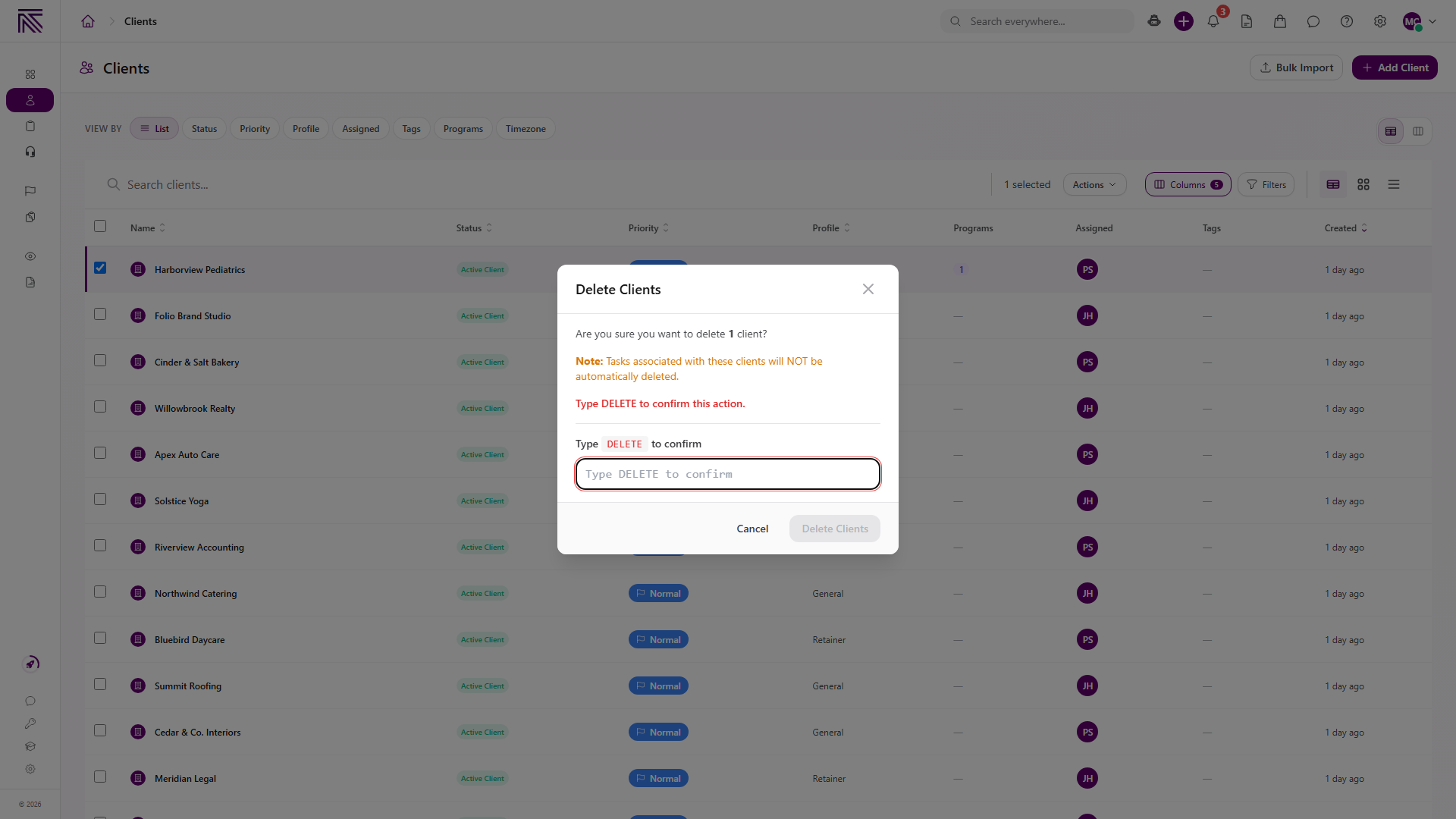
The Delete Clients modal opens. Review the copy:
- Are you sure you want to delete followed by the count (for example 2 clients)?
- Amber Note: Tasks associated with these clients will NOT be automatically deleted.
- Red instruction: Type DELETE to confirm this action.
View full size
- In Type
DELETEto confirm, type DELETE exactly. - When the word matches, Delete Clients enables. Select Delete Clients to confirm.
Cancel with Cancel, X, or Escape to close without deleting.
What happens
Section titled “What happens”When delete succeeds:
- The client no longer appears in normal Clients lists or everyday client navigation.
- You cannot restore the client from inside the app.
- Related work such as tasks is not removed automatically. See What is not deleted.
What is not deleted
Section titled “What is not deleted”Deleting a client does not automatically delete:
- Tasks associated with the client (the confirmation modal states this explicitly)
- Notes, files, tickets, tasks, portal users, billing history, or other linked records
Review linked work before you confirm. Update or reassign tasks separately if needed.
Expected result
Section titled “Expected result”Single client (from the client record):
- The client disappears from normal Clients lists.
- You return to Clients ( /clients (opens in new tab) ).
Bulk delete (from the Clients list):
- The selected clients disappear from the list after it refreshes.
- Clients you did not select remain.
If delete does not complete:
- The clients stay in the list.
- An error message explains why the action failed (for example, you do not have access to one of the selected clients).
Cancel behavior
Section titled “Cancel behavior”At any point before you select the enabled Delete Client or Delete Clients button:
- Cancel, X, or Escape closes the modal
- Nothing is deleted and the client remains in active lists
Delete Client / Delete Clients stays disabled until DELETE is typed exactly. Partial or lowercase text does not enable the button.
Assigned clients and bulk delete
Section titled “Assigned clients and bulk delete”If your access is limited to assigned clients:
- Single delete: you can delete only clients assigned to you. Attempts on other clients fail.
- Bulk delete: if any selected client is outside the clients you can manage, the whole bulk delete fails and no selected clients are deleted.
Deselect clients outside your access, or ask a workspace owner with broader access to perform the delete.
Troubleshooting
Section titled “Troubleshooting”| Symptom | Likely cause | What to do |
|---|---|---|
| Delete is missing from More actions | You lack Delete Clients | Ask a workspace owner to grant Delete Clients |
| Delete is missing from bulk Actions | Missing Delete Clients or no rows selected | Confirm permission; select at least one client row |
| Delete Client / Delete Clients stays disabled | Confirmation text is not exact DELETE | Type DELETE in all caps with no extra spaces |
| Delete fails for one client | Client is outside the clients you can manage, or it is already gone from your list | Confirm you are assigned to the client and it still appears in your list |
| Bulk delete fails for a mixed selection | One or more selected clients are outside your access | Remove those clients from the selection and try again, or delete one client at a time |
| Client gone but tasks remain | Expected; tasks are not auto-deleted | Manage tasks separately on the Tasks views |
| Need the client back in active lists | No in-app restore | Deletion cannot be undone in the app; ask a workspace owner about your agency’s data policies |
Related articles
 Concept Clients overview Understand the Clients list, client record anatomy, Client Profile templates, Info Sheets, notes, programs, tasks, and tickets.
  How-to Create a client Add a client record from the Clients list using Client Name, Client Profile, and any agency-required fields.
  How-to Update a client Edit client details on the Info Sheet and Client Settings, change status and priority from the list, update branding and slug, and reassign the Client Profile template.
  How-to Find and organize clients Search and filter clients on the Clients list, customize columns, sort results, pin important accounts, and switch list layouts.
  Concept Core Concepts Learn the AgencyTitan product model: workspace, clients, tasks, tickets, escalations, chat, SOPs, training, views, automations, programs, and settings.