
Work a task

Open a task to complete its current stage. The process definition controls the stages, the fields shown in each stage, and the action used to finish the work.
Who this is for
Section titled “Who this is for”Agency team members who deliver or review task work. Requires View Processes. Changing values and completing stages also requires Edit Processes.
Before you begin
Section titled “Before you begin”- Open the task from Tasks ( /tasks/active (opens in new tab) ). See Find tasks.
- Confirm the task name, process type, and current stage in the header.
- Check Assigned in the right panel to confirm who owns the current stage.
Work the current stage
Section titled “Work the current stage”- Review the fields in the main stage workspace.
- Enter or update the information needed for the work. Required fields have a red asterisk.
- Complete any checklists, files, or other fields included in the layout.
- Review the right panel for assignment, client, priority, status, tags, department, dates, and progress.
- Add a comment when another team member needs context.
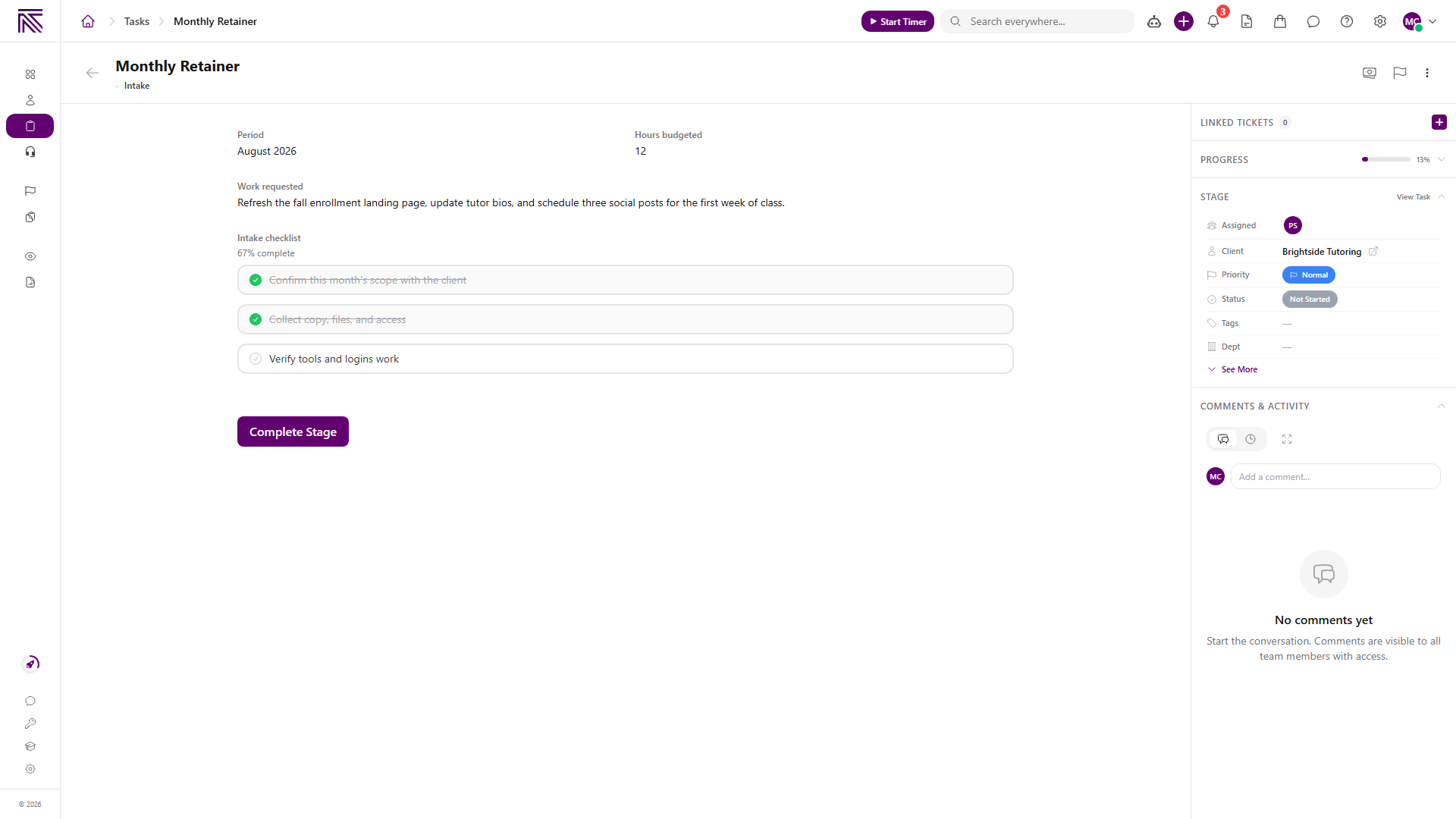
Field changes save automatically after a short pause. See Task fields and layouts for how saved values and layouts relate.
Complete the stage
Section titled “Complete the stage”- Finish every required field and prerequisite shown in the stage.
- Select the configured stage action. It may be labeled Complete Stage or use a name specific to the process, such as Submit Request.
- Wait for the task to refresh before leaving the page.
- Confirm the progress and current-stage indicators changed.
When the stage has Auto-Advance enabled, completing it opens the next configured stage. A process can also use a completion action that routes to a specific stage. The available path depends on the process definition.
Review all stages
Section titled “Review all stages”Open More actions, then Task Dashboard, to review the task-level summary and the full stage list. The dashboard shows which stage is current, which stages are not started, and overall progress.
Expected result
Section titled “Expected result”- Edited field values remain on the task.
- The right panel reflects the latest assignment, status, and other details.
- Completing the stage updates progress and follows the route configured for that action.
- The next stage becomes available when the process configuration allows it.
Troubleshooting
Section titled “Troubleshooting”| Symptom | Likely cause | What to do |
|---|---|---|
| A field change does not save | The value is invalid or the save request failed | Correct the value and retry after the error message |
| Stage cannot complete | A required field or prerequisite is incomplete | Complete the highlighted fields and review the stage requirements |
| Expected completion button is missing | The published stage layout uses another action or does not include one | Ask the process owner to review the stage layout |
| Task did not move to the expected stage | Auto-advance or the action’s target is configured differently | Review the current stage and ask the process owner to confirm the route |
| You cannot update the task | You have View Processes but not Edit Processes | Ask a workspace owner to grant Edit Processes |
Related articles
 Concept Tasks & processes overview Understand how task types, process definitions, stages, fields, layouts, assignments, and tasks fit together.
  How-to Create a task Create a task from the Tasks view by choosing a process type, completing required fields, and assigning its current stage.
  Concept Task fields and layouts Understand where task field values are stored, where fields appear, and how to edit task and stage information.
  How-to Find tasks Use Tasks queues, process views, search, stage and assignee filters, tables, and boards to find work.