
Start a conversation

Use Chat to start an internal conversation with a teammate or a group, then keep that thread where the rest of the team can find it.
Who this is for
Section titled “Who this is for”Agency team members granted View Chat. Starting a direct message and sending a message also require Send Chat Messages. Creating a named channel requires Manage Chat Channels. Owners and Admins have full access.
Before you begin
Section titled “Before you begin”- Open Chat ( /chat (opens in new tab) ).
- Confirm you can see AgencyTitan Chat and the conversation list.
- Have the teammate, department, or client name ready if you are searching.
Start a direct message
Section titled “Start a direct message”- Select the plus control next to AgencyTitan Chat.
- Keep Direct message selected in New Conversation.
- Use Search team members to find the person.
- Select that teammate, then select Create.
- Type in the composer. The placeholder reads Message plus that person’s name.
- Send the message.
The conversation appears under Direct messages. The header badge reads DM.
If the search list is empty, Chat shows No team members found.
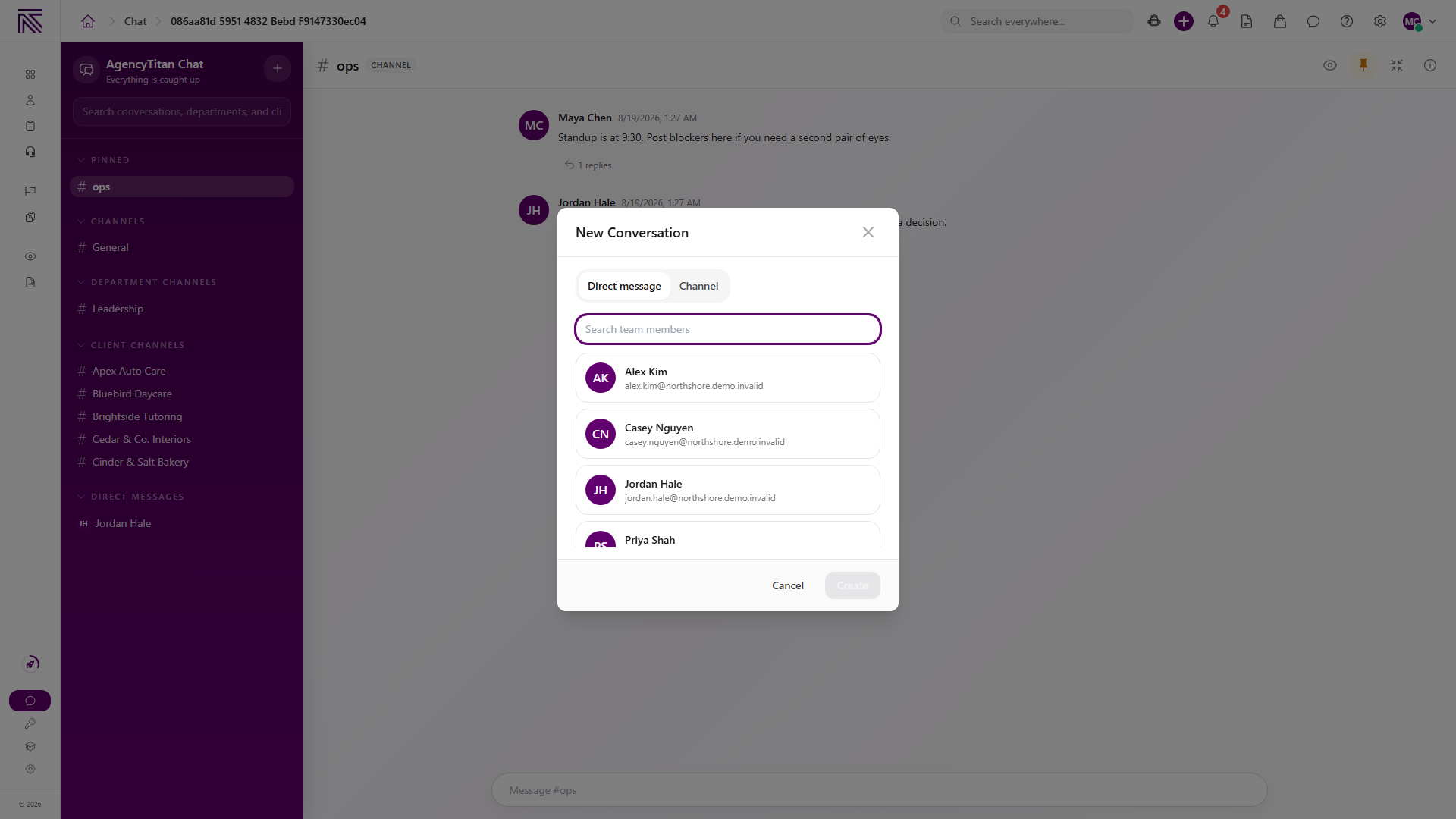
You can also start a DM from the header Chat control with New DM, or by selecting another person in Conversation details.
Create a named channel
Section titled “Create a named channel”- Select the plus control.
- Select Channel in New Conversation.
- Enter a Channel name.
- Choose Visibility: Public or Private.
- Optionally use Add members and Search team members to include people now.
- Select Create.
- Type in the composer. The placeholder reads Message # plus the channel name.
- Send the first message. If the timeline is empty, the page shows Start the channel.
The conversation appears under Channels. The header badge reads Channel.
Creating the channel requires Manage Chat Channels. If Create does not complete, ask an Owner or Admin to grant that permission or create the channel.
Open a department or client conversation
Section titled “Open a department or client conversation”- Use Search conversations, departments, and clients when you know the name.
- Select the row under Department channels or Client channels.
- Send a message if the conversation is empty.
The header badge reads Department or Client. A client conversation is also available from that client’s Channel tab. It stays internal. Portal users do not see it.
Pin, watch, and reply in a thread
Section titled “Pin, watch, and reply in a thread”- Open the conversation.
- Select Pin conversation to add it to Pinned. Select Unpin conversation to remove it.
- On a named channel, select Watch channel to follow it, or Unwatch channel to stop.
- Hover a message and use the reply control to open Thread.
- Type in Reply in thread… and send.
- Select Show details sidebar when you need Members. Select Hide details sidebar to close it.
Minimize to popup keeps the same conversation in a smaller window. It does not create a second conversation.
Expected result
Section titled “Expected result”- The conversation is in the matching sidebar section.
- Your message appears on the timeline.
- A thread reply stays in Thread and shows a reply count on the original message.
- Pinning changes only your Pinned list.
Troubleshooting
Section titled “Troubleshooting”| Symptom | What to check |
|---|---|
| Chat is missing from navigation or the header | You need View Chat. |
| Create does not start a named channel | You need Manage Chat Channels. |
| The composer does not send | You need Send Chat Messages, and you must have a conversation open. Default member levels may not include it. |
| The composer still says Choose a conversation to start messaging | Select a conversation first. |
| A department or client row is listed but empty | Select it, then send the first message. Empty conversations show Start the channel. |
| A client contact cannot find Chat | Expected. Chat is internal. Use the client portal or a ticket for external conversation. |
| A ticket reply does not appear in Chat | Expected. Tickets and Chat are separate. |
Related articles
 Concept Chat overview Understand Chat, conversation types, and how internal messages differ from tickets and the client portal.
  Concept Tickets overview How the Tickets inbox, ticket conversations, assignment, statuses, inboxes, routing rules, and reply templates fit together.
  Concept Clients overview Understand the Clients list, client record anatomy, Client Profile templates, Info Sheets, notes, programs, tasks, and tickets.
  How-to Invite your team Invite agency teammates from Users so they can sign in to the agency app. This is not a client portal invite.