
Notification and personal settings
AgencyTitan separates shared notification settings from your personal notification center and user-menu controls. Shared settings choose the default delivery channels for supported events; the notification center is where you review in-app items.
Who this is for
Section titled “Who this is for”- Signed-in team members can open Notification Center and use the personal controls in the user menu.
- Opening shared notification settings requires View Settings. Changing defaults requires Edit Settings. Adding user exceptions requires Manage Notification Overrides.
Before you begin
Section titled “Before you begin”- Switch to the agency workspace whose notification settings you want to review.
- Decide which notification events should use Email, In-app, or both.
- Identify any users who need an exception to the shared defaults.
Configure shared notification defaults
Section titled “Configure shared notification defaults”- Open Settings, then System, then Notifications ( /settings/system/notifications (opens in new tab) ).
- Use Search notifications… to find an event.
- Turn Email or In-app on or off for that event.
- Use Mute email or Mute in-app on a category when every event in that category should use the same muted channel.
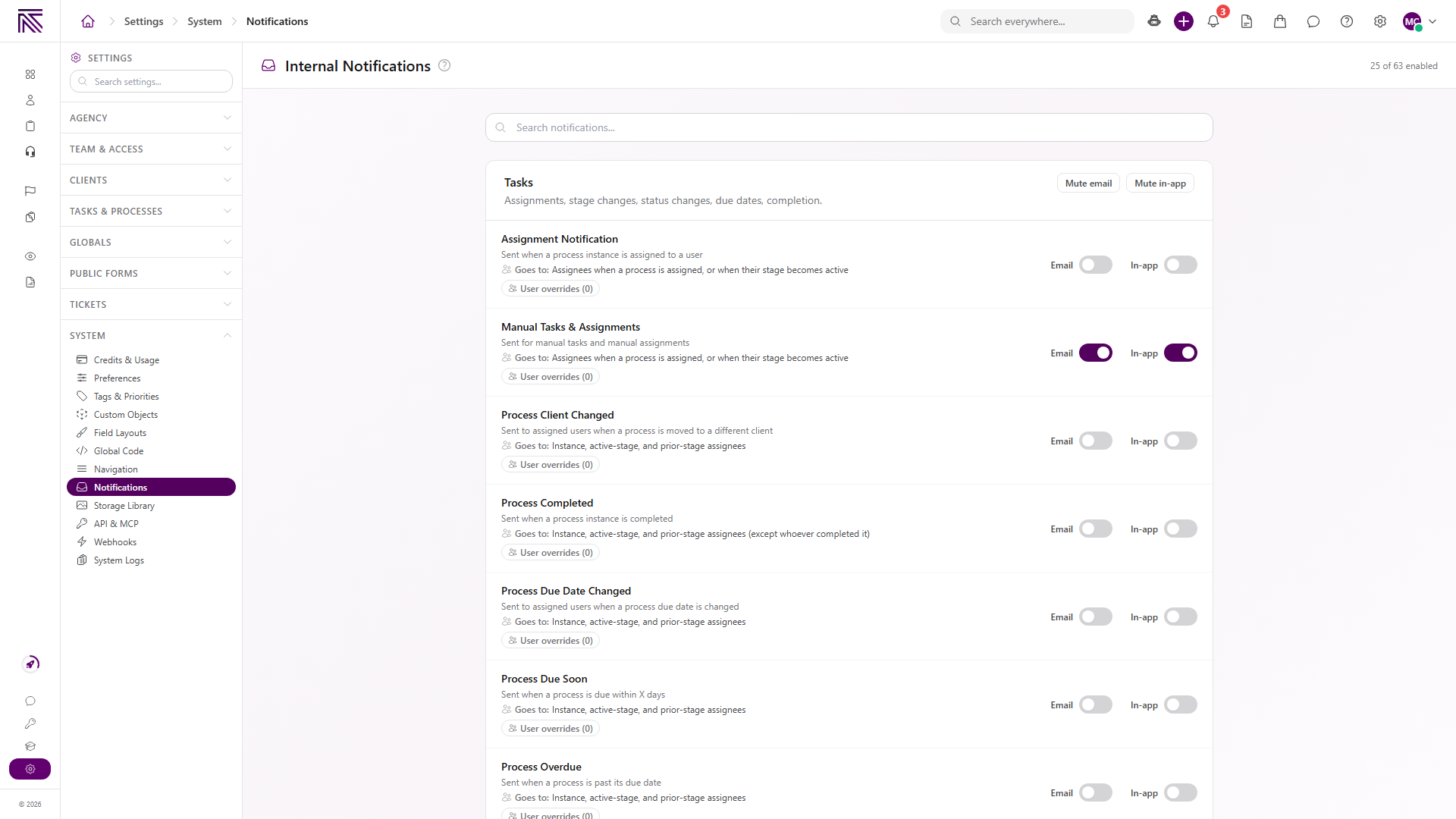
Each event explains when it is sent and who receives it. The enabled count in the page header summarizes the current configuration.
Add a user override
Section titled “Add a user override”Select User overrides on a notification event to replace the agency-wide default for specific users.
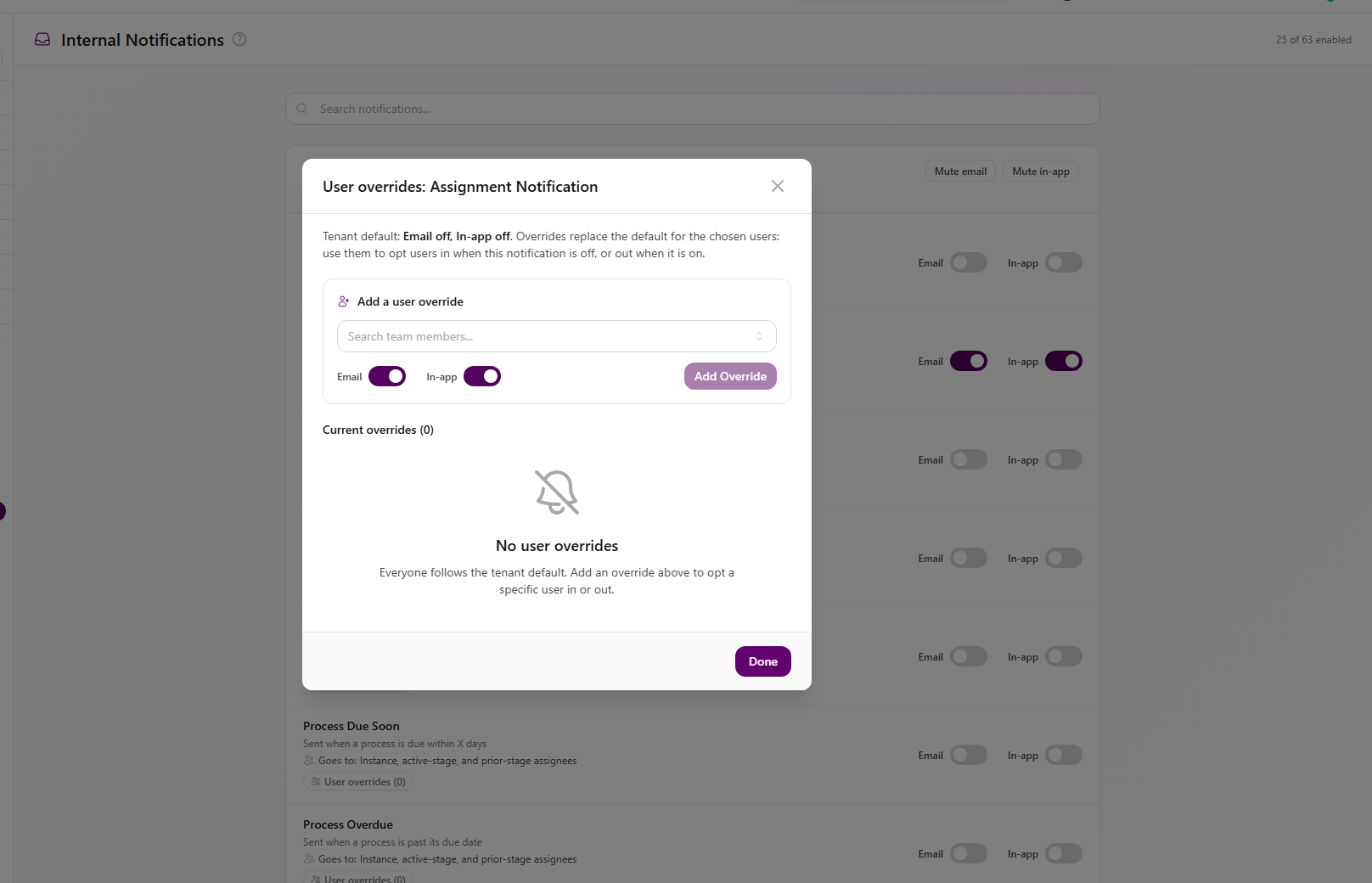
- Search for a team member.
- Choose that user’s Email and In-app settings.
- Select Add Override.
- Review Current overrides, then select Done.
An override can opt a user in when an agency-wide channel is off or opt the user out when it is on.
Use the notification center
Section titled “Use the notification center”Select the bell in the top bar to open Notification Center ( /notifications (opens in new tab) ).
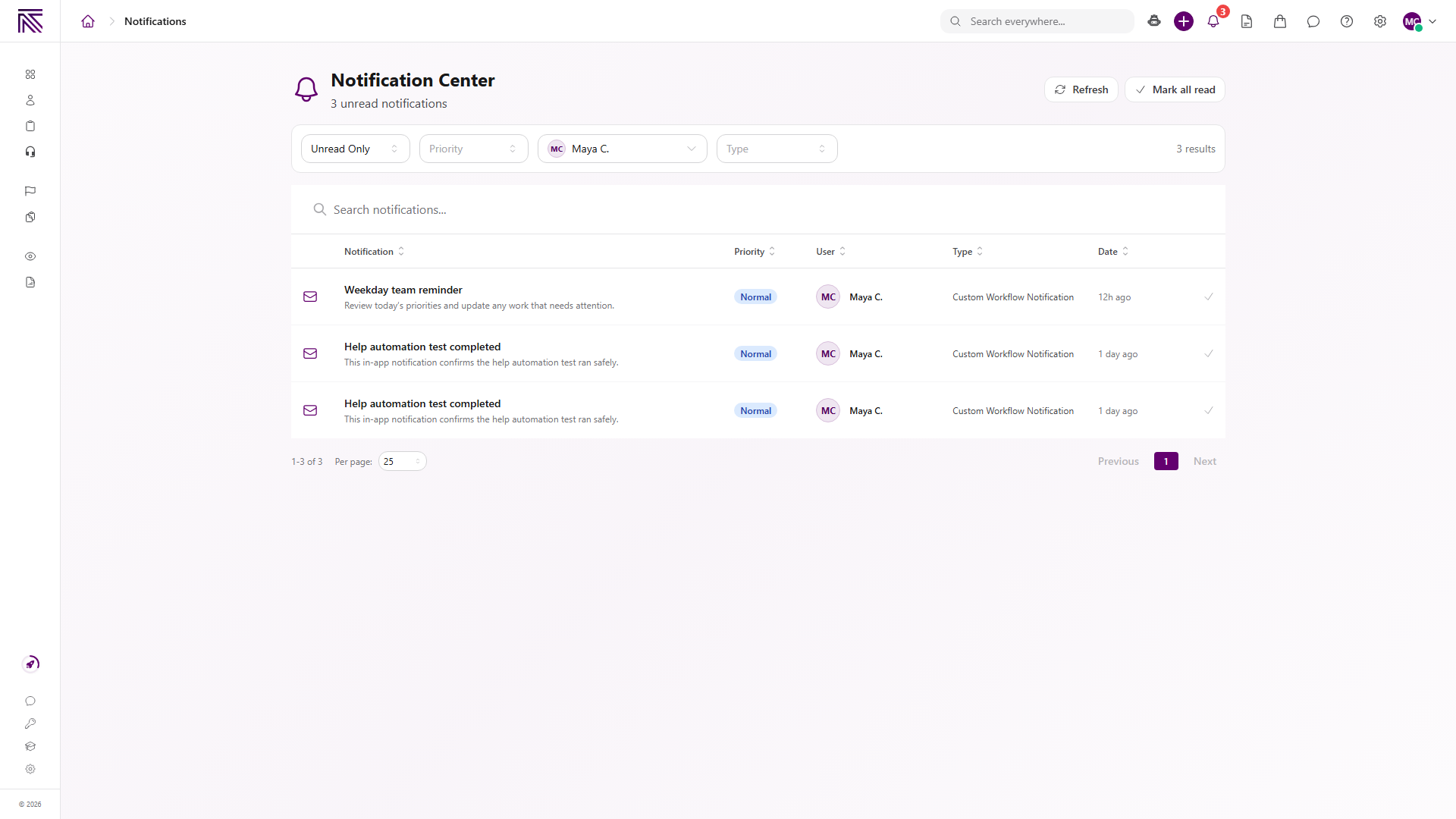
Use the available controls to:
- Switch between unread items and a broader notification view.
- Filter by priority, user, or type.
- Select Refresh to reload the list.
- Select Mark all read when unread notifications are present.
The empty state explains when the current filter has no matching notifications.
Use personal agency and status controls
Section titled “Use personal agency and status controls”Open your avatar menu in the top-right corner. The menu shows your current role, availability status, and active agency. The personal controls covered here live in this menu rather than on a separate Settings page.
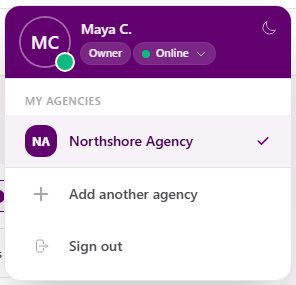
- Select an agency under My Agencies to switch the active workspace.
- Select Add another agency when you need to join or create another agency through the available flow.
- Select Sign out to end the current session.
- Select the current availability status to open the status choices.
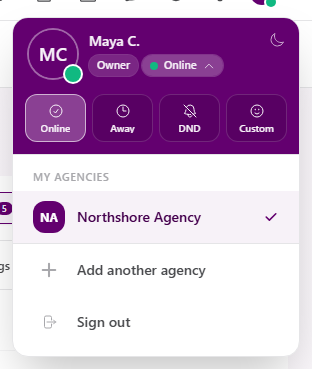
Choose Online, Away, DND, or Custom to update the status shown for your account.
Expected result
Section titled “Expected result”- Shared notification events show the intended email and in-app defaults.
- User-specific exceptions appear under Current overrides for the corresponding event.
- The notification center reflects the selected filters and read state.
- The user menu shows the intended agency and availability status.
Troubleshooting
Section titled “Troubleshooting”| Symptom | Likely cause | What to do |
|---|---|---|
| Notifications is missing from System settings | You lack View Settings | Ask a workspace owner to grant View Settings |
| Email or In-app switches cannot be changed | You lack Edit Settings | Ask a workspace owner to grant Edit Settings |
| User overrides is missing | You lack Manage Notification Overrides | Ask a workspace owner to grant Manage Notification Overrides |
| A user receives a different channel than the default | That event has a user override | Open User overrides for the event and review Current overrides |
| Notification center is empty | The current filters have no matches | Show more than unread items and clear priority, user, or type filters |
| Mark all read is unavailable | No unread item matches the current view | Change the filters or leave the list unchanged |
| The wrong agency’s notifications are shown | Another agency is active | Open the user menu and select the intended agency |
Related articles
 Concept Settings overview Find AgencyTitan settings and understand how agency, ticket, process, notification, and personal controls fit together.
  How-to Agency settings Update agency identity and branding, and understand how users, roles, departments, and department-level permissions work together.
  Concept Process settings Find process definitions and understand stages, statuses, fields, task naming, pinning, and sidebar configuration at a high level.
  Concept Tickets overview How the Tickets inbox, ticket conversations, assignment, statuses, inboxes, routing rules, and reply templates fit together.