
Task fields and layouts

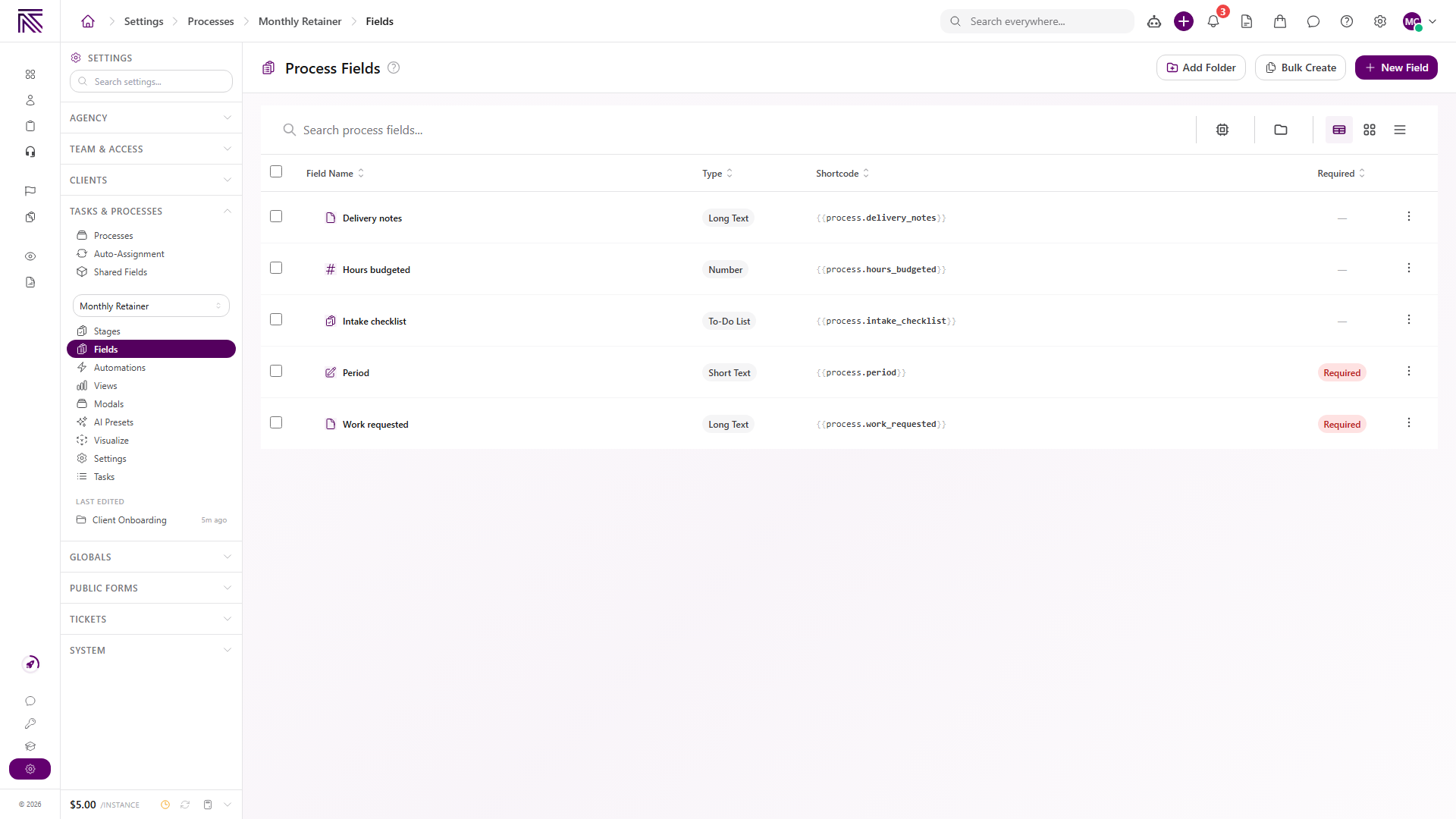
A process definition controls which fields are available and which fields each stage layout displays. Each task stores its own values for those fields.
Definitions, layouts, and values
Section titled “Definitions, layouts, and values”| Part | Where it is managed | What it means while working a task |
|---|---|---|
| Process field | The process definition’s Fields page | Defines a reusable field such as Request Title, Request Details, or an uploaded file. |
| Stage layout | The selected stage’s layout builder | Places fields and other elements in the stage workspace. |
| Task field value | The task itself | Stores the information entered for that specific task. |
| Task and stage details | The right panel | Shows assignment, client, priority, status, tags, department, dates, and progress. |
The same process field can appear in more than one stage layout. Its saved value belongs to the task, so another layout that uses that field shows the task’s current value.
Edit field values on a task
Section titled “Edit field values on a task”- Open the task and the stage that contains the field.
- Select the field and enter or change its value.
- Move out of the field or pause briefly to allow auto-save to finish.
- Watch for an error message. If none appears, the saved value remains with the task.
Required fields have a red asterisk. A required value can block stage completion even though other field edits have already saved.
Edit details in the right panel
Section titled “Edit details in the right panel”The right panel separates the working layout from common task and stage information.
- Select Assigned, Client, Priority, Status, Tags, or Dept to edit a value when you have access.
- Select See More to review additional dates and record details.
- Use the task or stage information control in the panel when you need to switch which level you are reviewing.
The labels and available controls can vary with the published layout and your permission.
How layouts affect what you see
Section titled “How layouts affect what you see”A stage layout can place process fields, buttons, text, checklists, and other elements in the main workspace. Stage settings can also render the standard header, sidebar, and substage list automatically.
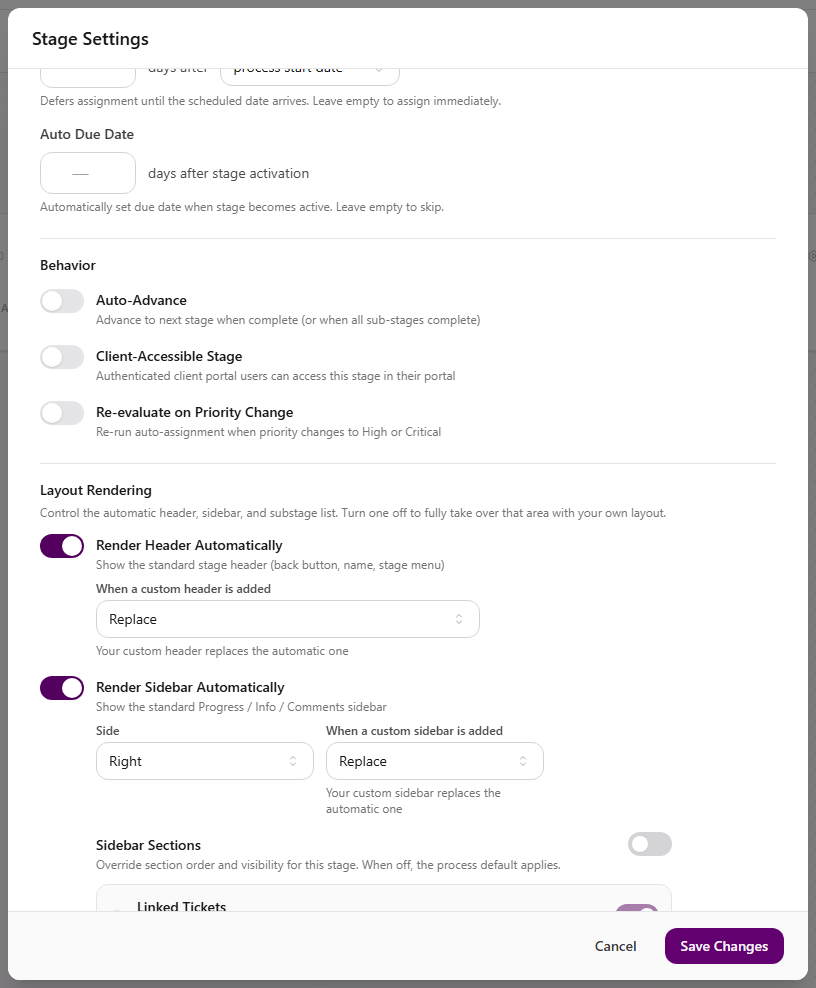
If a field exists in the process definition but is missing from a task stage, the published layout may not include it. Ask someone with process settings access to review that stage’s layout.
Troubleshooting
Section titled “Troubleshooting”| Symptom | Likely cause | What to do |
|---|---|---|
| Field is missing from the stage | The published layout does not include it | Ask the process owner to review the stage layout |
| Field is read-only | The layout, field type, or your access prevents editing | Confirm you have edit access and are on an editable task stage |
| Required field blocks completion | Its value is empty or invalid | Complete the field marked with a red asterisk and retry |
| Edited value reverts | Auto-save failed | Re-enter the value and review the save error |
| Expected right-panel section is missing | The process or stage sidebar layout hides it | Ask the process owner to review sidebar visibility |
Related articles
 Concept Tasks & processes overview Understand how task types, process definitions, stages, fields, layouts, assignments, and tasks fit together.
  How-to Create a task Create a task from the Tasks view by choosing a process type, completing required fields, and assigning its current stage.
  How-to Work a task Work the current stage, update task details, complete required fields, and move a task through its configured stages.
  How-to Find tasks Use Tasks queues, process views, search, stage and assignee filters, tables, and boards to find work.